
 Need help?
Do you have a question about the Amped Wireless R10000 and is the answer not in the manual?
Lists all items included in the router package for user verification.
Explains the function of each LED light on the router for status monitoring.
Details the ports and buttons located on the back of the High Power Router.
Steps to disconnect existing equipment and power off the modem before setup.
Instructions for physically connecting the High Power Router to the broadband modem.
Guides on powering on the modem and then the router for initial setup.
Steps to connect a computer to the router for configuration.
How to open the web browser and access the router's setup wizard.
Setting up the router's connection to the internet, automatic or manual.
Synchronizing the router's internal clock with the computer's time.
Setting the wireless network name (SSID) and security key.
Review of the completed setup configuration and next steps.
Adjusting fundamental wireless parameters like SSID, band, and data rate.
Configuring separate wireless networks for guests with specific settings.
Managing wireless security types like WEP, WPA, and WPA2.
Configuring advanced wireless parameters for performance tuning.
Enabling and configuring Wi-Fi Protected Setup for easy device connection.
Configuring IP address, subnet mask, and DHCP for the local network.
Setting up the router's connection to the internet service provider.
Configuring advanced network features like UPnP and VPN pass-through.
Adjusting the router's output power to control wireless signal range.
Defining schedules to enable or disable wireless access.
Implementing URL filtering to block access to specific websites.
Managing network access by filtering based on MAC addresses.
Managing network access by filtering based on IP addresses.
Restricting network access based on specific port numbers and protocols.
Redirecting incoming network requests to specific internal devices.
Providing unrestricted external access to a single device on the network.
Segmenting the network into logical groups regardless of physical location.
Protecting the network from attacks that make services unavailable.
Provides a snapshot of the router's current operational status and settings.
Displays detailed data activity for all network connections.
Linking a domain name to a dynamic IP address for remote access.
Maintaining accurate timekeeping for logs and schedules.
Viewing the router's activity history for troubleshooting.
Updating the router's firmware for improvements and new features.
Backing up and restoring router configurations to a file.
Setting a login and password to protect access to the web interface.
Steps to resolve problems accessing the router's web interface.
Guidance for resolving problems with the internet connection setup.
Steps to fix connectivity problems within the local network.
Solutions for problems with wireless signal strength and connectivity.
FCC and Industry Canada compliance statements and notices.
 General
| Ethernet LAN | Yes |
|---|---|
| Networking standards | IEEE 802.11b, IEEE 802.11g, IEEE 802.11n |
| Ethernet LAN data rates | 10, 100 Mbit/s |
| Ethernet LAN interface type | Fast Ethernet |
| Wi-Fi standards | 802.11b, 802.11g, Wi-Fi 4 (802.11n) |
| Top Wi-Fi standard | Wi-Fi 4 (802.11n) |
| WLAN data transfer rate (max) | 300 Mbit/s |
| Bandwidth | 2.4 GHz |
| Input current | 1 A |
| Rack mounting | No |
| Ethernet LAN (RJ-45) ports | 4 |
| DHCP client | - |
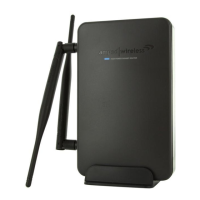
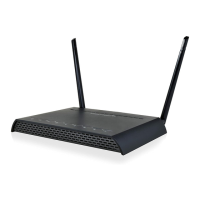
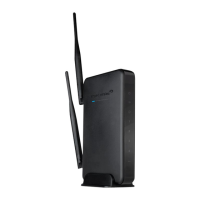
| Antennas quantity | 2 |
| Antenna connector type | RP-SMA |
| Antenna gain level (max) | 5 dBi |
| Security algorithms | WEP, WPA, WPA2, WPS |
| AC input voltage | 100 - 240 V |
| AC input frequency | 50 - 60 Hz |
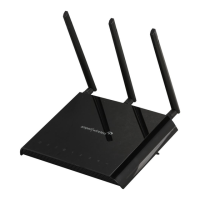
| Product color | Black |
| Cables included | LAN (RJ-45) |
 Weight and Dimensions
| Weight | - g |
|---|

 To Next Page

