7
CONECTING THE OPTICAM
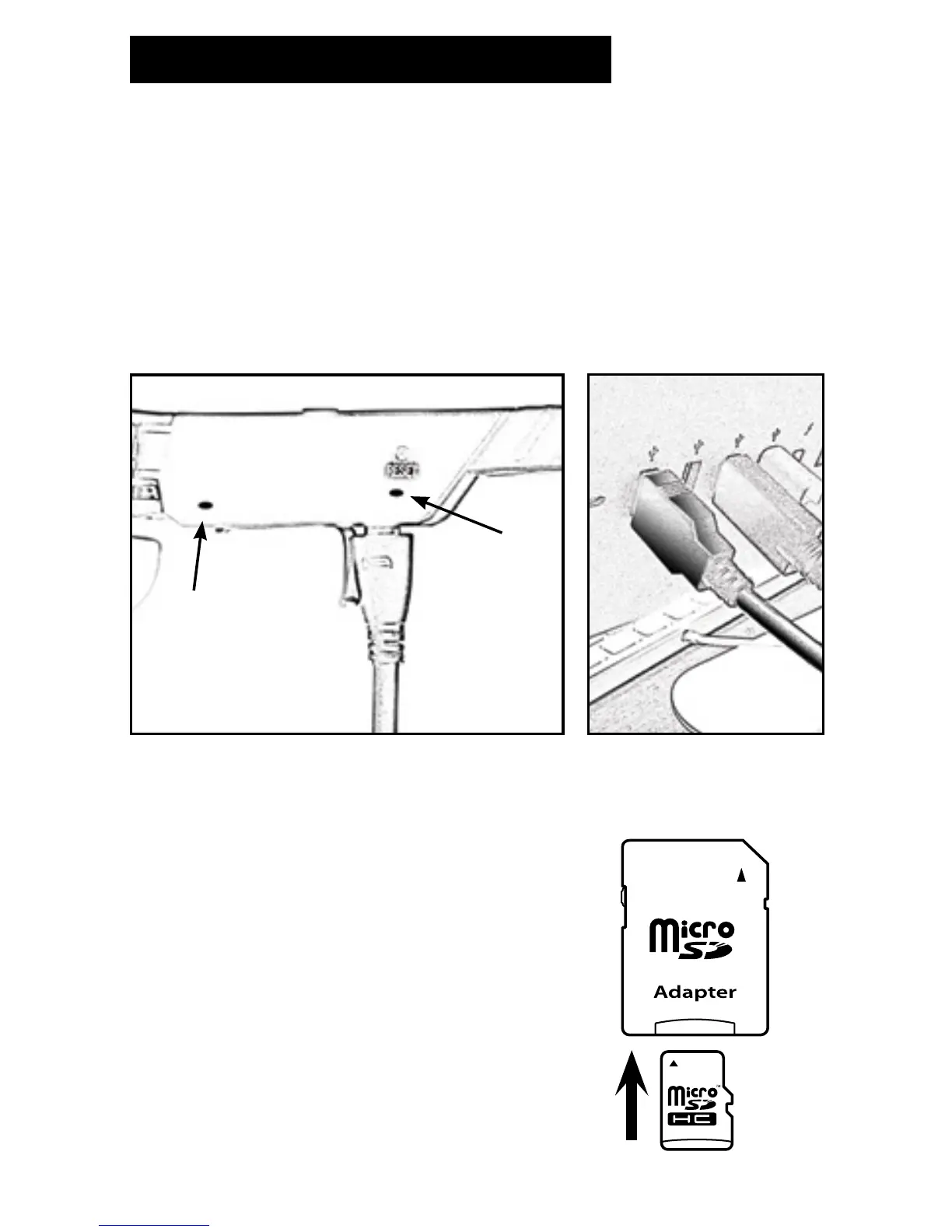
There are 2 ways to connect your Opticam:
A) USB Cable
Make sure the Opticam is turned OFF, and then plug the USB cable
(A) into the Opticam (B) and into a computer USB port (C). The Power/
Recording light (D) will blink a BLUE light showing that your Opticam is
connected to a computer.
Now your Opticam will appear on your computer as a mounted disk
where you can access, play, move, copy and delete your videos.
G
D
B
A
F
B) Micro-SD to SD Adapter
Extract the Micro-SD card from the Opticam
and insert on the Micro-SD to SD adapter (A)
with the printed faces matching.
Insert the adapter into the SD port on your
computer. Now your Opticam will appear
on your computer as a mounted disk where
you can access, play, move, copy and delete
your videos.
NOTE: Some computers may not offer the
SD card port.
USB Cable - Opticam Computer USB Port


 To Next Page