Step 9b: Video: Zoom & Rotate Function
It is possible to Zoom and Rotate the video camera view on the Nursery
Unit, using the ZOOM and ROTATE Function on the Parent Unit.
1. Press the ZOOM Icon on the Parent Unit touch screen
2. The video camera will now enter the ZOOM mode and display the
video capture 100% enlarged
3. Use the ARROWS UP/DOWN/LEFT/RIGHT to rotate the video camera to
the required position
4. The video capture remains in this position until the ZOOM Icon is
pressed again, after which the video capture returns to normal
Function:
How to change
this setting:
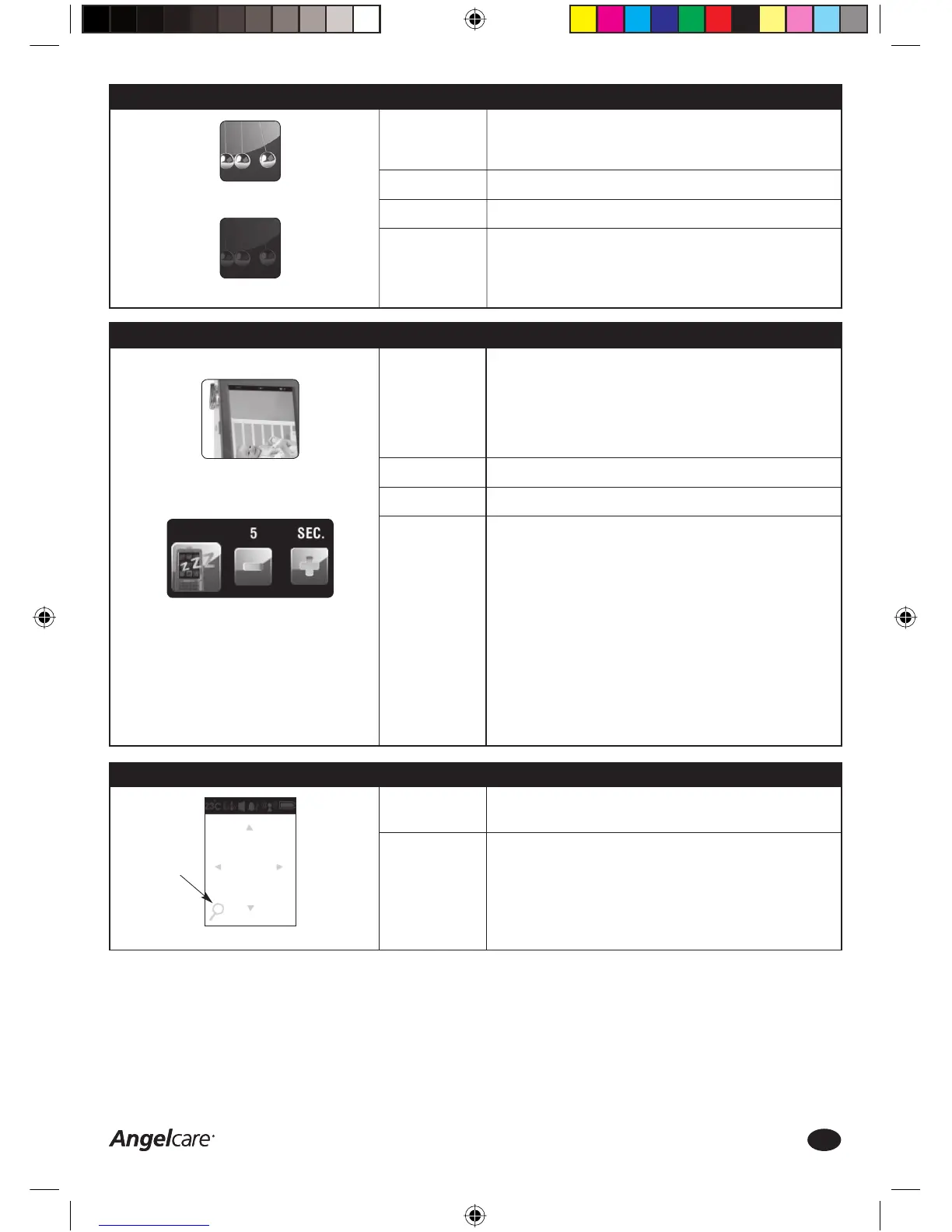
Step 8c: Movement Function - Tic Function
Tic ON
Tic OFF
The ‘Tic’ function provides a regular ‘ticking’ sound that indicates that
the SensorPad is detecting movements. The ‘Tic’ function can only be
selected if the Movement Function is activated.
OFF
ON or OFF
Tic Function
1. Press the MENU Icon on the Parent Unit touch screen
2. Press the Tic Function Icon ON or OFF
3. Press OK to save changes and return to the video capture screen
Step 9a: Video: Power Saving Function
To minimise energy consumption the video screen can be turned OFF
(and back ON) by briefl y pushing the ON/OFF button on the left hand side
of the Parent Unit.
It is also possible to activate the POWER SAVING mode, which turns
OFF the video screen automatically after 5, 10, 15 or 20 seconds
(programmable).
OFF
ON or OFF
Power Saving Function
1. Press the MENU button on the Parent Unit touch screen
2. Press the SETTINGS button in the MENU screen
3. Press ‘+’ and ‘-’ Icons next to the Power Saving Icon until the
preferred Power Saving setting is selected (OFF, 5, 10, 15 or 20
seconds)
4. Press OK twice to save changes and return to the video capture screen
IMPORTANT
Always leave the Parent Unit in the Charging Cradle (mains power)
if the video screen is turned ON continuously, to ensure the Parent
Unit with video capture screen stays ON at all times.
If the Parent Unit is running on batteries only, it is possible that the
Parent Unit will turn itself OFF due to shortage of power after a relatively
short time.
Press ON button briefl y to turn
OFF video screen
TURN VIDEO ON/OFF:
Press ‘+’ and ‘-’ until the preferred
Power Saving setting is selected
POWER SAVING ICON:
Function:
Factory Settings:
Options:
How to change
this setting:
Function:
Factory Settings:
Options:
How to change
this setting:
Zoom icon
Consumer Helpline: 0845 009 1789 | www.angelcare-uk.co.uk
8
AC1100_Manual.indd 8AC1100_Manual.indd 8 19/5/11 2:39:13 pm19/5/11 2:39:13 pm



 To Next Page