Supports:
Windows 7, Windows 8, Windows 10 and later, Android 5.0 or later, and Chrome OS
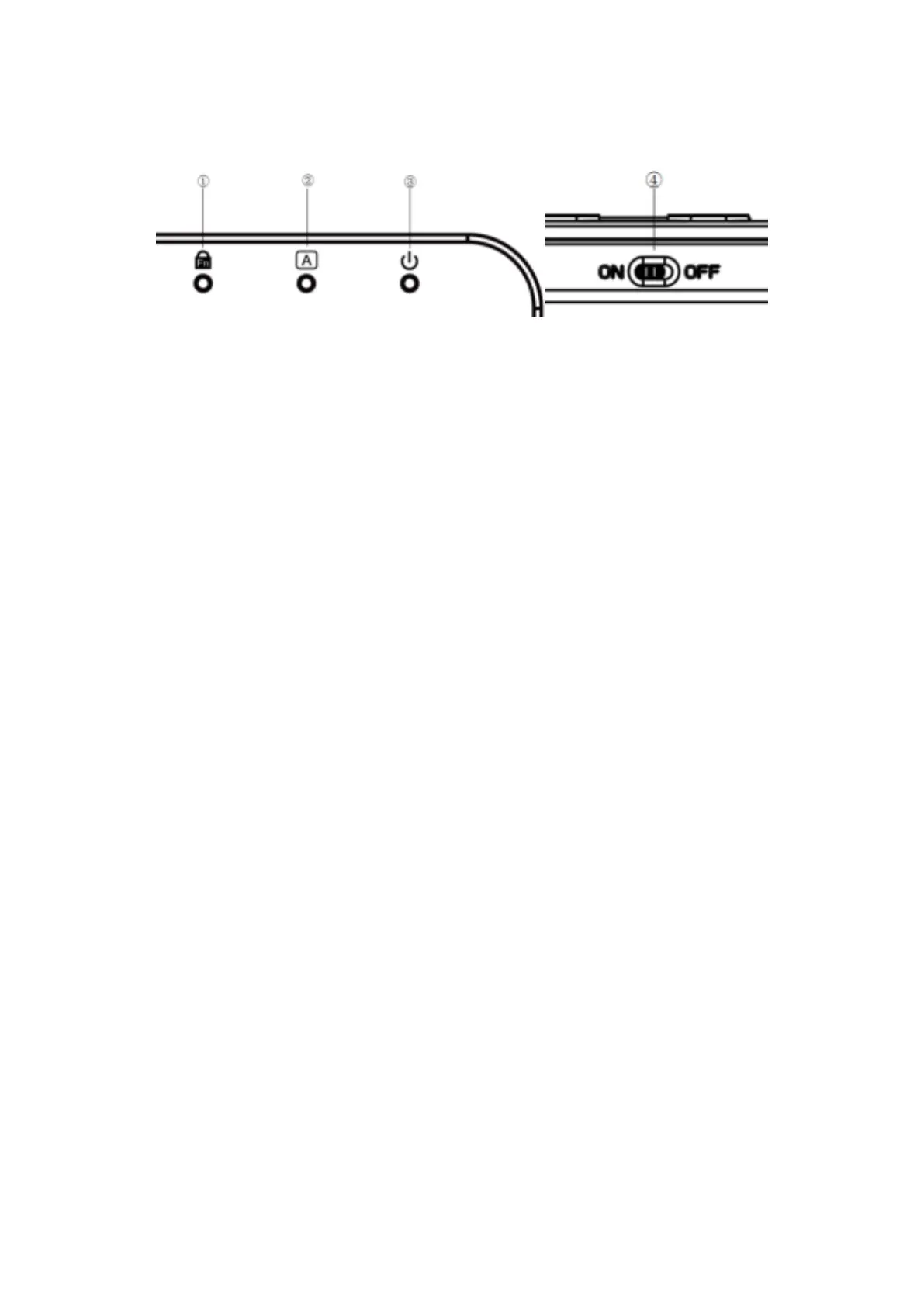
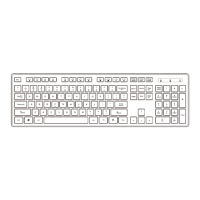
Indicator Light Description
① Fn lock indicator (Blue)
② Caps lock indicator (Green)
③ Power indicator (Green)/Low battery indicator (Green)
Note: This indicator light will be on around 5 seconds, then go off, and will light up once the
battery is low power.
④ Power Switch (ON/OFF)
Operation Instructions
Connection Steps
1. Assemble with 2pcs AAA batteries.
Caution! Danger of explosion if the batteries are incorrectly replaced.
2. Slide power switch to “ON” side, power indicator turns on for 5 seconds, then turns off.
3. Plug 2.4G receiver into PC USB port, connected successfully.
4. Replace the battery compartment cover again.
If fail to use, please press Fn + Esc, keyboard re-enters pairing mode, then plug receiver into PC
USB port.
Notes on Batteries
> It is recommended to only use Alkaline or Rechargeable batteries.
> If the device is not to be used for an extended period of time, then the batteries should be
removed.
> Batteries do not belong in household waste! Expired batteries must be disposed of in an
environmentally friendly way and according to the applicable legal regulations.
> Please keep the batteries and the device components away from children at all times. If a
battery is swallowed, seek medical attention immediately.
> Batteries must not be recharged or activated with other means, dismantled, thrown into
fire or short-circuited.
> Remove the batteries prior to disposing of the device.
Language switching guide
1. Samsung Android: Shift + Space
2. Google Android: Ctrl + Space
3. Microsoft Windows: Win + Space


 To Next Page