Rev 9/20/18 pg. 67
Status Screen
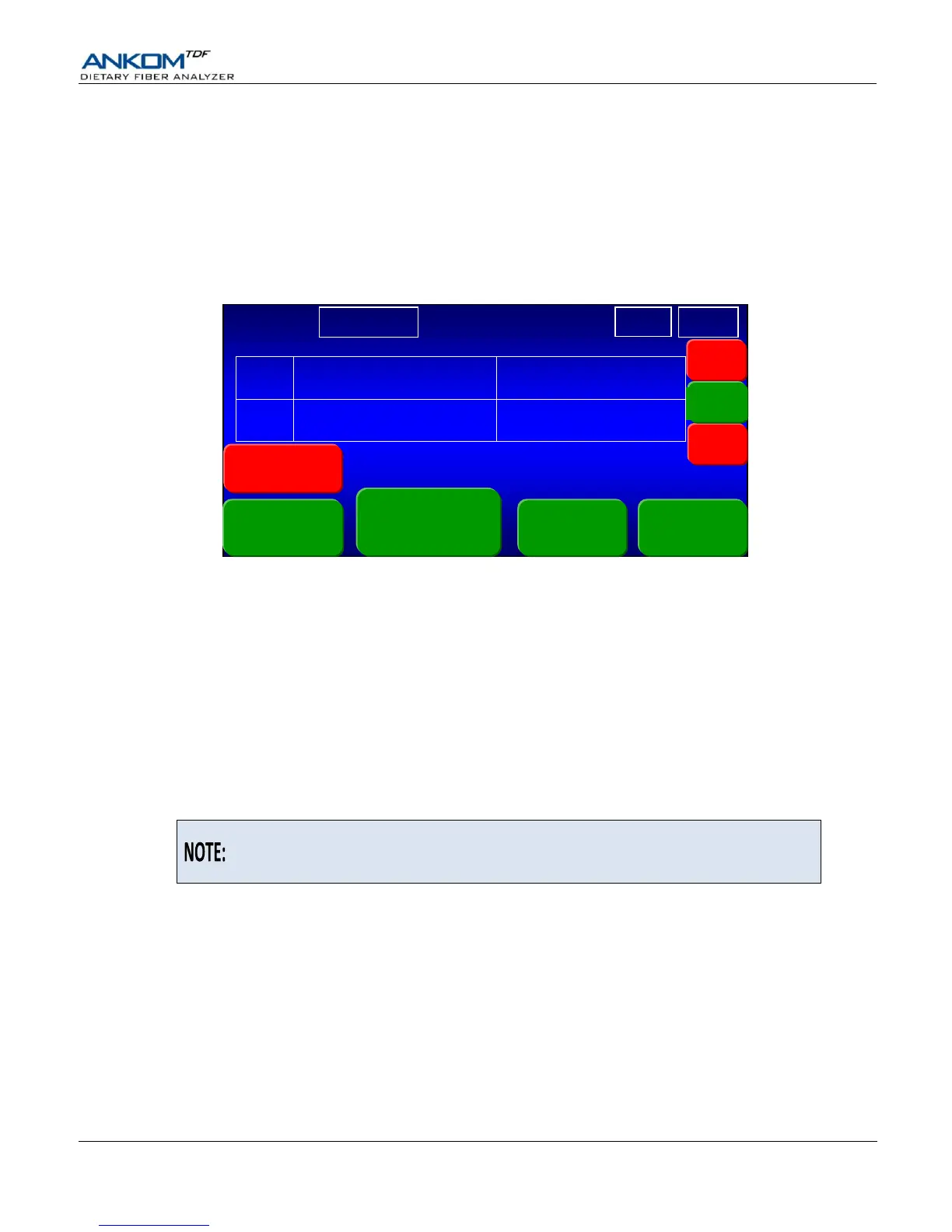
The screen below shows the primary sections of the instrument Status screen when running an assay. This screen is NOT
displayed when running Diagnostics.
The Status screen includes sections that present information that cannot be changed by the user, along with buttons that allow
the user to modify the current operations or get additional information.
For explanation purposes, we have placed a number in each section of the screen and white borders around boxes 1, 2, and 3.
Your computer screen will NOT show these numbers nor will it show the borders around boxes 1, 2, and 3.
1. pH check
Box #1 contains information about the manual pH check. One of the questions you are asked before starting the automated
procedure is: “Check pH manually?” If you answered “Yes” to this question, the word “YES” is displayed in box #1 until
the pH has been checked, at which time the word “COMPLETE” is displayed. Otherwise, the word “NO” is displayed in
this box.
2. Vacuum sensor pressure
The value shown in box #2 is the current pressure (in psi units) read by the vacuum sensor. If an error occurs during
operation, and the user overrides the error to continue the operation, this box will not display a value.
3. Function and Procedure
Box #3 displays the method name along with the most recent procedure that you have started (either “IDF/SDF” or
“TDF”). For example, “AOAC 991.43 IDF/SDF” is displayed when the most recent procedure started is an IDF/SDF.
4. Top process – Name
Box #4 always displays “IDF” to represent an IDF process within an IDF/SDF procedure or the digestion process within a
TDF procedure.
5. Top process – Progress
Box #5 displays the actual time remaining for the top process.
6. Top process – Action
Box #6 displays different detailed actions as they occur during the process that is currently running in the top section of
the instrument.


 To Next Page