8 9
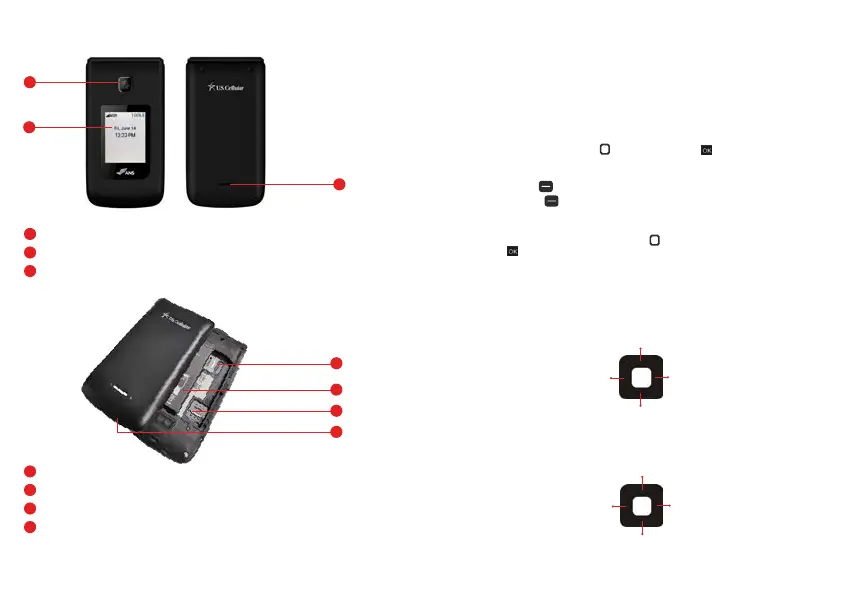
Front/Back View
Note:
• It’s important to fully charge the battery before using the phone for the first time.
• Battery life and signal strength are significant factors (among others) that affect your phone’s ability to
send/receive calls or data transfer.
Navigating your Phone
You can navigate within your phone’s software by pressing the key that corresponds with the action you
want to take or using the Navigation key to scroll and the OK key to select a highlighted item.
For example:
• Press the Left soft key
to select the item displayed at the bottom left of the screen.
• Press the Right soft key
to select the item displayed at the bottom right of the screen.
• Press the keypad key that corresponds to the item you want in a displayed list.
• Press the top, bottom or sides of the Navigation key
to move the cursor, then press the center of the
Navigation key (the OK key) to select the item displayed at the bottom center of the screen.
Navigating Keys
Navigate thr
ough your phone’s software using your phone’s 4-way directional Navigation key to scroll
and select items. Its outer bottom can be pressed up, down, left or right to move within the current screen
to browse through menus and lists, then its center can be pressed to select the highlighted item.
From the Home screen, pressing the Navigation key up, down, left or right launches corresponding
application. Shortcut menu presents a secondary list of shortcuts that you can customize to include your
favorite features. You can customize all of these shortcuts. For more information, see Key shortcuts on
page 68.
Down
Up
Exterior
Screen
17
18
19
Camera
Speaker
17
Exterior Screen - Displays messages and n
otifications.
18
Camera - Camera Lens
19
Speaker - Allows you to hear sounds emitted from your phone as well as media content (e.g.,
music
and ringtones).
20
Micro SD Card S
lot - Allows you to insert an optional microSD card for external memory storage.
21
Battery- Removable 1400 mAh battery
22
SIM Card Slot - Nano SIM card slot
23
Back Cover - Protects the internal components of your phone.
20
21
22
23
Micro SD
Card Slot
Battery
SIM Card Slot
Back Cover
Left Right
Gallery
Notifications
Webpage searching
Quick settings


 To Next Page