Antelope Audio ZEO User Manual
Page 8
USING ZEO ON DIFFERENT SYSTEMS
Windows PC
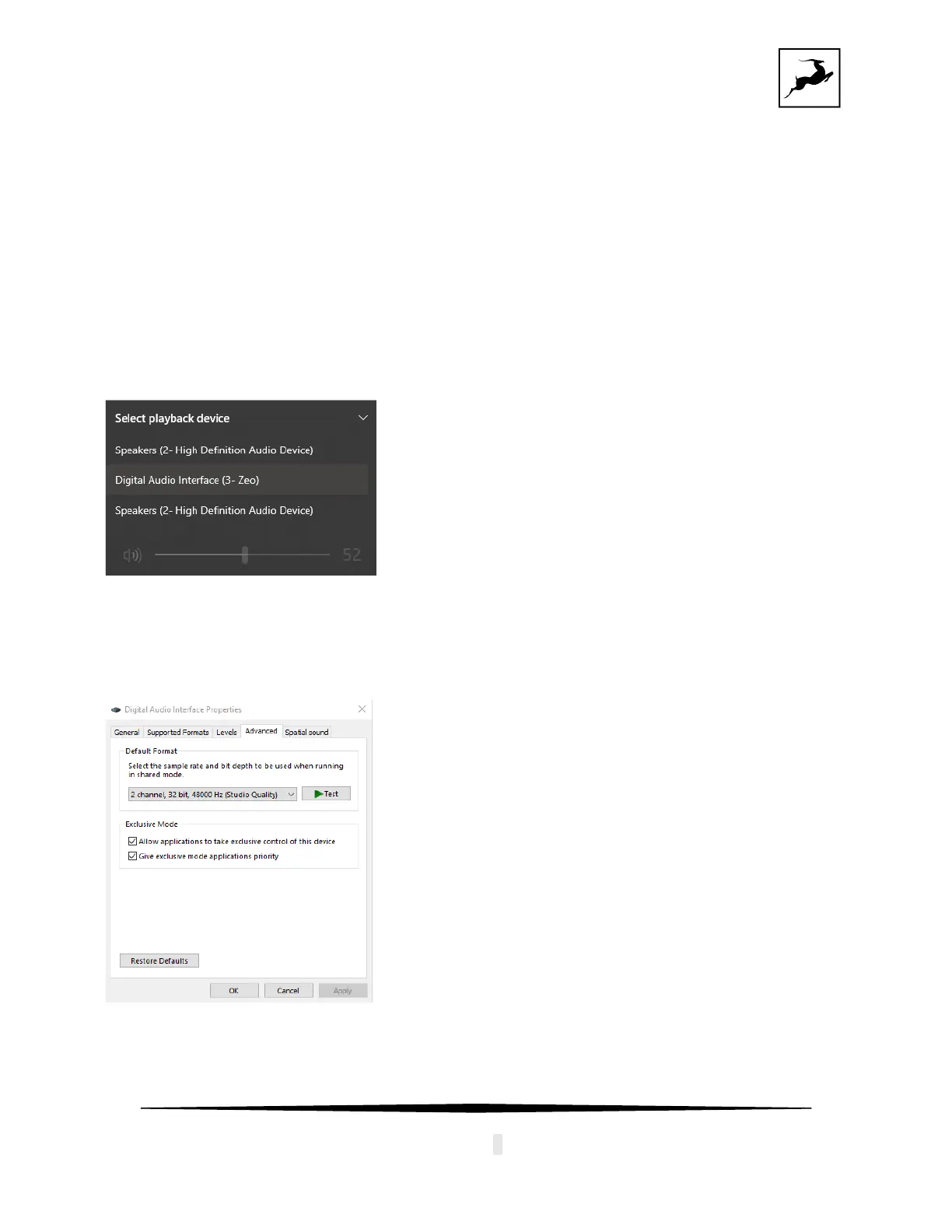
ZEO is natively compatible with Windows, and it does not require additional drivers to be
installed. Once the device is plugged, the computer will recognize it and it will show up in
“Sounds” tab:
Volume can be adjusted from the Windows volume slider.
In order to change the Sample Rate Enter the ‘Sounds’ options window from the Control Panel
or right-click the speaker icon in the system tray and choose ‘Open Sound settings’ and
navigate to “Advanced”:
If you are using ZEO with a DAW, it will automatically follow the Sample rate of the DAW
without the need to change it from “Windows Sound Settings”.
The device will appear as MME/DirectX driver in your DAW.
NOTE: To avoid hearing damage, turn down the volume of your system to its
minimum level before you put the headphones on!


 To Next Page