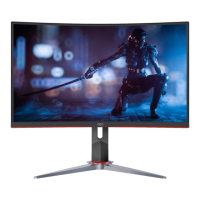
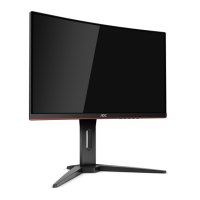
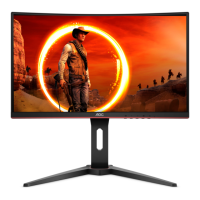
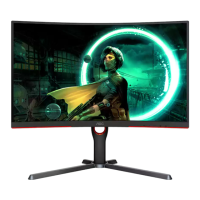
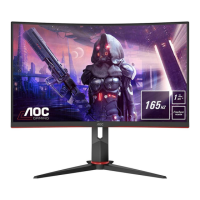
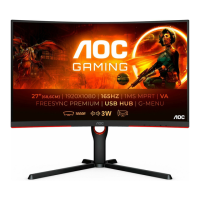
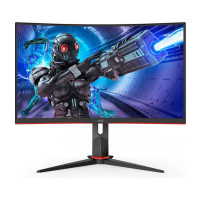
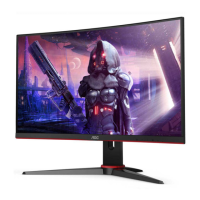
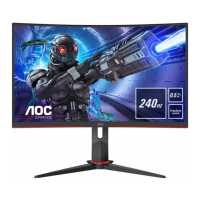
This document serves as the user manual for the AOC C24G2AE LCD Monitor, providing comprehensive instructions for its safe operation, setup, adjustment, and troubleshooting.
Function Description
The AOC C24G2AE is an LCD monitor designed to display visual information from a connected computer or other video sources. It functions as a primary visual output device, allowing users to interact with their computer systems, play games, watch movies, and perform various tasks that require a visual interface. The monitor supports multiple input signal types, including HDMI, DisplayPort (DP), and D-SUB (VGA), ensuring compatibility with a wide range of devices. It is equipped with Adaptive-Sync functionality, which helps to eliminate screen tearing and stuttering during gaming by synchronizing the monitor's refresh rate with the graphics card's frame rate. The monitor also features an On-Screen Display (OSD) menu for detailed adjustments of image quality, color settings, and other operational parameters.
Usage Features
The monitor offers a variety of features to enhance the user experience:
- Adjustable Viewing Angle: The monitor stand allows for tilt adjustments from -5° to 23°, enabling users to find an optimal viewing angle for comfort and clarity. This flexibility helps reduce strain during extended use.
- Multiple Connectivity Options: With two HDMI ports, one DisplayPort, and one D-SUB port, the C24G2AE can connect to several devices simultaneously, making it versatile for different setups. It also includes Line In and Earphone Out ports for audio connectivity.
- On-Screen Display (OSD) Menu: The OSD menu provides extensive control over the monitor's settings. Users can navigate through categories such as Luminance, Image Setup, Color Setup, Picture Boost, OSD Setup, Game Setting, and Extra to fine-tune their display.
- Luminance Settings: This section allows adjustment of Contrast and Brightness, as well as selection of various "Eco modes" (Standard, Text, Internet, Game, Movie, Sports, Reading) that optimize display settings for different content types. It also includes Gamma adjustments and DCR (Dynamic Contrast Ratio) control, which can be enabled or disabled. HDR Mode settings (HDR Picture, HDR Movie, HDR Game) are also available, though they disable other luminance adjustments when active.
- Image Setup: Users can adjust Clock, Phase, Sharpness, H. Position (horizontal position), and V. Position (vertical position) to optimize image clarity and alignment, especially useful for analog signals to reduce noise and ensure proper scaling.
- Color Setup: This menu offers various "Color Temp." presets (Warm, Normal, Cool, sRGB, User) to achieve desired color tones. The "DCB Mode" (Dynamic Color Boost) provides options like Full Enhance, Nature Skin, Green Field, Sky-blue, AutoDetect, and Off to dynamically improve color saturation and vibrancy. A "DCB Demo" mode is available to showcase the effect. Users can also manually adjust Red, Green, and Blue gain. Note that these settings are not adjustable when HDR Mode is active.
- Picture Boost: This unique feature allows users to define a specific "Bright Frame" area on the screen and adjust its brightness, contrast, and position independently. This can be useful for highlighting specific content or enhancing details in a particular region of the display.
- OSD Setup: This section controls the OSD menu itself, allowing users to select the display Language, set the Timeout for the OSD to disappear, configure DP Capability (1.1 or 1.2, important for Adaptive-Sync), and adjust the H. Position, V. Position, Volume, and Transparence of the OSD. A "Break Reminder" can be set to prompt users to take breaks after continuous work.
- Game Setting: Tailored for gamers, this menu offers "Game Mode" presets (FPS, RTS, Racing, Gamer 1, Gamer 2, Gamer 3, Off) that optimize display settings for specific game genres. "Shadow Control" allows users to adjust dark area details without overexposing bright areas. "Overdrive" settings (Weak, Medium, Strong, Boost, Off) improve response time. "Game Color" adjusts color saturation. "LowBlue Mode" (Reading / Office / Internet / Multimedia / Off) reduces blue light emission to minimize eye strain. "MBR" (Motion Blur Reduction) helps reduce motion blur, and "Adaptive-Sync" can be toggled on or off. A "Frame Counter" can display the V frequency on a selected corner of the screen. MBR and Overdrive Boost are only available when Adaptive-Sync is off and the vertical frequency is up to 75 Hz.
- Extra Settings: This menu includes "Input Select" to manually choose the video input source, "Auto Config." for automatic image adjustment (D-Sub only), "Off timer" to set a shutdown timer, "Image Ratio" (Wide or 4:3) to adjust the aspect ratio, "DDC/CI" (Display Data Channel/Command Interface) support toggle, and a "Reset" option to restore factory default settings.
- Hotkeys for Quick Access: Dedicated hotkeys provide quick access to frequently used functions:
- Power: Turns the monitor on or off.
- Menu/Enter: Displays the OSD menu or confirms selections.
- Game Mode/<: Opens the game mode function and navigates left.
- Dial Point/>: Shows or hides the Dial Point feature and navigates right.
- Source/Auto/Exit: Switches input sources, performs auto-configure (D-Sub only), or exits the OSD menu.
- LED Indicator: A simple LED indicator shows the monitor's status: white for full power mode and orange for active-off mode.
- Plug and Play (DDC2B): The monitor supports VESA DDC2B, allowing it to communicate its identity and display capabilities to the host system, simplifying setup and ensuring optimal display settings.
Maintenance Features
Proper maintenance ensures the longevity and optimal performance of the monitor:
- Cleaning: The cabinet should be cleaned regularly with a soft cloth and a mild detergent. Strong detergents should be avoided as they can damage the cabinet. When cleaning, care should be taken to prevent liquid from leaking into the product, and the cleaning cloth should not be too rough to avoid scratching the screen surface. It is crucial to disconnect the power cord before cleaning the product to prevent electric shock.
- Installation Guidelines: The manual provides specific instructions for safe installation, including recommendations for stable placement, proper ventilation (leaving space around the monitor), and using manufacturer-approved mounting kits for wall installation. It also warns against pushing objects into slots, spilling liquids, or placing the front of the product on the floor.
- Power Safety: Users are advised to operate the monitor only from the specified power source, use grounded plugs, unplug the unit during lightning storms or prolonged non-use, and avoid overloading power strips.
- Troubleshooting Guide: A dedicated troubleshooting section helps users diagnose and resolve common issues such as no image on screen, fuzzy pictures, flickering, or color defects, providing practical solutions before requiring professional service.
- Environmental Considerations: The manual includes information on operating and non-operating temperature, humidity, and altitude ranges, guiding users on suitable environments for the monitor.

 Need help?
 General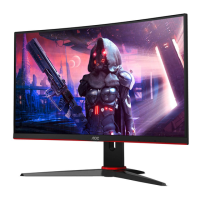

 To Next Page