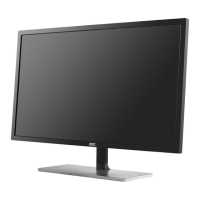
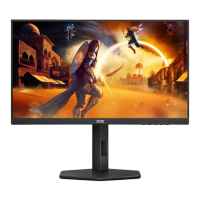
Need help?
Do you have a question about the AOC Q34E2A and is the answer not in the manual?
Details safe operation concerning power sources, grounded plugs, and avoiding surges.
Provides instructions on safe placement, avoiding damage, and proper ventilation for the monitor.
Covers safety precautions for unusual smells, ventilation, vibration, impacts, power cords, and sound pressure.
Guides the user through connecting power and display cables to the monitor and PC.
Explains settings related to luminance, including Contrast, Brightness, Gamma, DCR, and HDR modes.
Provides solutions for common problems such as power issues, no image, fuzzy picture, color defects, and connectivity issues.
Lists general technical specifications of the monitor, including model name, display size, resolution, and power consumption.
This document serves as the user manual for an AOC LCD Monitor, model Q34E2A, providing comprehensive information on its safety, setup, adjustment, troubleshooting, and general operation.
The monitor is designed for general computing and visual display purposes, offering a range of features to enhance user experience. It supports various input sources including HDMI and DisplayPort, allowing for flexible connectivity with different computer systems and devices. A key function of this monitor is its Adaptive-Sync capability, which works with both DP and HDMI inputs to provide a smoother visual experience, particularly beneficial for gaming and fast-paced video content. This feature helps to eliminate screen tearing and stuttering by synchronizing the monitor's refresh rate with the graphics card's frame rate.
For ease of use, the monitor includes several hotkeys that provide quick access to common functions. These hotkeys allow users to adjust volume, activate Clear Vision mode, and navigate the On-Screen Display (OSD) menu. The Clear Vision function is a notable usage feature, designed to improve image quality by converting low-resolution and blurry images into clearer and more vivid visuals. Users can select different levels of intensity (weak, medium, strong) or turn it off, and there's also a demo mode to showcase its effect.
The OSD menu is a central hub for adjusting various display settings. It is structured into several categories: Luminance, Color Setup, Picture Boost, OSD Setup, Game Setting, Extra, and Exit. Under Luminance, users can control basic display properties like Contrast and Brightness, which are essential for optimizing visual comfort and clarity. The Eco mode offers several preset options (Standard, Text, Internet, Game, Movie, Sports, Reading, Uniformity) that automatically adjust settings for different content types, aiming to provide an optimal viewing experience while potentially conserving energy. Gamma settings (Gamma1, Gamma2, Gamma3) allow for fine-tuning of the display's tonal response. The Dynamic Contrast Ratio (DCR) feature can be enabled or disabled to dynamically adjust contrast based on the displayed content. Additionally, HDR Mode, when enabled, offers specific presets like HDR Picture, HDR Movie, and HDR Game, which enhance the dynamic range and color depth of compatible content. It's important to note that when HDR Mode is active, certain other luminance settings like Contrast, Brightness, and Gamma become unadjustable.
The Color Setup section provides extensive options for color calibration. Color Temperature presets (Warm, Normal, Cool, sRGB, User) allow users to select a desired color balance. The DCB Mode (Dynamic Color Boost) includes features like Full Enhance, Nature Skin, Green Field, Sky-blue, and AutoDetect, which can be enabled or disabled to enhance specific color ranges or automatically optimize colors. A DCB Demo mode is also available to demonstrate the effects of these color enhancements. Individual Red, Green, and Blue gain adjustments offer precise control over color channels. The LowBlue Mode is a significant usage feature designed to reduce blue light emission, which can help alleviate eye strain, especially during prolonged use. It offers various settings like Reading, Office, Internet, Multimedia, and Off, each adjusting the color temperature to decrease the blue light wave. Similar to HDR Mode, when HDR Mode is active, all items under Color Setup become unadjustable.
Picture Boost is another advanced usage feature that allows users to create a customizable "Bright Frame" area on the screen. This frame can have its size, brightness, contrast, and position adjusted independently, enabling users to highlight specific areas of the display with enhanced visual settings. This can be particularly useful for tasks requiring focus on a small section of the screen or for enhancing details in a specific region. Again, if HDR Mode is active, Picture Boost settings cannot be adjusted.
The OSD Setup menu manages the OSD itself, including Language selection, Timeout duration (how long the OSD remains visible), and Transparence level. It also includes settings for DP Capability (1.1/1.2), which is crucial for ensuring proper functionality with DisplayPort connections, especially for Adaptive-Sync. Horizontal and Vertical Position adjustments allow users to fine-tune the OSD's placement on the screen. A "Break Reminder" feature can be enabled to prompt users to take breaks after continuous work, promoting eye health.
Game Setting offers a suite of features tailored for gamers. Game Mode provides optimized presets for different game genres (FPS, RTS, Racing) and three customizable Gamer profiles, which save user-defined settings. Shadow Control allows for adjustment of dark area details, making it easier to spot enemies in dimly lit game environments. Low Input Lag can be toggled on or off to minimize delay between input and on-screen action. Overdrive settings (Off, Weak, Medium, Strong) control the response time of the pixels, reducing ghosting in fast-moving scenes. Game Color allows for saturation adjustments to enhance the vibrancy of game visuals. The Dial Point function places an aiming indicator in the center of the screen, assisting in first-person shooter games. Adaptive-Sync can be enabled or disabled here, with a reminder about potential flashing in some game environments when active. A Frame Counter can also be displayed on the screen to show the current refresh rate. As with other sections, when HDR Mode is active, Game Mode, Shadow Control, and Game Color settings are unadjustable.
The Extra menu includes Input Select for choosing the active video source, Off Timer for automatic monitor shutdown, and Image Ratio settings (Wide, 4:3, 1:1, Movie1, Movie2) to adjust the aspect ratio of the displayed image. DDC/CI (Display Data Channel/Command Interface) can be turned on or off, allowing the computer to communicate with and control the monitor. A Reset option is available to revert all settings to their factory defaults, including an ENERGY STAR® or No option for selective models.
Maintenance features are straightforward. The manual advises regular cleaning of the cabinet with a soft cloth and mild detergent, cautioning against strong detergents that could damage the product. When cleaning the screen, it's emphasized to use a soft cloth and ensure no detergent leaks into the product, and to disconnect the power cord beforehand.
Safety guidelines are also thoroughly covered. The monitor should only be operated from the specified power source, and if equipped with a grounded plug, it must be connected to a grounded outlet. Users are warned against overloading power strips, unplugging during lightning storms, or exposing the monitor to severe vibration, high impact, or liquids. Proper ventilation is crucial, with recommended distances around the monitor to prevent overheating. Any strange smells, sounds, or smoke should prompt immediate disconnection of power and contact with a service center.
Troubleshooting information provides solutions for common issues such as the power LED not turning on, no images on the screen, fuzzy pictures, flickering, or color defects. It guides users through checking cable connections, power supply, video card settings, and monitor drivers.
Overall, the AOC LCD Monitor Q34E2A is presented as a versatile display with a strong emphasis on user customization, gaming enhancements, and visual comfort, all while adhering to important safety and maintenance practices.
 General
| Certification | True |
|---|---|
| Product color | Black |
| Detachable stand | Yes |
| Heavy metals free | Hg (mercury) |
| Market positioning | Business |
| Color depth | 8 bit |
| Screen shape | Flat |
| Pixel density | 81 ppi |
| Backlight type | W-LED |
| Display surface | Matt |
| Display diagonal | 34 \ |
| Surface hardness | 3H |
| Anti-glare screen | Always gives an optimal view, even in direct sunlight. |
| Adobe RGB coverage | 91 % |
| Display resolution | 2560 x 1080 pixels |
| Display technology | LED |
| Native aspect ratio | 21:9 |
| Maximum refresh rate | 75 Hz |
| Supported video modes | 1080p |
| NTSC coverage (typical) | 85 % |
| sRGB coverage (typical) | 123 % |
| Contrast ratio (dynamic) | 50000000:1 |
| Contrast ratio (typical) | 1000:1 |
| Display number of colors | 16.7 million colors |
| Display diagonal (metric) | 86.36 cm |
| Display brightness (typical) | 300 cd/m² |
| Supported graphics resolutions | 1920 x 1080 (HD 1080), 2560 x 1080 |
| Tilt angle range | -6 - 23 ° |
| Cable lock slot type | Kensington |
| Number of OSD languages | 16 |
| Panel mounting interface | 100 x 100 mm |
| On Screen Display (OSD) languages | CHI (SIMPL), CHI (TR), CRO, CZE, DEU, DUT, ENG, ESP, FIN, FRE, ITA, JPN, KOR, POL, POR, RUS, SWE, TUR, UKR |
| HDMI version | 1.4 |
| DisplayPort version | 1.2 |
| Headphone connectivity | 3.5 mm |
| VGA (D-Sub) ports quantity | 0 |
| AC input voltage | 100 - 240 V |
| AC input frequency | 50 - 60 Hz |
| Energy efficiency scale | A to G |
| Power consumption (standby) | 0.3 W |
| Power consumption (typical) | 36 W |
| Sustainability certificates | EPEAT Silver |
| RMS rated power | 3 W |
| HDMI cable length | 1.8 m |
| Package type | Box |
| Package depth | 187 mm |
| Package width | 940 mm |
| Package height | 506 mm |
| Package weight | 10900 g |
| Exterior finish type | Textured |
| Recyclable packaging material | 100 % |
| Harmonized System (HS) code | 85285210 |
 Weight and Dimensions
| Depth (with stand) | 253.8 mm |
|---|---|
| Height (with stand) | 475 mm |
| Weight (with stand) | 8100 g |
| Depth (without stand) | 55.7 mm |
| Width (without stand) | 817.4 mm |
| Height (without stand) | 370.7 mm |

 To Next Page