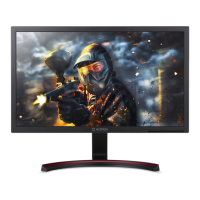
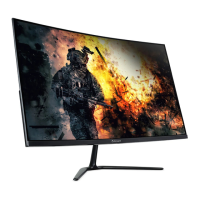
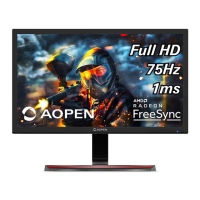
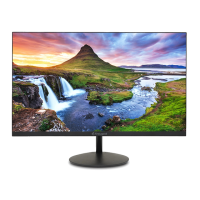
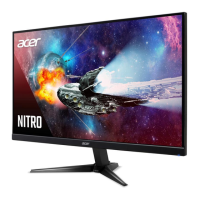
This document is the User's Guide for an Acer LCD Monitor, providing essential information for its safe and comfortable use, installation, and troubleshooting.
Function Description:
The Acer LCD Monitor is a display device designed for use with computer systems. It supports various resolutions and timing standards, offering a visual interface for computing tasks. The monitor incorporates power-saving features and is designed for ease of installation and adjustment to optimize viewing comfort. It supports DDC (Display Data Channel) protocol for Plug and Play functionality, allowing it to automatically communicate its capabilities to the host system.
Important Technical Specifications:
While specific detailed technical specifications like panel type, refresh rate range, or response time are not explicitly listed in the provided excerpts, the manual does indicate support for:
- Resolutions: A wide range of standard timing resolutions from VGA (640x480) up to QHD (2560x1440) at various refresh rates (60Hz, 70Hz, 72Hz, 75Hz, 56Hz, 66.66Hz, 74.55Hz).
- Input Connectors: HDMI (19-Pin Color Display Signal Cable) and DP (DisplayPort - 20-Pin Color Display Signal Cable). Specific models may support only one or both.
- Power Supply: Universal power supply supporting 100/120V AC or 220/240V AC.
- Power Consumption: Features "Power Saving" mode, indicated by an amber power LED, with a recovery time of approximately 3 seconds from Active OFF state.
- Pixel Policy: The LCD screen has 99.99% or more effective pixels, with blemishes of 0.01% or less (missing or always-lit pixels) considered normal and not a malfunction.
Usage Features:
The monitor offers several features to enhance user experience:
- Screen Position Adjustment:
- Tilt: The monitor can be tilted from -5 degrees (down) to 15 degrees (up) for optimal viewing angles.
- On-Screen Display (OSD) Controls: Accessible via a MENU key, the OSD allows users to adjust various settings:
- Picture Settings: Brightness (0-100), Contrast (0-100), Blue Light filter (80%, 70%, 60%, 50% ratios), Black Boost, ACM (Adaptive Contrast Management), and Super Sharpness.
- Color Settings: Gamma (default 2.2), Color Temperature (Cool, Warm, Bluelight, User), sRGB Mode, 6-axis Hue (Red, Green, Blue, Yellow, Magenta, Cyan), and 6-axis Saturate (Red, Green, Blue, Yellow, Magenta, Cyan).
- Audio Settings: Volume adjustment.
- Gaming Settings: Over Drive (Off, Normal, Extreme) and Aim Point display for shooting games.
- OSD Settings: Language selection, OSD Timeout, Transparency (0%, 20%, 40%, 60%, 80%), and Refresh Rate Number display.
- System Settings: Input source selection (HDMI or DP In), Auto Source search, DP Format (default DP1.2), Hot Key Assignment (for Hot Key 1 or 2), Wide Mode (Full, Aspect), DDC/CI (Display Data Channel/Command Interface) for software control, HDMI Black Level (Normal, Low), and Quick Start Mode.
- Power Management: Enabled for power management, activating display's Sleep mode within 15 minutes and computer's Sleep mode within 30 minutes of user inactivity. Wakes from Sleep mode by pushing the power button.
- Input Selection: Dedicated input button to toggle between available input sources (HDMI, DisplayPort).
- Volume Control: Dedicated volume button to activate a sliding scale for audio adjustment.
- Brightness Control: Dedicated brightness button to open and adjust the brightness level.
- Mode Control: Dedicated mode button to trigger and select different display profiles (Action, Racing, Sports, User, Standard, ECO, Graphics, Movie).
Maintenance Features:
The manual provides clear guidelines for maintaining the monitor:
- Cleaning:
- Always unplug the monitor before cleaning.
- Use a soft cloth to wipe the screen and cabinet.
- Warning: NEVER spray or pour any liquid directly onto the screen or case. DO NOT use ammonia or alcohol-based cleaners on the LCD display screen or case, as Acer will not be liable for damage resulting from their use.
- General Care:
- Avoid placing heavy objects on the power cord.
- Do not expose the monitor to rain, excessive moisture, or dust.
- Ensure adequate ventilation by not covering ventilation slots.
- Avoid placing the monitor against bright backgrounds or where light sources may reflect on the screen.
- Handle with care during transport; refrain from giving shock or scratch to the screen.
- Do not lift the monitor by its base to prevent damage.
- Product Servicing:
- Users should not attempt to service the product themselves due to dangerous voltage points and other risks.
- Refer all servicing to qualified service personnel, especially if the power cord/plug is damaged, liquid is spilled, the product is exposed to rain/water, dropped, or exhibits a distinct change in performance.
- Recycling: Acer is committed to environmental protection and recycling. Users are instructed not to dispose of the electronic device in the trash and to recycle it. Information on WEEE regulations and sustainability is provided via a website link.

 Need help?

 To Next Page
 General