EN-18
Adjusting the OSD
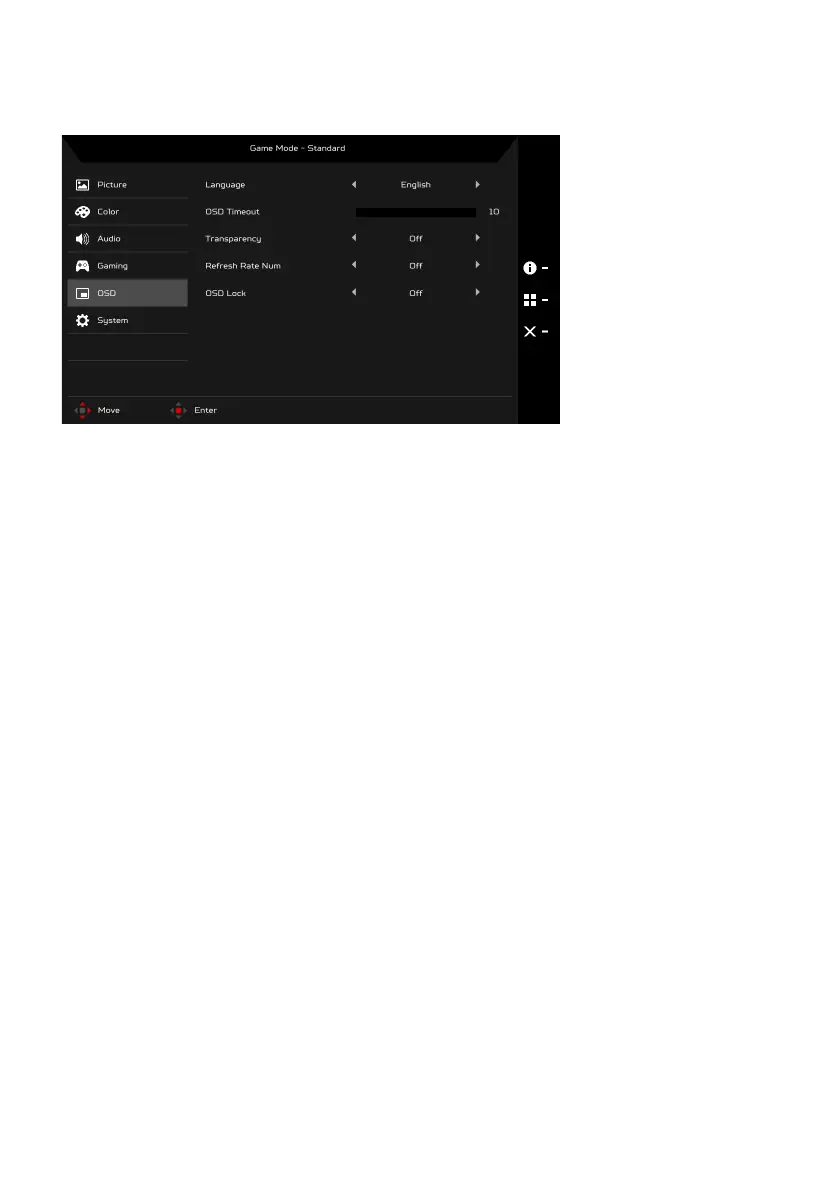
1. Press the MENU key to open the OSD.
2. Using the Navi/OK button, select OSD from the OSD. Then navigate to the
setting you wish to adjust.
3. Use the Navi/OK button to adjust any sliding scales.
4. Language: Set the OSD menu language.
5. OSD Timeout: Adjust the delay before turning the off the OSD menu.
6. Transparency: Select the transparency when using gaming mode. The
transparency can be 0% (OFF), 20%, 40%, 60%, or 80%.
7. Refresh Rate Num: Display the panel’s current refresh rate on the screen.
8. OSD Lock: OSD Lock function is used to prevent OSD button from being
pressed accidentally. To remove the OSD Lock message, press and hold
the Navi/OK button continuously for 3 seconds until the message
disappears. If the OSD Lock message remains, please check whether the
Navi/OK button is stuck.



 To Next Page