Apogee Element Series User’s Guide
Vocal Overdub Snapshot Template
This Snapshot Template is conceived for an overdubbing recording session. At this stage in the recording process, a recording
project is typically full of tracks and plugins which may require your I/O Buffer to be set to a large size. Because software input
monitoring with such a large buffer would result in too much latency, this snapshot is designed for Direct Monitoring a single
input, but using Element Control’s FX Send to apply your DAW’s reverb to the Low Latency (Direct Monitoring) mixer inputs.
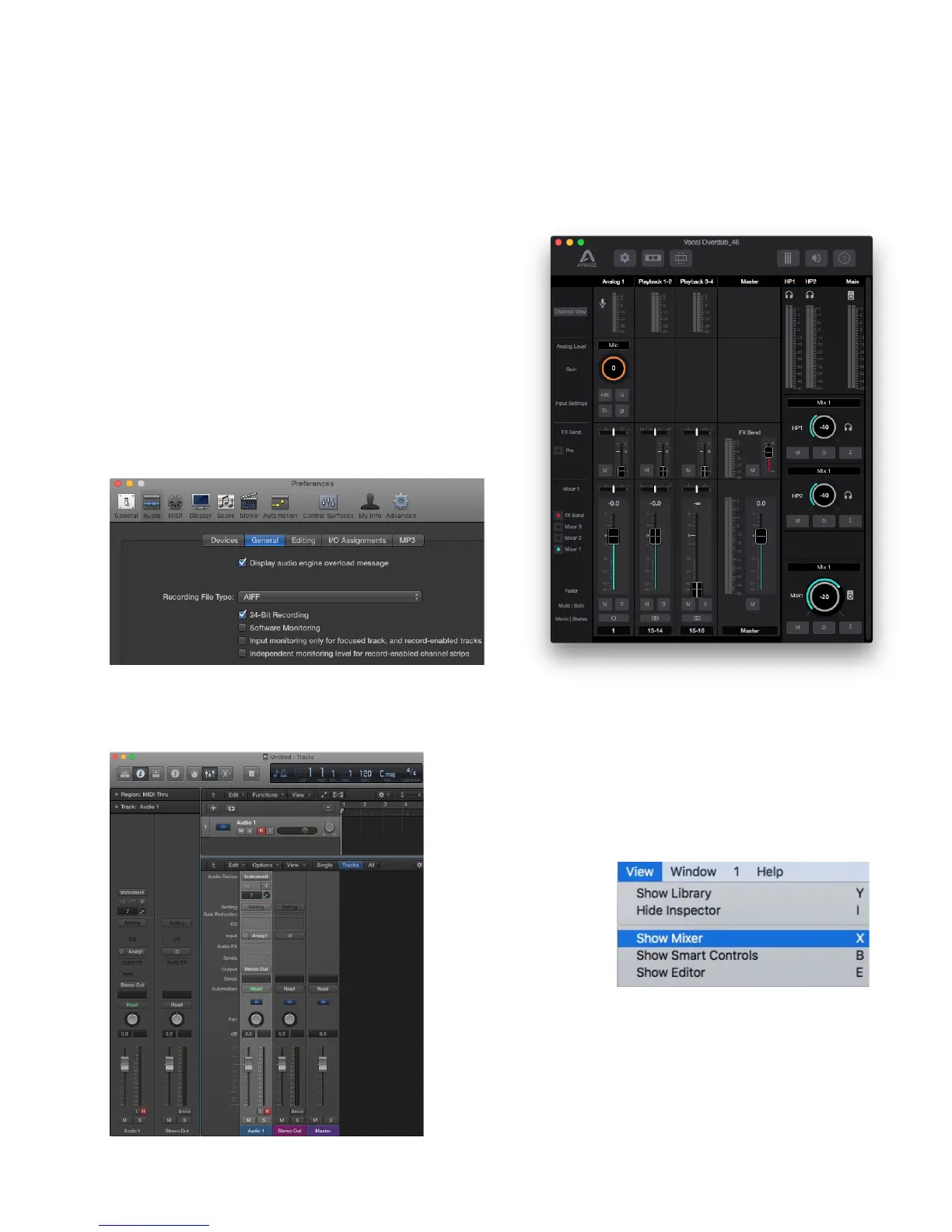
Notice that in this Snapshot Template:
- The Mixer 1 and FX Send are both displayed
- The Outputs are set to “Mix 1” for direct monitoring
- There is a single analog input channel active, and two
playback input channels active.
Here’s how this is set up using Logic Pro X:
1. In Logic Pro X > Preferences > Audio > General, uncheck
the boxes for “Software Monitoring” and “Input monitoring
only for focused track, and record-enabled tracks”
2. Create an Audio track. Set the input to Analog 1.
Note: For the purposes of this guide, having the
Mixer visible will make things easier. To do this:
● Go to the View Menu > Show Mixer.
32



 To Next Page