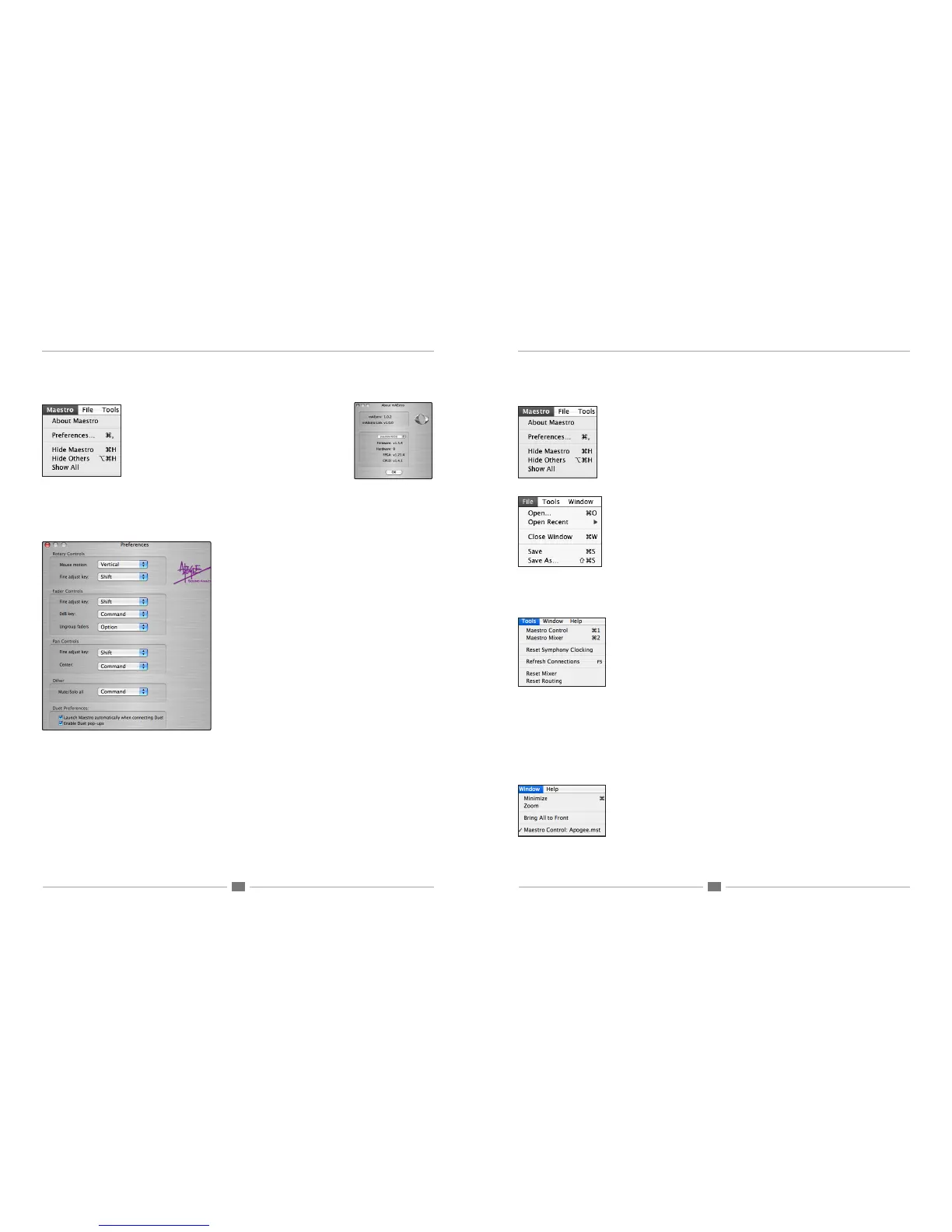
Maestro – Menu by Menu
Maestro> About Maestro
Selecting this menu item opens the panel shown below, which indi-
cates various software and rmware versions.
Maestro> Preferences
Selecting this menu item opens the Preferences panel, in which mixer control actions may be dened.
Rotary Controls
Mouse motion – This selection denes the motion of the
mouse required to adjust rotary controls such as Ensemble
Mic Pre gain.
Fine adjust key – This selection denes the key command to
make ne adjustments to any rotary control.
Fader Controls
Fine adjust key - This selection denes the key command to
make ne adjustments to any fader control.
0dB key – This selection denes the key command to set the
fader to 0 dB when clicking in the level value window.
Ungroup faders - This selection denes the key command
to adjust one side of the stereo From Mac and To Hardware
faders.
Pan Controls
Fine adjust key - This selection denes the key command to
make ne adjustments to any pan control.
Center - This selection denes the key command to set the
pan control to <0>, or center, when clicking in the pan value
window.
Other
Mute/Solo all - This selection denes the key command to
engage all Mutes or Solos when clicking on the Mute or Solo
buttons.
Duet Preferences
Launch Maestro automatically when connecting Duet -
When this box is checked, Maestro is launched automatically
when Duet is discovered on the Mac’s FireWire bus.
Enable Duet Pop-ups - When this box is checked, encoder
pop-ups appear on the Mac desktop.
Maestro – Menu by Menu
Maestro> Hide Maestro
Choosing this menu item hides the Maestro application.
Maestro> Hide Others
Choosing this menu item hides all other open applications.
Maestro> Show All
If Hide Others has been previously selected, choosing this menu item reveals all open
apps in the Finder.
Maestro> Quit Maestro
Choosing this menu item closes the Maestro program.
File:
File> Open
Choose this menu item to navigate to a previously saved Maestro conguration le and
open it.
File> Open Recent
Choose this menu item to re-open a recently opened Maestro conguration le.
File> Close Window
Choose this menu item to close the “active”, or up-front, window.
File> Save
Choose this menu item to save the current settings of all windows.
File> Save As
Choose this menu item to save the current settings of all windows as a newly named
le.
Tools:
Tools> Maestro Control
Choosing this menu item opens the Maestro Control window
Tools> Maestro Mixer
Choosing this menu item opens the Routing/Mixer window
Tools> Reset Symphony Clocking
In certain instances Apogee interfaces can’t be detected until the clock setting of the
rst interface has been reset. After choosing Reset Symphony Clocking, a dialog box
appears allowing the reset of clock source on the rst interface to Internal or Exter-
nal.
Tools> Refresh Connections
Choosing this menu item re-scans computer connections for connected Apogee hard-
ware.
Tools> Reset Mixer
Maestro mixers may be reset with this menu item; choose Reset Displayed to reset
the mixer displayed in the Maestro Mixer window; choose Reset All to reset all mixers.
Tools> Reset Routing
Choosing this menu item resets the Input and Output panes to a “pass through” con-
guration, where hardware and software I/O are connected on a one to one basis.
Window:
Window> Minimize
Choosing this menu item minimizes the up front window to the OS Dock.
Window> Zoom
Choosing this menu item maximizes the size of the active Maestro window.
Window> Bring All to Front
Choosing this menu item places all Maestro windows in front of other applications’
windows.



 To Next Page