Maestro Mixer Window
Working with the Input, Output and Mixer Panes
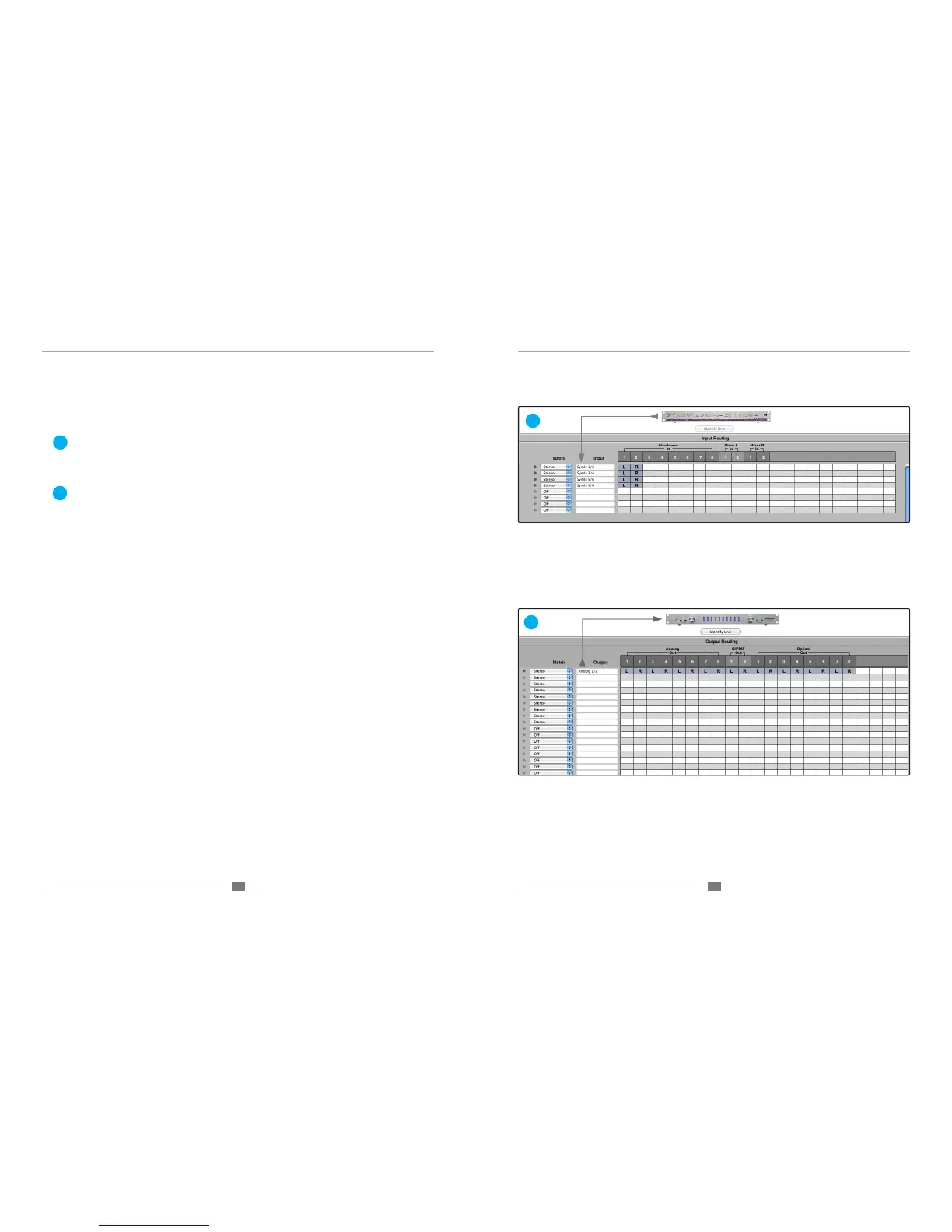
While conguration of Input/Output routing is quite intuitive, there are a few details to be aware of:
One Hardware Input, Multiple Software Inputs - In the Input pane it is possible to route one hardware input to
multiple software inputs simply by clicking down the desired hardware input column and across the desired software
inputs, as shown at right. For the recording situation where one microphone is routed to several software tracks (say,
when recording backing vocals), the necessary changes are accomplished more quickly in the Input routing pane
than in your software application.
One Software Output, Multiple Hardware Outputs - In the Output pane it is possible to route one software output
to multiple hardware outputs by holding down the Control key while clicking across the desired software output row
and under the desired hardware outputs, as shown at right.
AD16X - Standard Routing - When an AD16X in Standard routing mode is selected in the Interface menu, the Out-
put pane is blank, reecting the fact that there are no signal paths from software outputs to AD16X outputs while it is
set to Standard routing.
DA16X - Standard Routing - Likewise, when a DA16X is selected, the Input pane is blank; there are no signal paths
from DA16X inputs to software inputs while the interface is set to Standard routing.
AD16X - Advanced Routing - When the AD16X is set in Advanced routing, the Input pane is used to route the
AD16X’s analog inputs to software inputs, and the Output pane is used to route software outputs to the AD16X’s AES
and ADAT/SMUX outputs.
DA16X - Advanced Routing - When the DA16X is set in Advanced routing, the Input pane is used to route the
DA16X’s AES or ADAT/SMUX digital inputs to software inputs, and the Output pane is used to route software outputs
to the DA16X’s Analog outputs.
MiniFW - When a MiniMe or MiniDAC connected via a MiniFW card is selected, the input and From Mac meters
display their associated signals, but mixing functionality is disabled. The Input and Output panes are disabled.
Duet - When a Duet is selected in the Interface menu, the Mixer pane displays a fully functional two input mixer. The
Input and Output panes are also disabled.
1
1
2
2
Maestro Mixer Window



 To Next Page