Overview
Maestro Control - Symphony/Symphony Mobile
VBus - Apogee’s VBus creates virtual hardware buses to allow the routing of signals within one audio application or
between different audio apps. For example, it’s possible in Logic Pro to record a submix of multiple audio tracks onto a
new audio track as described below - not possible without VBus. It’s also possible to route between two audio apps by
selecting a VBus output in the source app and a VBus input in the destination app.
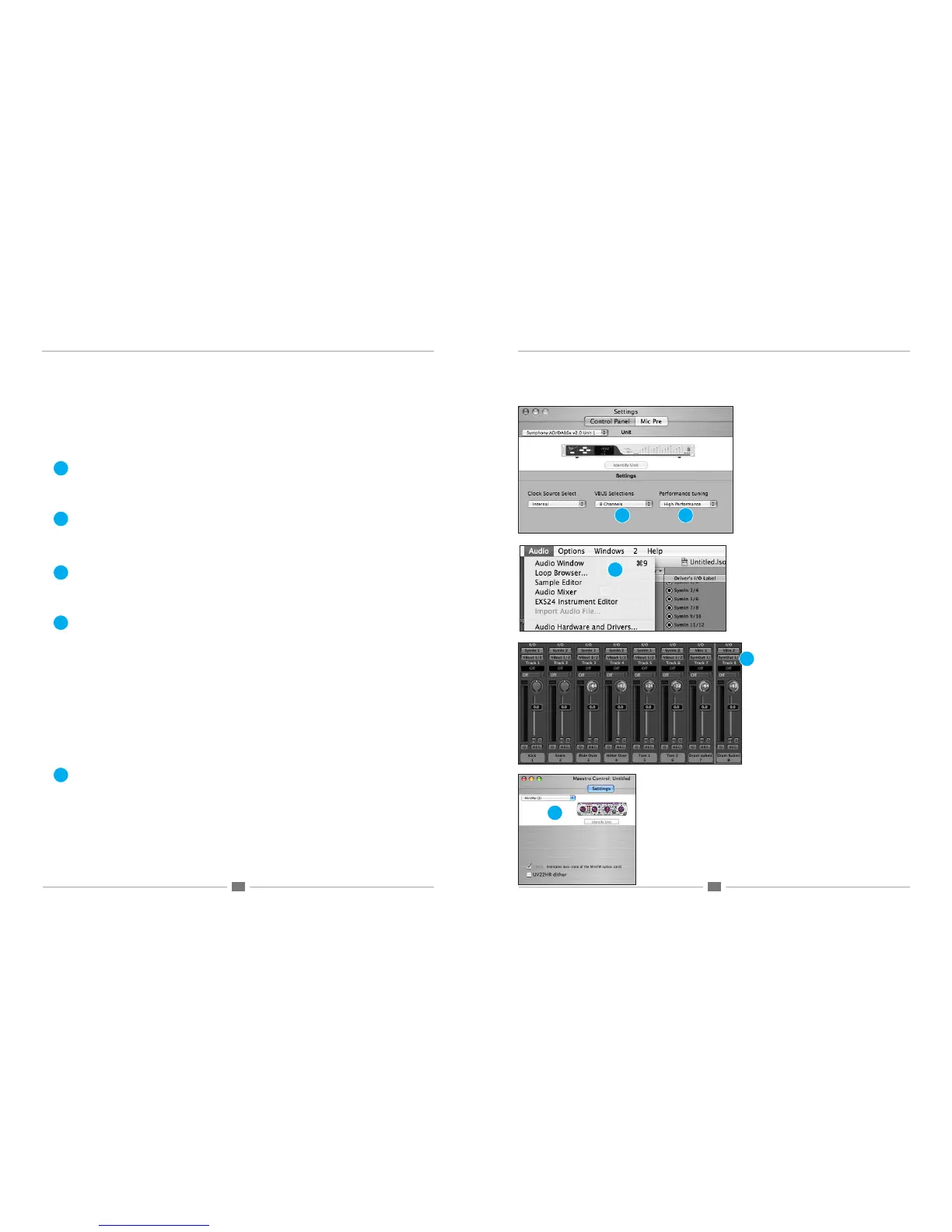
To engage VBus and specify the number of desired buses, open Apogee’s Maestro application, select one of
the Apogee interfaces connected to the Symphony PCI card, and open the Maestro Control Panel. In the VBUS
Selections drop down menu, select the number of virtual buses desired. As these buses don’t use much CPU power,
the only reason to select fewer buses would be to maintain order in the I/O lists of your audio apps. Up to 32 Vbuses
per Symphony PCI card are possible
In order for VBus I/O to appear in your audio application’s I/O list as VBus In 1-2, 3-4, etc, it’s necessary to specify
the use of the Symphony driver’s names in the applications’s I/O list. For example in Logic Pro, open Audio>Audio
Conguration>View>I/O Labels and Option-click on all the I/O found under the Driver’s I/O Label column.
As an example of how to use VBus, let’s record a submix of drums onto a new stereo audio track in Logic Pro.
Open Maestro and select 8 Channels under the VBus Selections menu.
In Logic’s Track Mixer, set the outputs of the individual drum audio tracks to VBout 1/2
Create two audio tracks (or one stereo track) and set their inputs to VBin 1 and VBin 2.
Record-enable the new track and commence recording – the new track will record the mix of the individual drum
tracks.
Performance Tuning allows the adjustment of Symphony driver buffers to take advantage of the latest Intel Macs’
increased CPU power.
Set Performance Tuning to High Performance when using Symphony on an Intel Mac; this reduces buffer sizes
and ensures the lowest latency through the Symphony system.
Set Performance Tuning to Standard when using Symphony on G5 PowerPC Macs. Though Symphony buffers are
set higher, latency is still quite low.
Performance Tuning is set in addition to the buffers typically found in digital audio applications. If audible clicks and
pops are encountered, rst raise the driver buffer size in the audio application. Apogee’s extensive testing of this
driver indicates that software buffers will “run out” before the Symphony driver buffers controlled by Performance
Tuning. If problems persist set Performance Tuning to Standard.
Maestro Control - MiniFW
When a MiniDAC connected via a MiniFW card is selected in the Interface drop down menu, the unit is displayed but
no user functions are available. The MiniFW check box indicates that the MiniFW card is receiving a proper clock.
When a MiniMe connected via a MiniFW card is selected in the Interface drop down menu, the unit is displayed and
a UV22HR check box is displayed. Checking this box enables UV22HR processing (Apogee’s industry leading 24 to
16-bit dithering algorithm) on the FireWire output to the software application.
Overview
6
6
7
7
8
8
9
9
10
10


 To Next Page
 Loading...