Mobile Digital Video Recorder
25
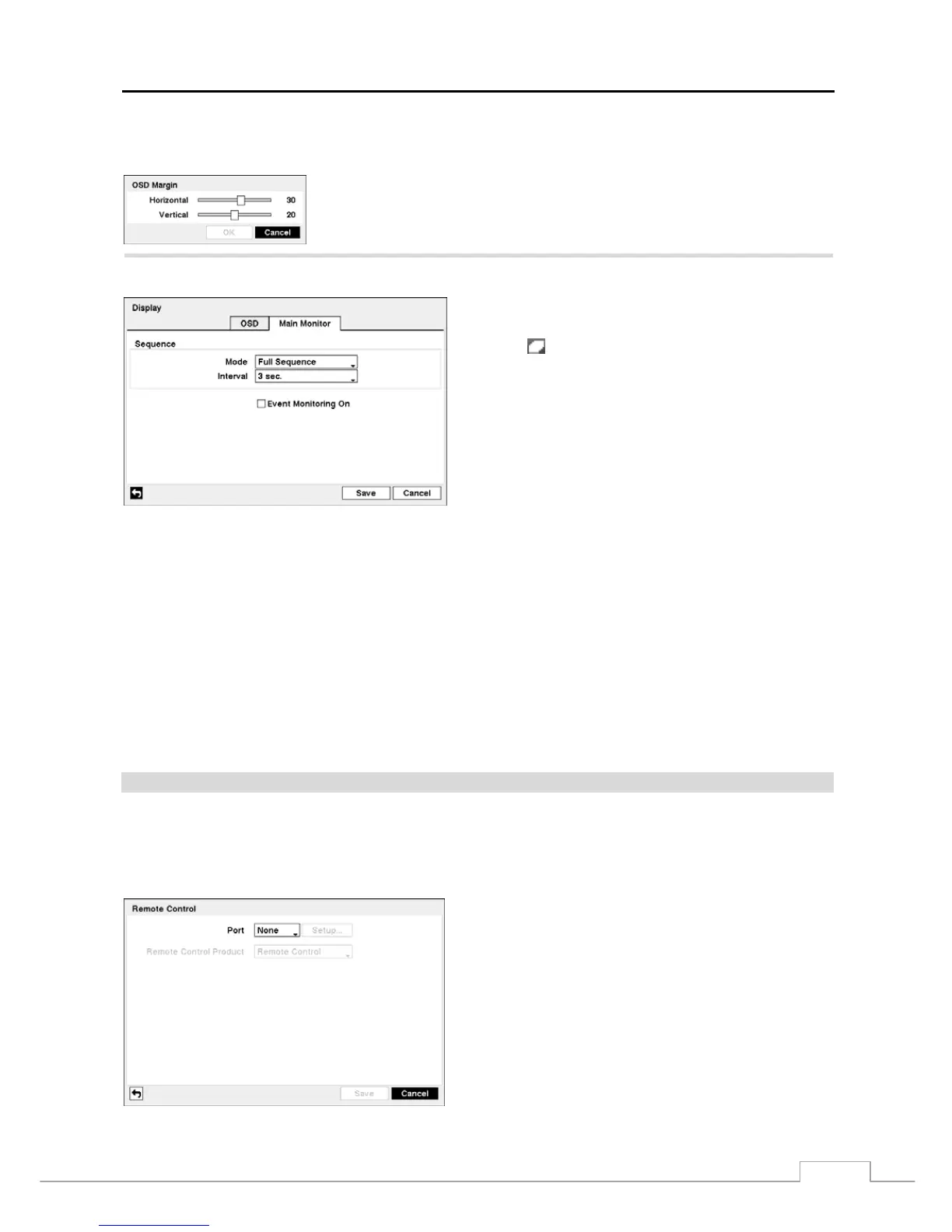
You can adjust the transparency of the setup screens by selecting Transparency and holding down the mouse button
and dragging the pointer.
Selecting OSD Margin… displays how OSD text will be displayed on the monitor.
You can adjust the horizontal and vertical margins so that text and icons will not be
hidden beyond the edges of the monitor.
PATH: Devices menu > Display > Main Monitor tab
Figure 31 — Main Monitor screen.
Select the box beside Mode and select between Full Sequence
and Cameo Sequence.
Selecting (Sequence) in the Live Monitoring menu causes
the DVR to sequence cameras, and the DVR can sequence
cameras in two modes: “Full” and “Cameo”. In the Full mode,
the DVR sequences through the cameras and displays them
full screen. In the Cameo mode, the bottom right window in
a multi-screen format sequences through the cameras.
NOTE: Any cameras that are Off, have lost video or are set
to Covert (unless the user has authority to view
covert cameras) will be excluded from the Cameo
sequence.
You can define the screen layout in a variety of formats and set the DVR to sequence through the different screen layouts
(pages) so that all the cameras will be displayed. You can also set up the DVR to display one camera or a group of
cameras all the time while cycling through the remaining cameras in a “cameo” window. This can be done with one
camera displayed full screen while displaying the cameo window as a PIP (picture in picture), or displaying the cameras
in a grid pattern with the bottom right window as the cameo.
NOTE: Sequence cannot be used in the 4x4 display mode of the 16-channel, and 3x3 mode of the 8-channel DVR.
You can adjust the display dwell time by selecting the box beside Interval. You can select dwell intervals ranging
from 1 second to 1 minute.
Selecting Event Monitoring On toggles between On and Off. When it is On, the DVR will display the camera associated
with the event when an event occurs.
Remote Control
PATH: Devices menu > Remote Control
Select Remote Control in the Devices menu, and the Remote Control setup screen allows you to select a port and
make correct settings for a remote control.
Select the box beside Port and select from None, RS232 1,
RS232 2 and RS485. If the RS232 ports and RS485 port are
in use for PTZ control, networking, text input or GPS, the
remote control cannot be configured.
Select Setup… and select the correct Baud Rate, Parity, Data
Bits and Stop Bits for the device you are connecting to the
DVR.
Select the box beside Remote Control Product and select
the device from the list.
Figure 32 — Remote Control setup screen.



 To Next Page