iMac (21.5-inch, Late 2009) Symptom Charts — Mass Storage 60
2010-11-18
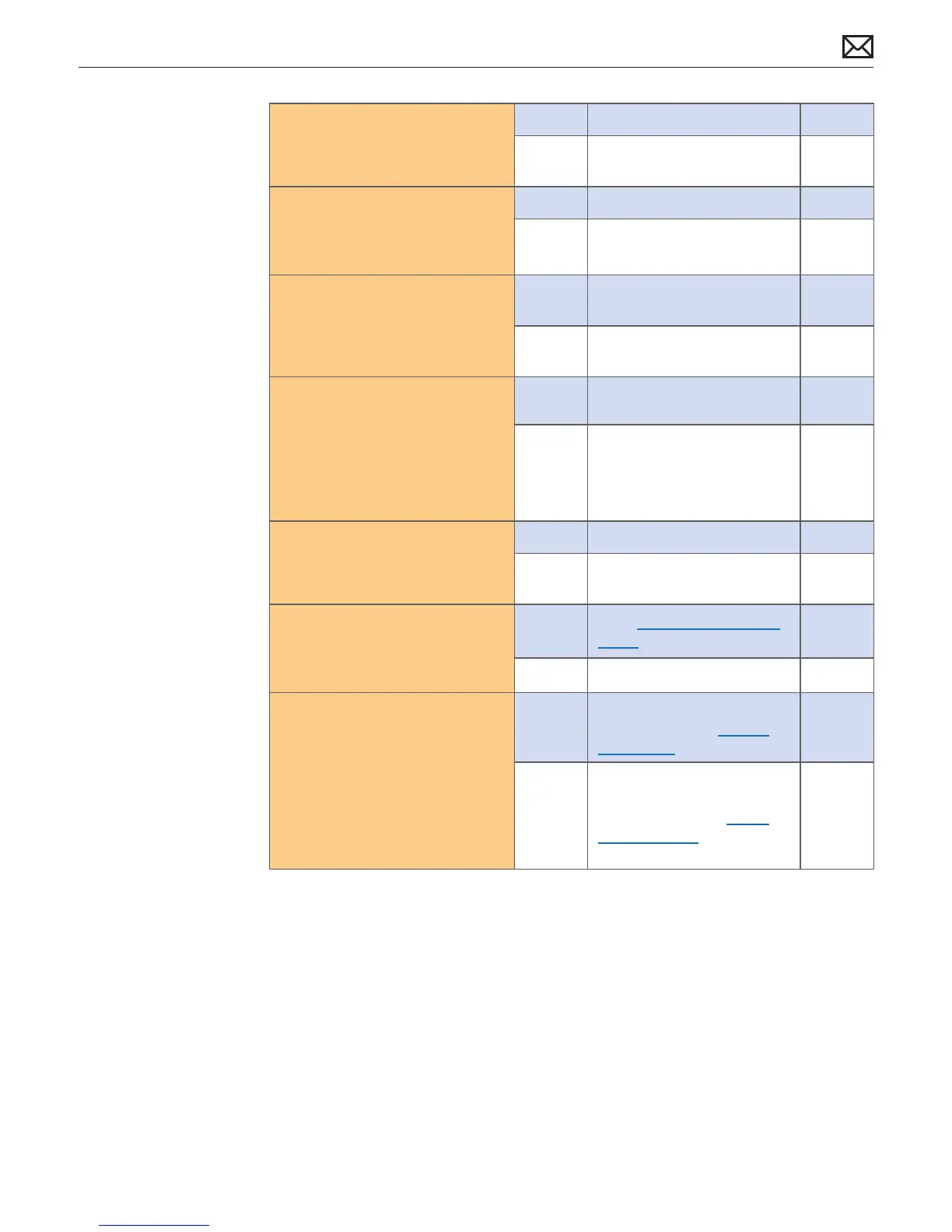
3. Restart the computer. Verify if
the noise is still present.
Yes Go to step 4.
No Issue resolved. Return system
to user.
H06
4. With user’s permission, erase
hard drive and reinstall Mac
OS. Verify if installation process
completes.
Yes Go to step 3.
No Replace hard drive.
Go to step 5.
5. With replacement hard drive
installed, reboot computer.
Verify if noise is still present.
Yes Replacement hard drive did
not resolve issue. Go to step 6.
No Issue resolved by replacing
hard drive.
H06
6. With hard drive removed verify
if rubber vibration isolation
grommets are properly
installed in hard drive bracket
(attached to hard drive) and
to mechanism in rear housing
(where hard drive pins insert).
Yes Go to step 8.
No If grommets are missing or
damaged, replace hard drive
bracket or mechanism as
appropriate. Go to step 7.
7. Reboot computer. Verify if noise
is still present.
Yes Go to step 8.
No Issue resolved. Return
computer to user.
H06
8. Disconnect hard drive SATA and
power connections then boot
from the Install DVD. Verify if
noise is caused by fans.
Yes Go to Fan Failures/Thermal
Issues symptom ow.
No Go to step 9.
9. Disconnect hard drive and
optical drive then boot from an
external volume. Verify if noise
disappears when optical drive
has been disconnected.
Yes Possible optical drive or
media issue. Go to Optical
Drive Noisy symptom ow.
No
Noise issue still present, but
does not appear to be caused
by hard drive. Go to Noise/
Hum/Vibration symptom
ow.



 To Next Page