28 Chapter 3
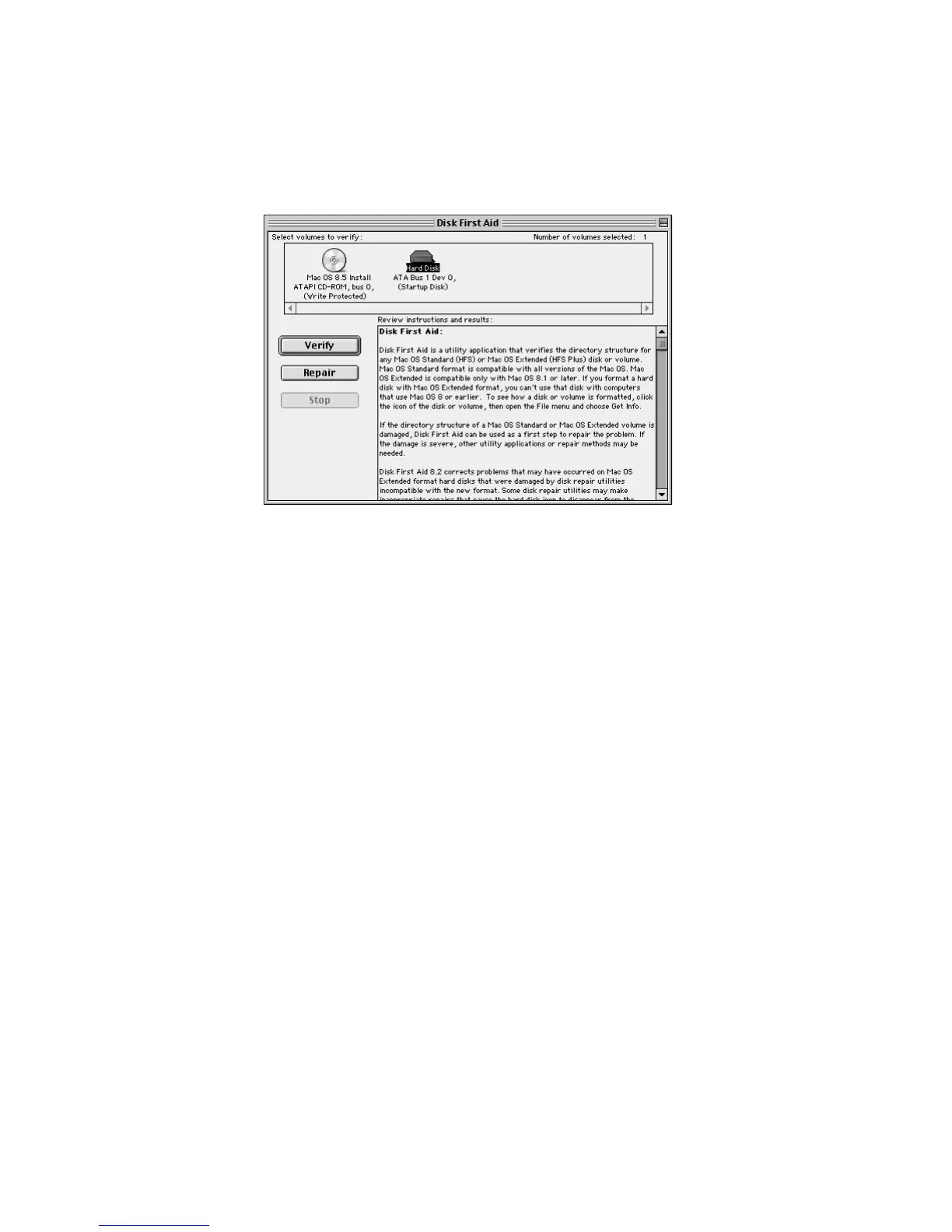
5 Click the icon of the disk you want to test.
Note: Depending on the type of computer you have, your screen may look slightly different.
6 Click Repair to begin testing and repairing the disk.
If Disk First Aid Cannot Correct the Problem
m Tr y running Disk First Aid a second or third time. Sometimes repeating the process
corrects the problem.
m Use the Drive Setup utility to update the driver. See “Updating the Hard Disk Drivers,”
next.
m Use another disk repair or recovery program. Sometimes another program will help you
recover a corrupted disk.
Note: Before using software from a manufacturer other than Apple, see the
documentation that came with the software or contact the software manufacturer to
make sure the program is compatible with your computer and the version of Mac OS
installed on your computer. Apple cannot guarantee the performance of software from
manufacturers other than Apple.
m If that doesn’t work, you may need to reinitialize the hard disk (see “Initializing a Hard
Disk” on page 30).
Updating the Hard Disk Drivers
Some problems with your hard disk can be fixed by updating the driver. Use the Drive Setup
program that came with your computer in the Utilities folder on your hard disk, and on the
software install CD.



 To Next Page