Testing and Repairing Your Hard Disk 29
1 Make sure the Caps Lock key is not engaged.
2 Start up your computer from the software install CD. (See Chapter 2, “Starting Up From a
CD,” on page 25.)
3 Locate the Utilities folder on the CD and double-click it to open the folder.
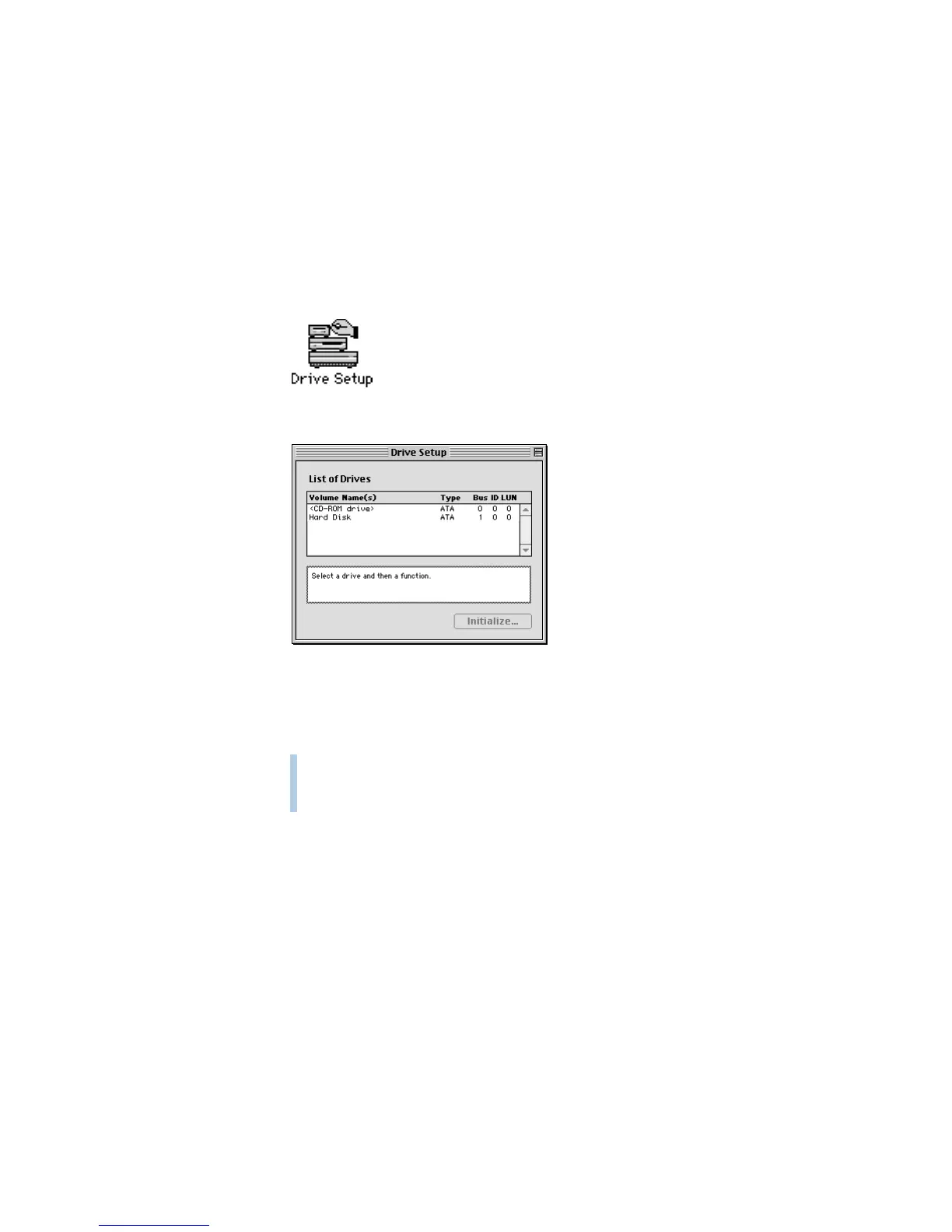
4 Double-click the Drive Setup icon to open the program.
5 In the list of drives, select the disk you want to update.
Note: Depending on the type of computer you have, your screen may look slightly different.
6 Open the Functions menu and choose Update Driver.
A message says the new driver won’t be available until you restart your computer.
7 Restart your computer.
If you can’t update your hard disk driver
m The hard disk may have been formatted with a third-party utility. Contact the
manufacturer of the utility for the latest version of the driver.
m Your hard disk driver may be newer than the version supplied in Drive Setup. To check
the version of the hard disk driver, select the hard disk and choose Get Info from the File
menu. The version number appears in parentheses next to the word “Where” in the Info
window.
Warning Be careful not to click the Initialize button; clicking Initialize erases the
contents of your hard disk. If you inadvertently click Initialize, a dialog box appears telling
you about the initialization process. Click Cancel.



 To Next Page