30 Chapter 3
m Your hard disk may not contain partitioning information which it needs in order to start
up properly. To find out, select the disk, then open the File menu and choose Get Info. If
“Macintosh HD, AT_O” appears next to the word “Where” in the Info window, the disk
doesn’t contain partitioning information.
You need to reinitialize the hard disk using Drive Setup. See “Initializing a Hard Disk,”
next. Once you’ve done that, you can update your hard disk driver.
m PowerBooks: You may have password protection turned on. Turn this off in the Password
Security control panel, then try updating the hard disk driver again.
Initializing a Hard Disk
The hard disk inside your computer was initialized (formatted for use) at the factory, so you
should only need to initialize it if your hard disk is damaged and can’t be repaired with Disk
First Aid (or another disk repair program).
You can initialize your internal hard disk using a program called Drive Setup, which is on the
software install CD that came with your computer.
Note: If your hard disk is not an Apple hard disk, you may need to use the disk utility
software provided by the disk’s manufacturer instead of Drive Setup. For more information,
contact the manufacturer of the hard disk.
1 Make sure the Caps Lock key is not engaged.
2 Start up your computer from the software install CD. (See Chapter 2, “Starting Up From a
CD,” on page 25.)
3 Locate the Utilities folder on the software install CD and double-click it to open the folder.
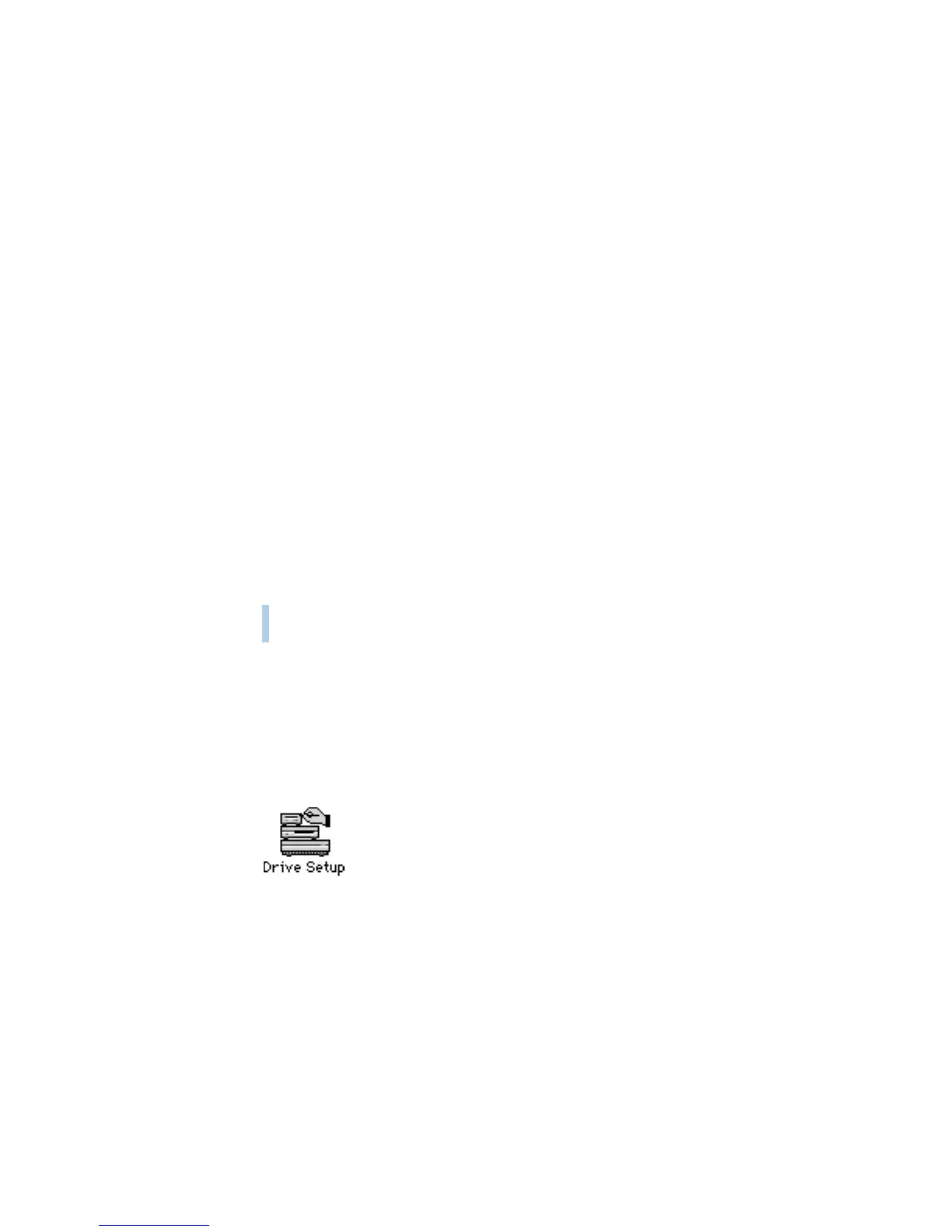
4 Double-click the Drive Setup icon to open the program.
Warning Initializing a disk erases all information on the disk. Before initializing your
disk, recover all the information you can and copy it to another disk.



 To Next Page