Testing and Repairing Your Hard Disk 31
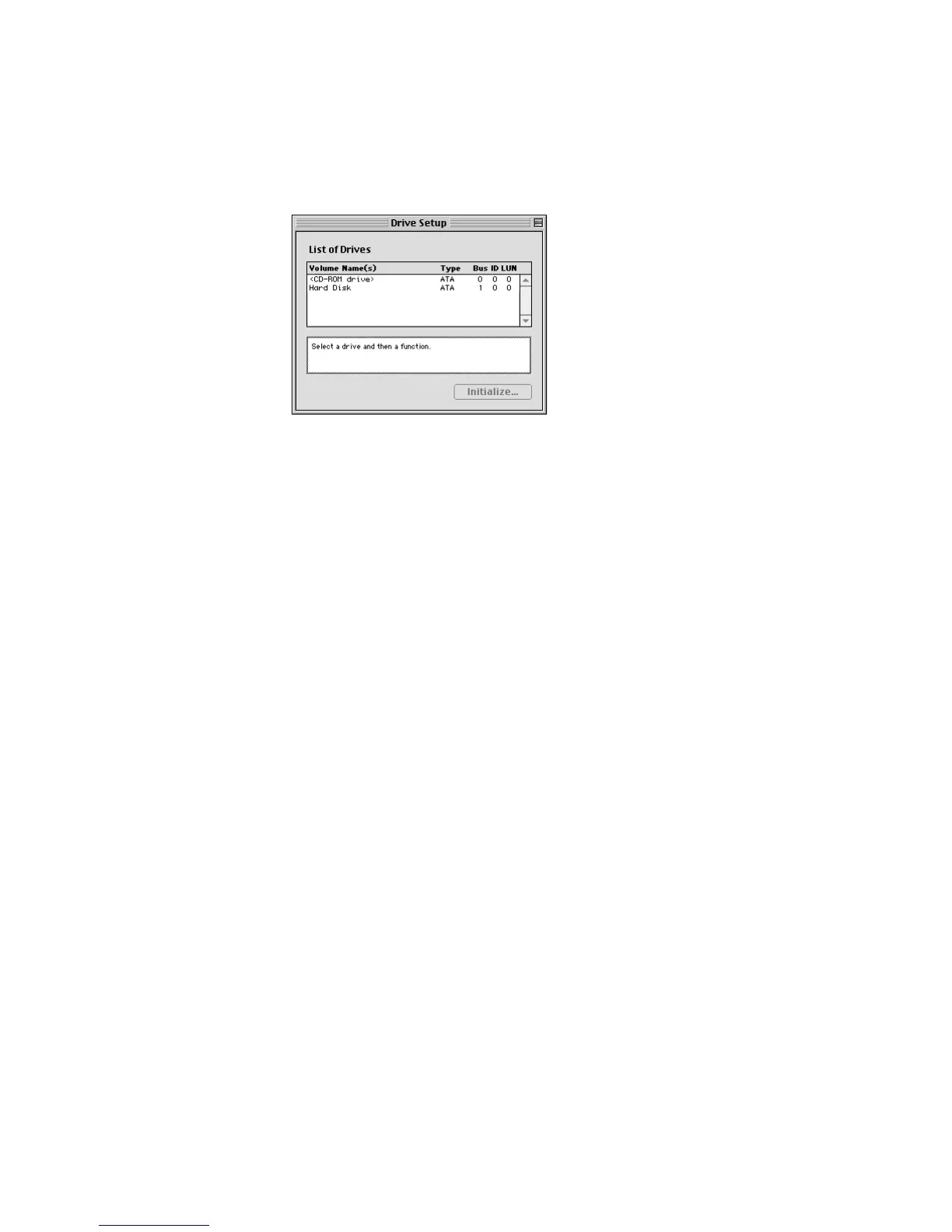
5 In the list of drives, select the disk you want to initialize.
Note: Depending on the type of computer you have, your screen may look slightly different.
6 Click Initialize.
7 If you want to format your hard disk with Mac OS Extended format, a method of formatting
hard disks that allows for more efficient use of hard disk storage space, follow the steps
below:
a Click Custom Setup.
b Select the desired partitioning scheme.
c Open the Type pop-up menu in the Volume Info area and choose Mac OS Extended
format.
d Resize the volumes, if desired.
e When you’re ready, click OK.
8 Click Initialize.
If initialization fails, do the following:
a Choose Initialization Options from the Functions menu.
b Click the checkbox next to “Low level format,” so there is a checkmark in the checkbox,
then click OK.
Choosing this option adds significant time to the initialization process.
Note: The “Zero all data” option is only necessary in rare cases where data must be
completely overwritten with zeroes.
c Click Initialize.
d If initialization fails a second time, test your hard disk for damage. See “Testing Your Hard
Disk for Physical Damage” on page 32.
Important Computers that use Mac OS 8 or earlier cannot access files on a Mac OS
Extended disk.



 To Next Page