32 Chapter 3
Testing Your Hard Disk for Physical Damage
Note: Testing the disk can take two hours or more, depending on the size of your disk.
1 Make sure the Caps Lock key is not engaged.
2 Start up your computer from the software install CD. (See Chapter 2, “Starting Up From a
CD,” on page 25.)
3 Locate the Utilities folder on your hard disk or on the software install CD and double-click it
to open the folder.
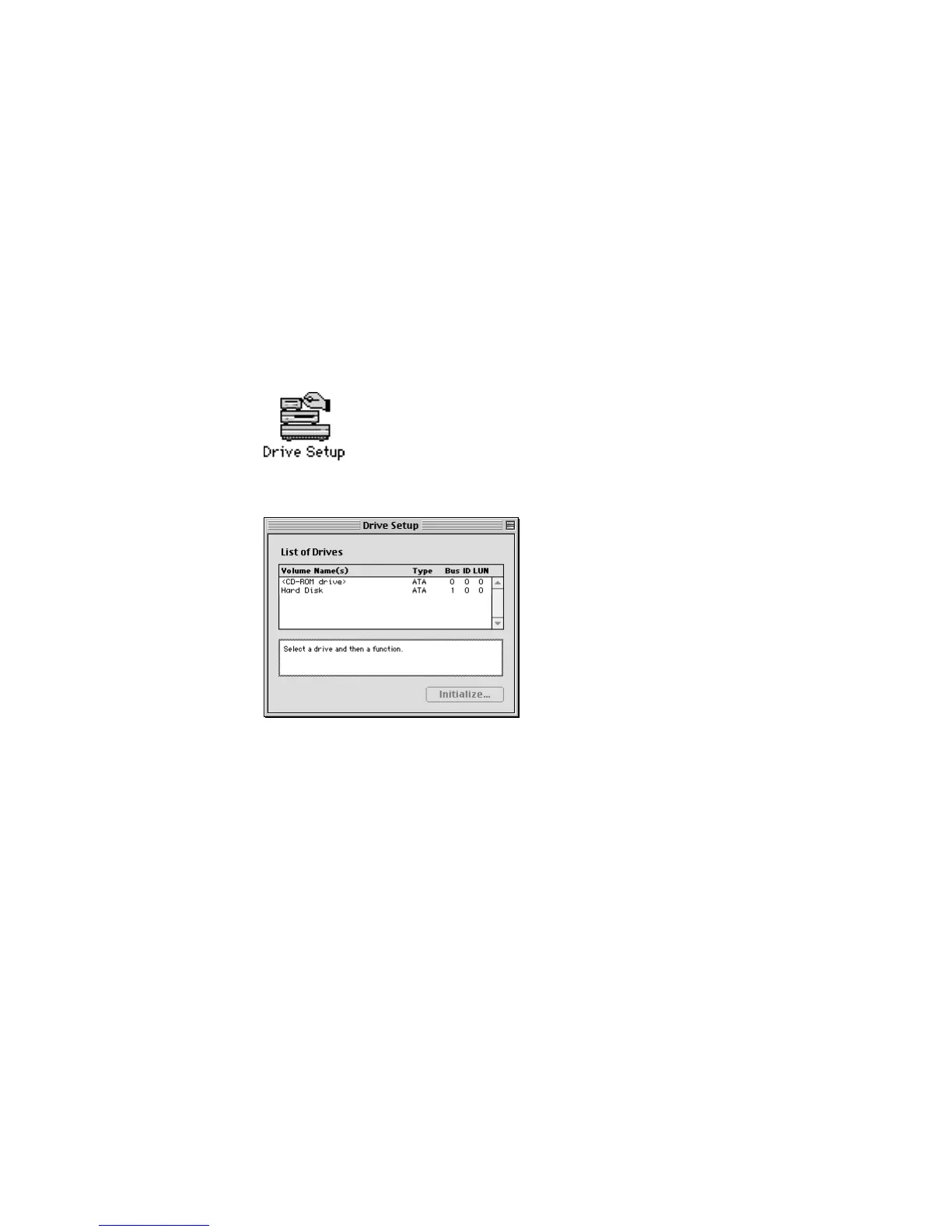
4 Double-click the Drive Setup icon to open the program.
5 In the list of drives, select the disk you want to test.
Note: Depending on the type of computer you have, your screen may look slightly different.
6 Open the Functions menu and choose Test Disk.
7 When a message tells you that the testing is complete, choose Quit from the File menu.
If the test reveals a problem, the hard disk may need to be reinitialized using the low level
format option. See “Initializing a Hard Disk” on page 30.
If you still have problems, the hard disk is probably damaged. Consult an Apple-authorized
service provider for assistance. (If you have a hard disk from another manufacturer, consult
that manufacturer for assistance.)



 To Next Page