34 Chapter 4
m Software that runs in the background: If you are using software that runs in the
background, such as virus-protection, security, or access control software, turn it off
before you reinstall system software. For instructions, see the documentation that came
with the software.
m If you are installing the Mac OS on a PowerBook: Plug the PowerBook in, open the
Energy Saver control panel, and set the PowerBook so it doesn’t go to sleep. Turn off
password protection in the Password Security control panel.
Using the Installer
Note: If something goes wrong, see “Problems During Installation” on page 38.
1 Start up from the software install CD. (See Chapter 2, “Starting Up From a CD,” on page 25.)
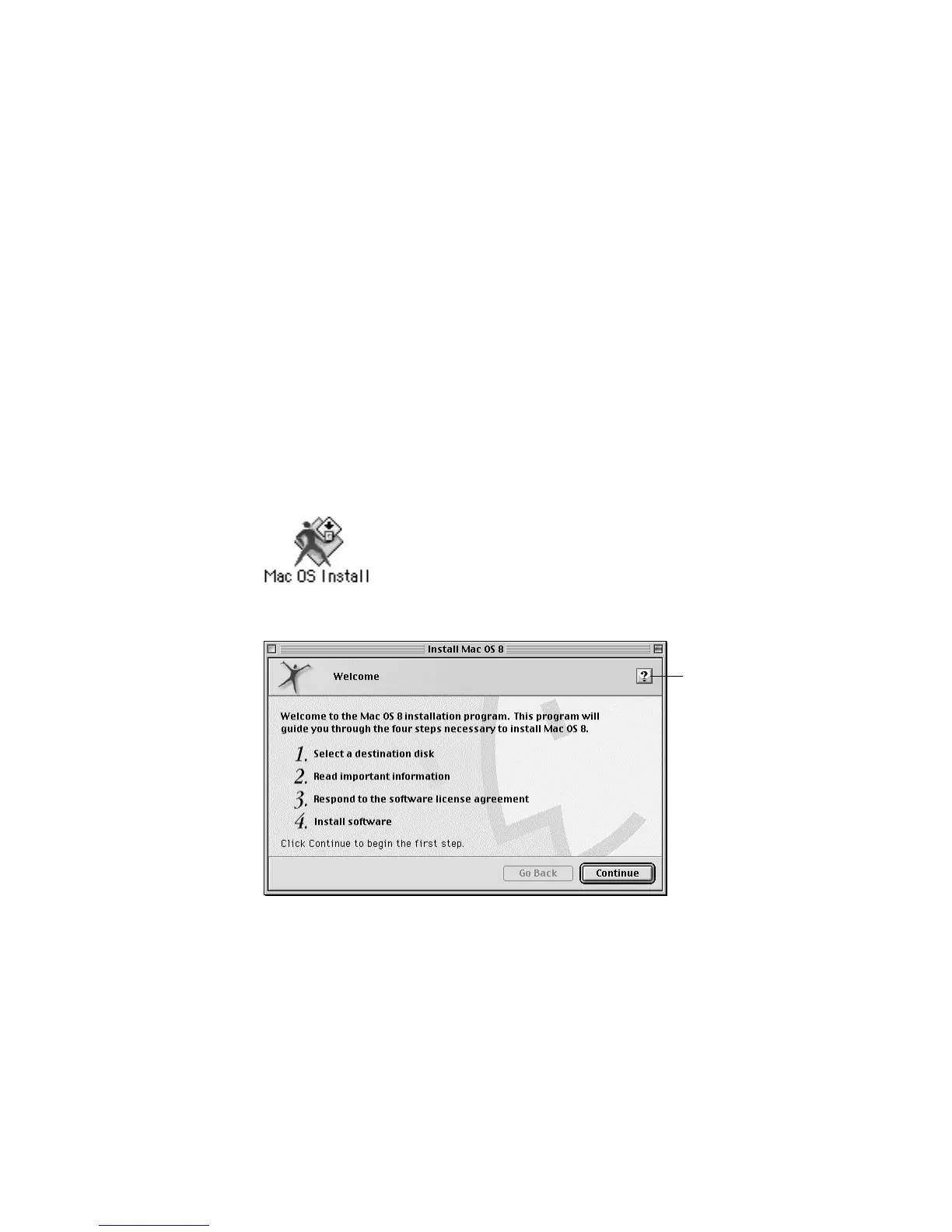
2 Double-click the Mac OS Install icon.
A welcome screen appears that describes the steps in the installation process.
3 When you’re ready to begin, click Continue.
The Mac OS Install application guides you through the steps necessary to install the software.
For help during installation, click the Help button (h) in the upper-right corner of the
window. If you encounter problems, see “Problems During Installation” on page 38.
Important It is highly recommended that you back up the data on your hard disk before
installing system software. Apple is not responsible for any lost data.
Click to display more
information about
each step.



 To Next Page