Reinstalling Your Computer’s Software 35
4 To perform a clean installation, go to “Performing a Clean Installation” on page 36.
In a clean installation, the Installer creates a new System Folder on your hard disk.
Performing a clean installation can be a complicated and lengthy procedure, but if you are
experiencing problems or your computer seems slow, it may help.
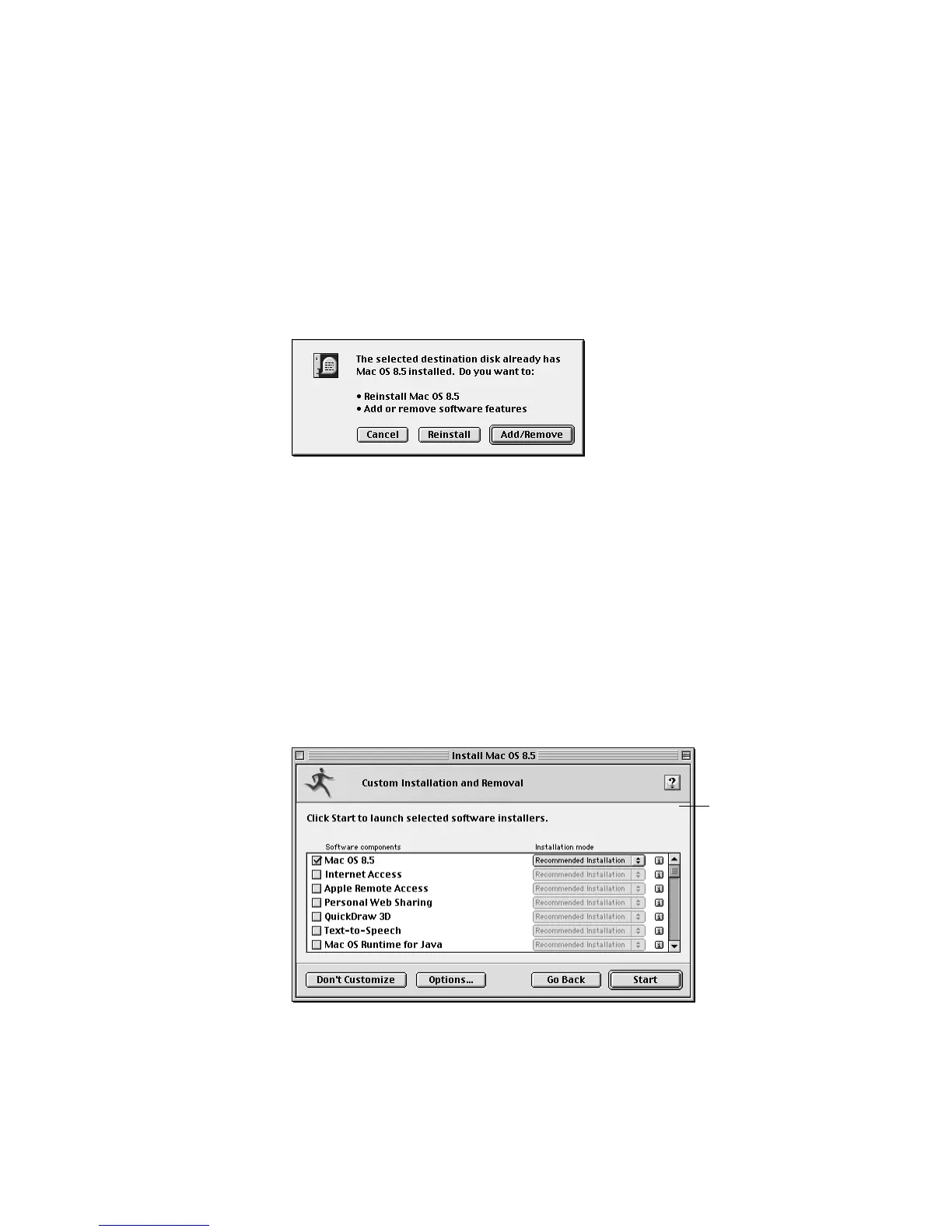
5 Choose a destination disk from the pop-up menu, then click Select.
A dialog box appears asking if you want to reinstall or add/remove software.
6 Do one of the following:
m To install all the software you need for your computer, click Reinstall and follow the
onscreen instructions. This is the best choice to solve system software problems.
m To add or remove specific system software components, click Add/Remove. Proceed to
the next section, “Custom Installation.”
Custom Installation
1
In the window that appears, select a software component to install or remove.
2 To install or remove specific items within a component, open the “Installation mode” pop-up
menu and choose Customized Installation, or Customized Removal.
The Recommended Installation option installs all items within the software component.
Your screen may look
slightly different.



 To Next Page