36 Chapter 4
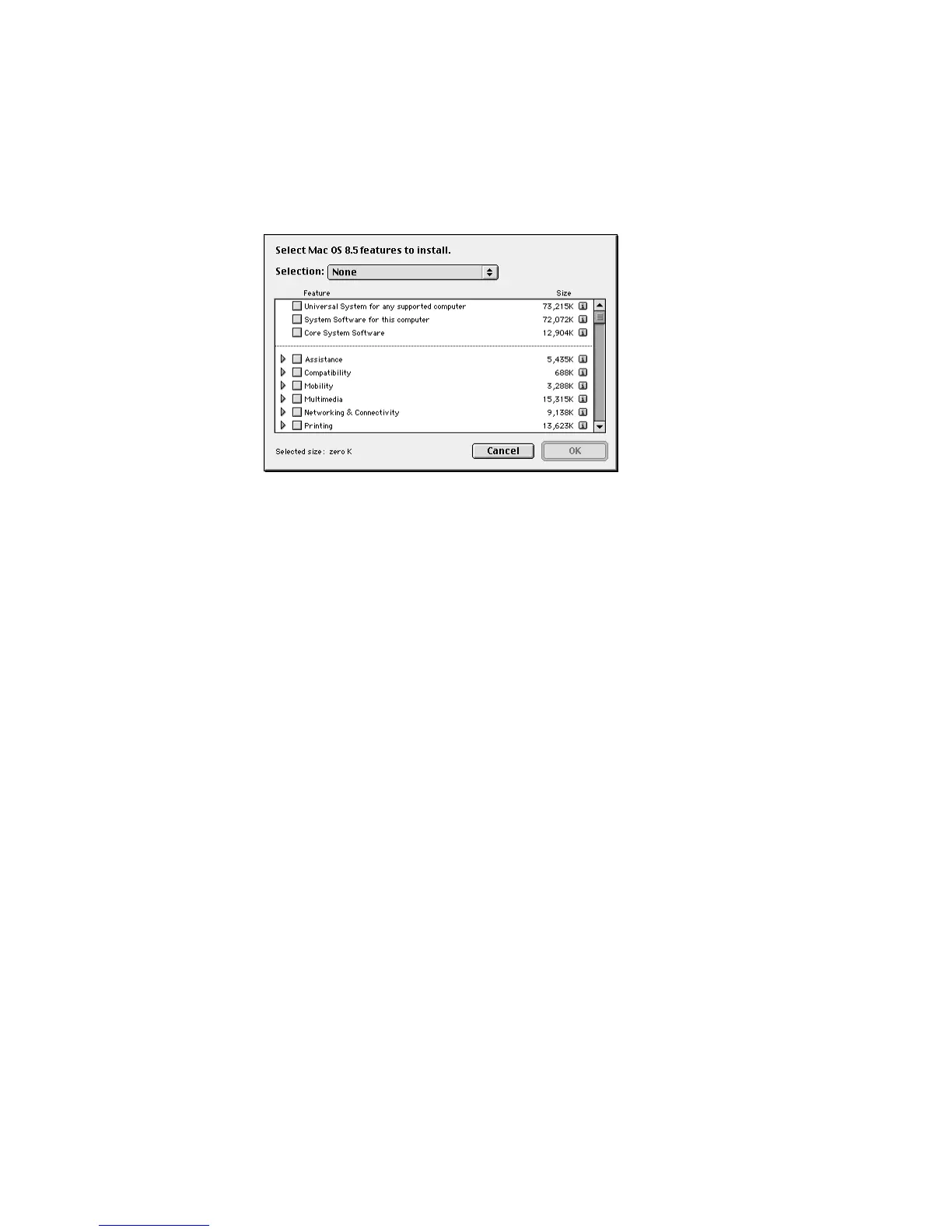
3 If you choose Customized Installation or Customized Removal, a list of the available items
within the software component appears. Select the items you want to install or remove.
Click the triangle on the left to see individual features within each item. To get information
about an item, click the box in the right column with the letter i in it.
4 Repeat steps 1–3 for each software component you want to install.
5 When you’re finished, click Start.
If you see messages about problems with your hard disk, see “Problems During Installation”
on page 38.
6 When a message appears saying that the installation process finished, click Quit to close the
program or click Continue to install or remove other software.
Performing a Clean Installation
This section provides instructions for what is commonly called a clean installation of system
software. A normal system software installation replaces changed system files and adds new
ones, but leaves other files alone. When you install system software using a clean installation,
the Installer creates a new System Folder on your hard disk. The old System Folder is
renamed Previous System Folder.
Note: Performing a clean installation does not erase the contents of your hard disk.
Performing a clean installation can be a complicated and lengthy procedure, but if you are
experiencing problems or your computer seems slow, it may help.



 To Next Page