Reinstalling Your Computer’s Software 37
After you do a clean installation, your computer has a new System Folder. Once you make
sure your computer is working properly, you’ll need to reinstall any non-Apple extensions,
fonts, and control panels. If your computer came with software that was already installed,
some of those programs may need to be reinstalled after you perform a clean installation,
particularly if those programs rely on files that used to be in the System Folder. For more
information, see “Reinstalling Individual Applications” on page 41.
1 Write down your Internet settings (from the Modem, TCP/IP, and Remote Access control
panels).
You’ll need to enter these settings in the control panels once the clean installation is finished.
2 Make sure the Caps Lock key is not engaged.
3 Start up your computer from the software install CD.
(See Chapter 2, “Starting Up From a CD,” on page 25.)
4 Double-click the Mac OS Install icon to open the Installer.
5 In the Welcome dialog box, click Continue.
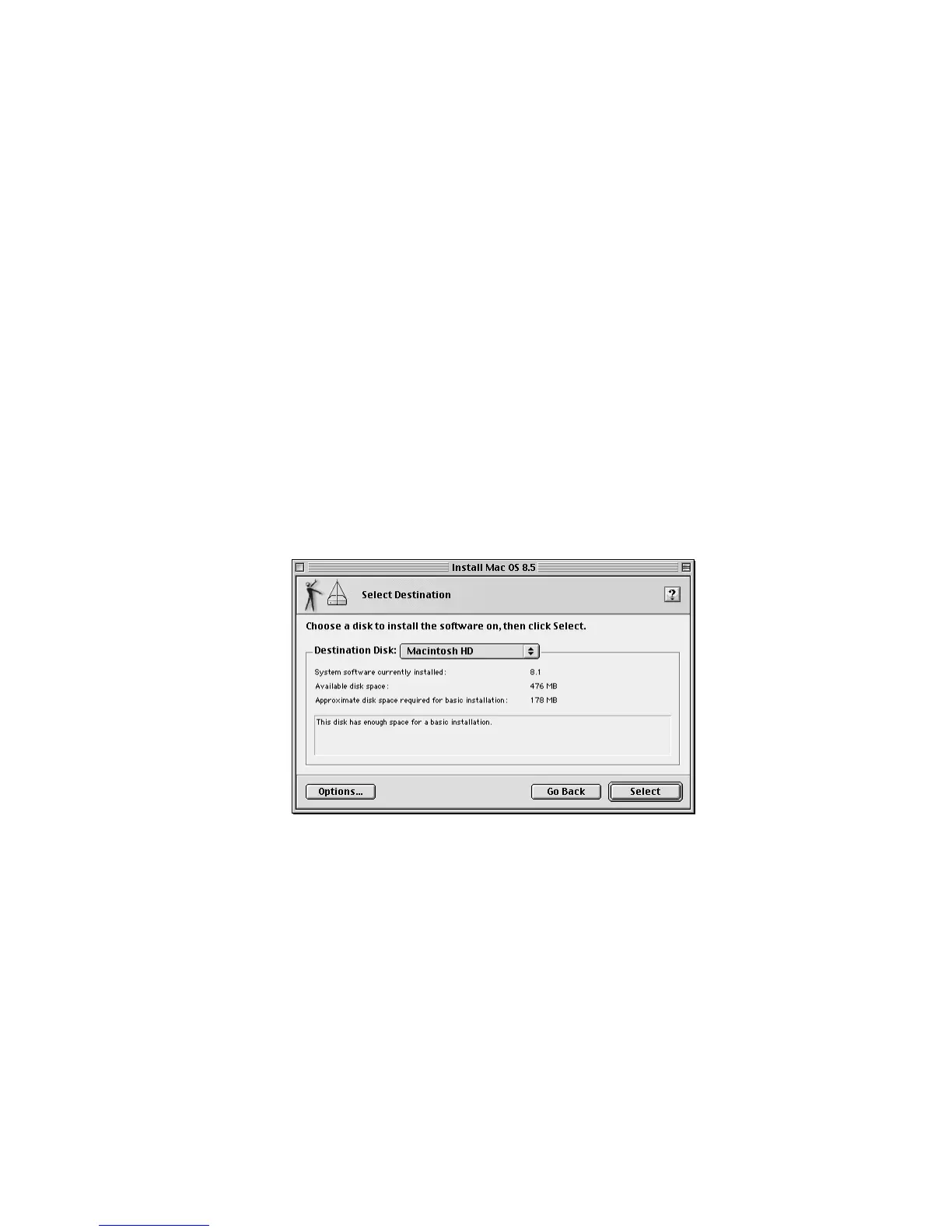
The Select Destination dialog box appears.
6 Click the Options button.
7 Click the Perform Clean Installation checkbox to select it, then click OK.
8 Select the destination hard disk, then click the Select button.
9 Click Start to begin the installation.
If you want to customize your installation, click Add/Remove after selecting the destination
disk, and see “Custom Installation” on page 35.



 To Next Page