Sending faxes using Fax Sender GX
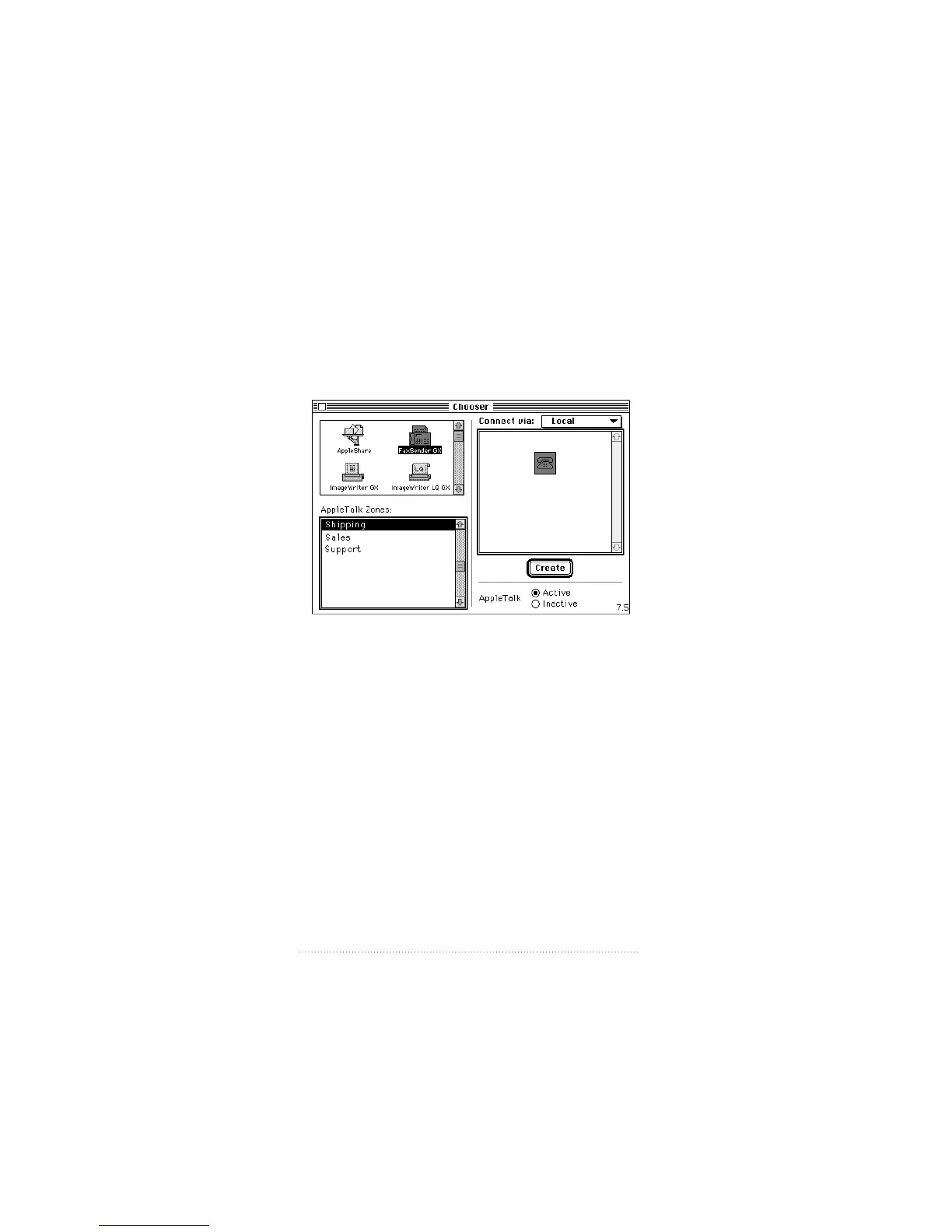
Choosing Fax Sender GX
1 Select Chooser from the Apple (K) menu.
The Chooser dialog appears.
2 Scroll, if necessary, in the upper left panel until Fax Sender
GX is visible.
3 Click the Fax Sender GX icon to select it.
4 Click the Create button in the lower right corner.
This creates a desktop printer icon for Fax Sender GX. Using
desktop printer icons for drag-and-drop printing is discussed
later in this chapter.
5 Click the close box in the upper left corner to close
the Chooser.
Documents printed by programs will now be sent as faxes by
Fax Sender GX.
60
Chapter 3



 To Next Page