Chapter
1:
Sethng
Up
the
Apple
lie
-
-
-
-
Connecting
a
joystick
or
other
hand
control
Connecting
an
audio
cassette
recorder
To
connect an audio cassette recorder, you
need
a double cable
with all four
ends
terminating
in
miniature
phone
plugs.
One
cable
carries data from the computer to the recorder; the
other
carries
data from
the recorder to the computer. Most double cables have a
different color for each cable
(the
inslIUclions the follow refer to
black and
gray cables),
so
you can tell the input cable from the
output cable. See your authorized Apple dealer
or
local electronics
store for
such
cables.
To
connect an audio cassette recorder to the
Apple lie, follow these four steps:
1.
Insert
one
plug
on
the black cable into the MICROPIIONE jack
on
the casselle recorder.
2. Insert the other plug
on
the black cable into the computer's
cassette output jack (marked with an icon that shows an arrow
pointing toward a cassette).
3. Insert
one
plug
on
the gray cable into the EARPHONE
or
MONITOR jack
on
the casselte recorder.
4. Insert the other plug
on
the gray cable into the computer's
cassette input jack (marked with an icon that shows an arrow
pointing
awayjrom a cassette).
.:.
Tips
jor
cassette
users:
Inexpensive,
monophonic
cassette
recorders
work
better
than
more
sophisticated
stereo
recorders. Buy cassettes that are certified for data use, if at
all
possible.
If
you cannot find them
in
your area, use high-quality
audio cassettes. Never buy
cheap
audio cassettes for recording
data.
One
bad
spot
on
a tape
can
mess
up
an entire software
program.
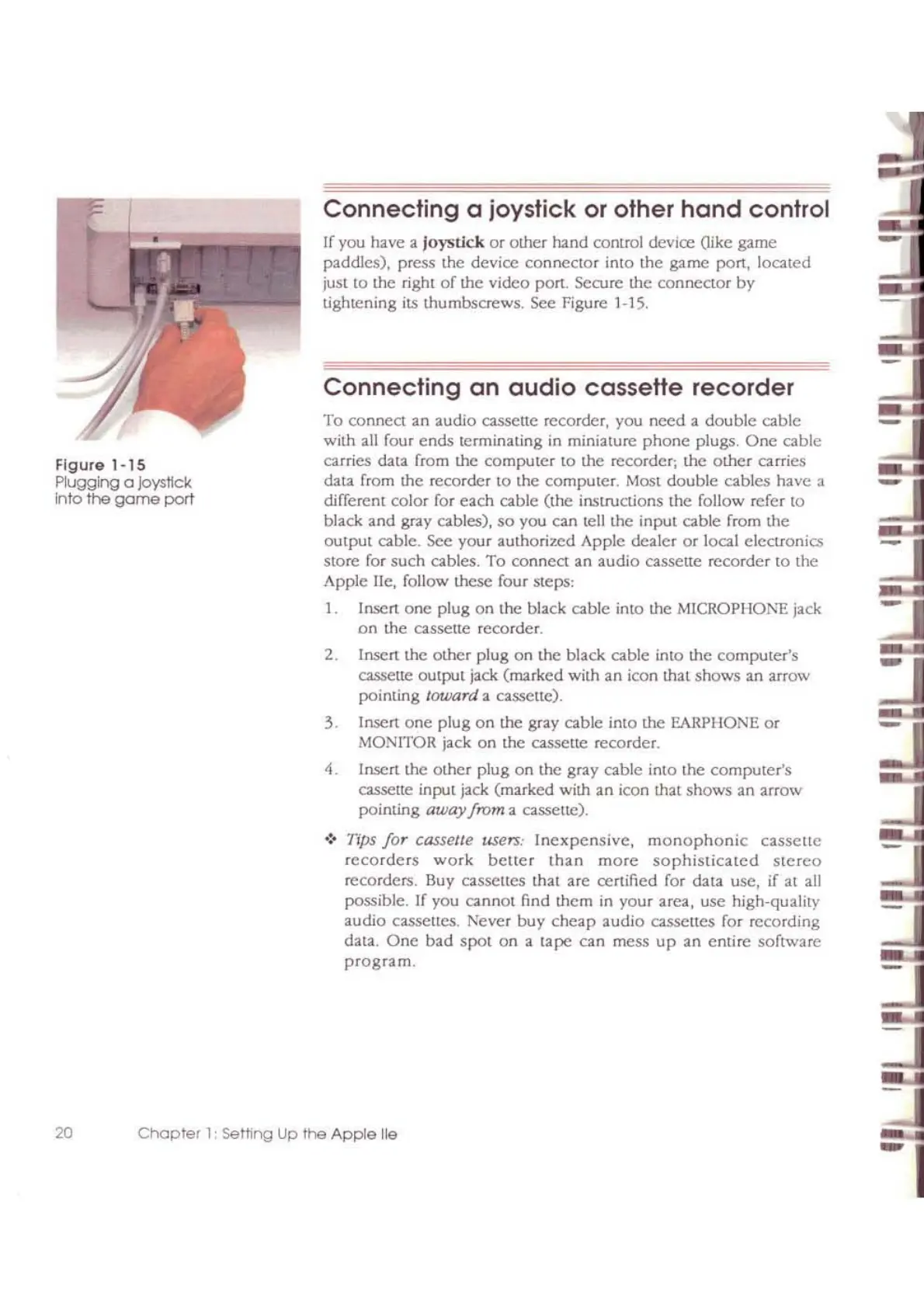
If
you have a
joystick
or
other hand conlIOl device
Oike
game
paddles), press the device connector into the game port, located
just to the right
of
the video port. SCcure the connector
by
tightening its thumbscrews. See Figure 1-15.
Figure
1-15
P1ugging a }oystlck
Into
the
game
port
20



 To Next Page