6 iMovie at a Glance
Audio Pane
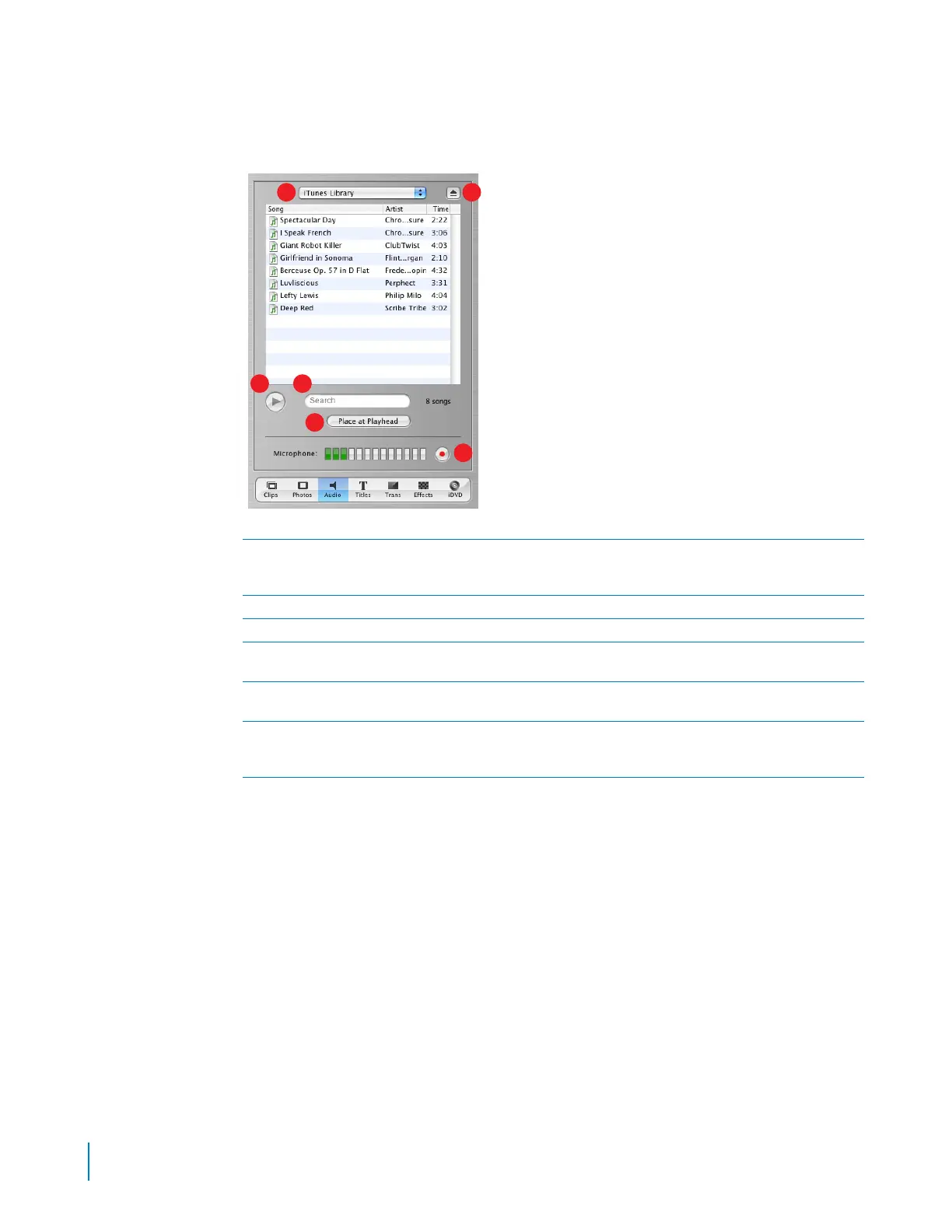
Click the Audio button to open the Audio pane. You can add sound effects, record a voiceover, or
import music from a CD or your iTunes music library.
A
Audio pop-up menu:
Choose the source from which you want to import music or audio. You can choose a
track from your iTunes library or a music CD, or an iMovie sound effect. You can drag a sound effect or
iTunes track from the list to the timeline viewer to add it to your movie.
B
Eject button:
Click the button to eject a CD from the optical drive.
C
Play:
Click the button to play or pause a selected track.
D
Search field:
Type some words from a title to search for a particular audio file in your iTunes library. You can
search by title or artist.
E
Place at Playhead:
Click the button to import a selected track into your movie. The imported track appears in
one of the audio tracks in the timeline viewer.
F
Record/Stop:
Click the button to record a voiceover or other sound through your computer’s built-in
microphone or an external microphone. The input meter displays the sound level; sound quality is best if it
stays within the yellow range.
A
DC
E
F
B



 To Next Page