8 iMovie at a Glance
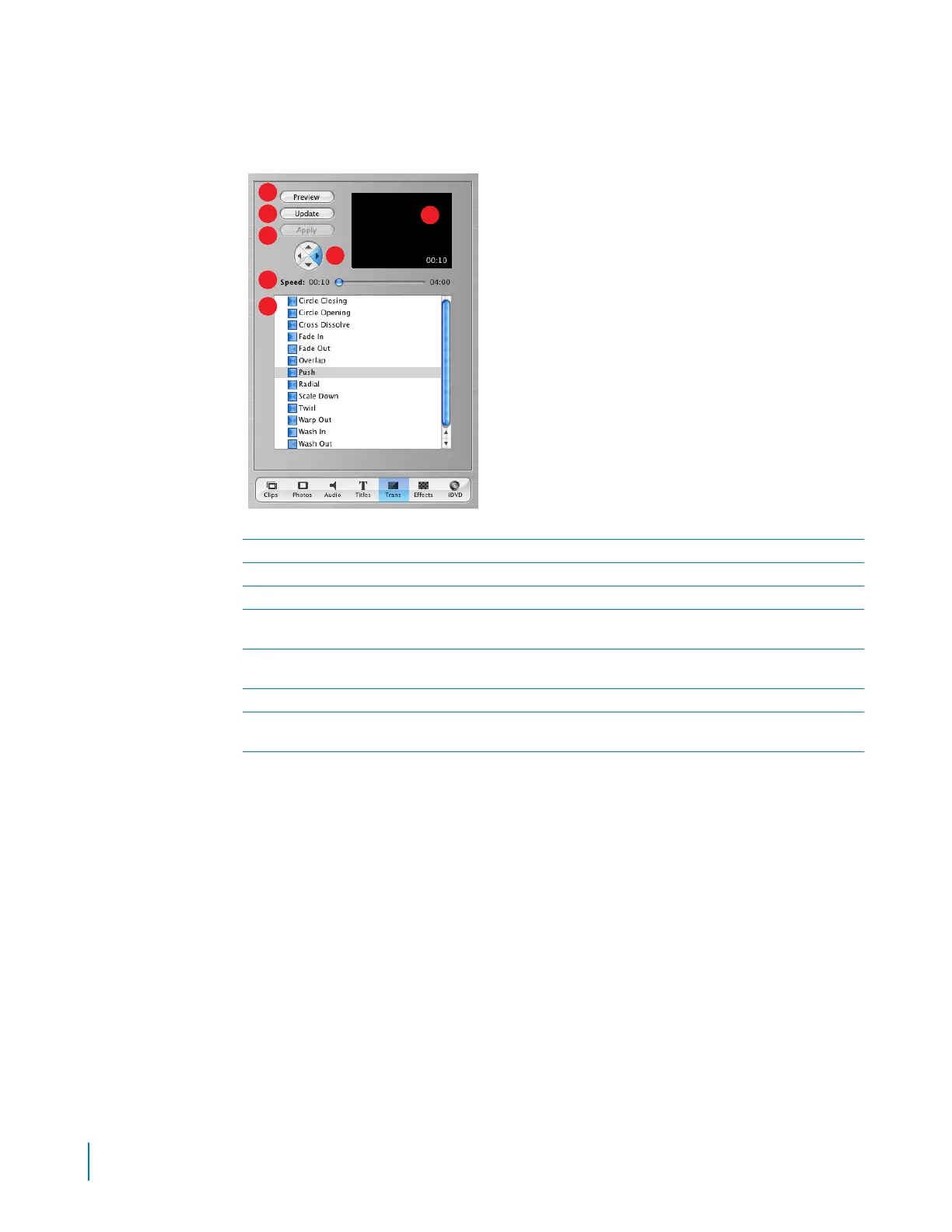
Transitions Pane
Click the Transitions button to open the Transitions pane. You can add transitions to move
smoothly between the scenes in your movie.
A
Preview:
Click to see how the transition will look in the iMovie monitor.
B
Update:
Click to apply changes to a transition you’ve already added to your movie.
C
Apply:
Click to apply the transition to multiple selected clips in your movie.
D
Arrow buttons:
For some transitions, you can click an arrow button to set the direction you want the
transition to move.
E
Timing controls:
Move the sliders to set the speed of the transition and make other adjustments, depending
on the transition style.
F
Preview monitor:
View a selected video clip and transition here.
G
Transitions list:
Select a transition in this list. When you’re done setting options for the transition, drag the
transition from this list to where you want it to appear in the clip viewer.
G
F
C
E
A
B
D



 To Next Page