Mac Pro (Mid 2010) Basics — New Accessories 16
2010-08-31
Pairing the Magic Trackpad
To pair the trackpad:
1. Choose Apple () > System Preferences, and then click Trackpad.
2. Click “Set Up Bluetooth Trackpad …” in the lower-right corner.
3. Press the On/o button on the trackpad to turn it on.
4. Click Continue when the trackpad is detected.
Once the trackpad is paired with the Mac, use Software Update again to make sure the latest
software is installed.
Note: If the Mac Pro (Mid 2010) has had system software reinstalled for any reason, pair the
Magic Trackpad and then run Software Update. If only basic functionality is present on Magic
Trackpad, ensure that it is paired correctly before launching Software Update.
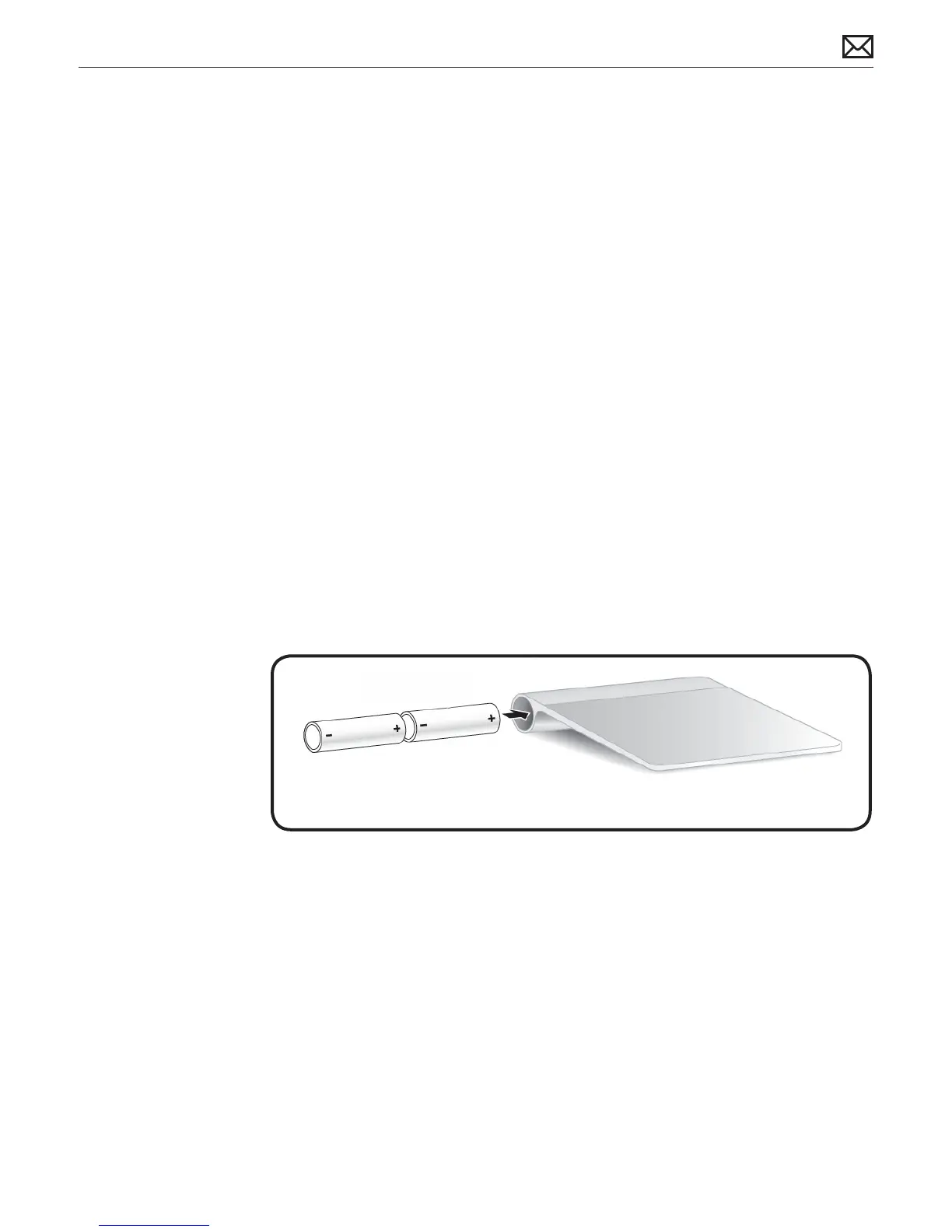
Installing Batteries
1. Use a coin to remove the battery compartment cover on the left side.
2. Insert batteries into the battery compartment as shown.
Warning: Replace or recharge batteries at the same time. Don’t mix old batteries with new
batteries and don’t mix battery types (for example, alkaline and lithium batteries). Don’t open
or puncture the batteries, install them backwards, or expose them to re, high temperatures, or
water. Don’t charge nonrechargeable AA batteries. Keep batteries out of the reach of children.



 To Next Page