EasyManua.ls Logo

Apple Macintosh - Page 139

Apple Macintosh
321 pages
Print Icon
To Next Page IconTo Next Page
To Previous Page IconTo Previous Page
Loading...
Exploring MacWrite 141
footer
1!1
~
[!}
~-'
-
W
-
'-'-•~...J
~
..L....!
~
_B
_,
_
,.J
~
.......rl._,
....._w_
,
~
l~
-
~
-l,.
....._.~
_
l!-'
~
-
1
~
~.1.:
~~
~§JEJ
R[jf]ISJ~
il"'
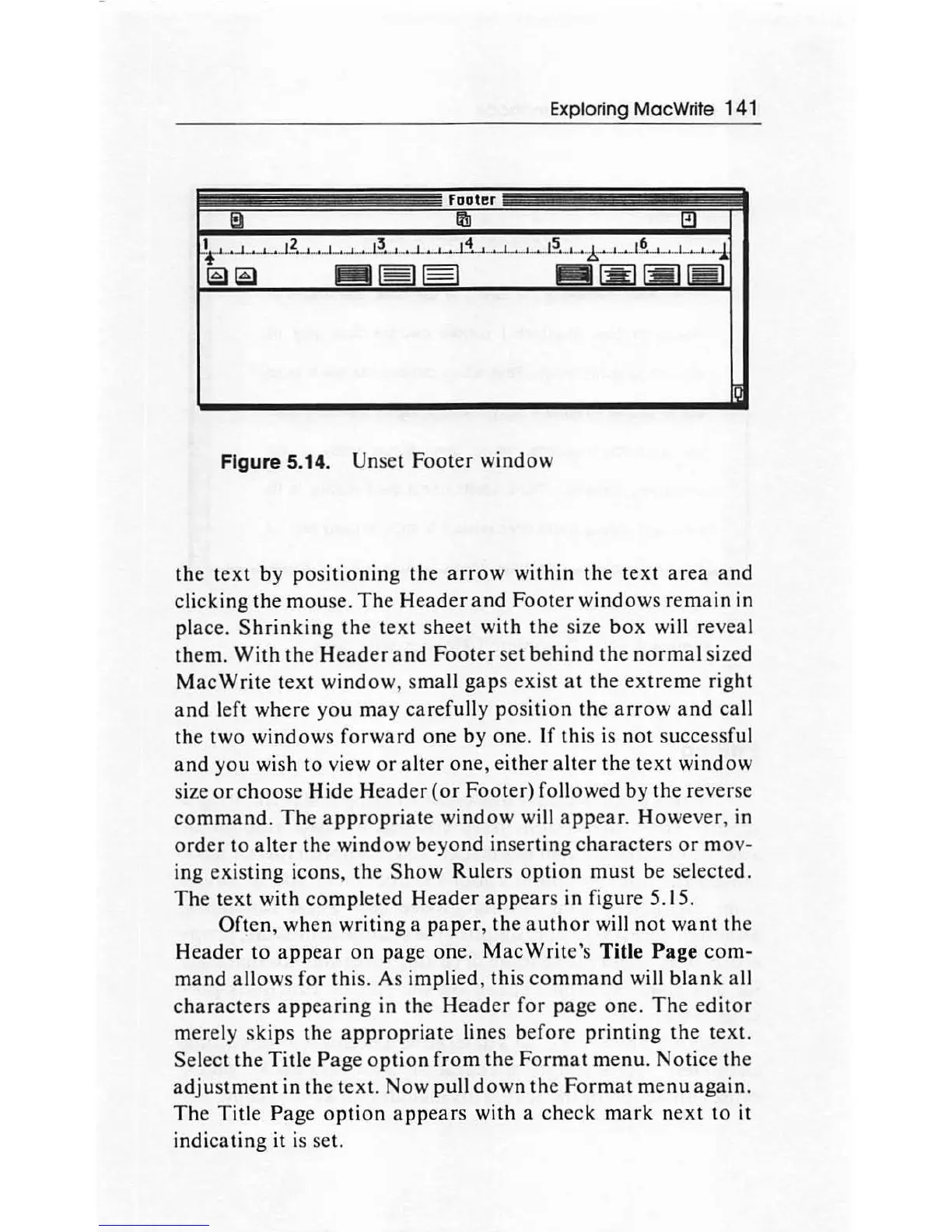
Figure 5.14. Uns
et
Footer
window
the
text
by
positioning
the
arrow
within
the
text
area
and
clicking
the
mouse.
The
Header
and
Footer
windows
remain
in
place.
Shrinking
the
text
sheet
with
the
size
box
will reveal
them.
With
the
Header
and
Footer
set
behind
the
normal
sized
MacWrite
text
window,
small
gaps
exist
at
the
extreme
right
and
left
where
you
may
carefully
position
the
arrow
and
call
the
two
windows
forward
one
by
one.
If
this is
not
successful
and
you
wish
to
view
or
al
ter
one
,
either
alter
the
text
window
size
or
choose
Hide
Header
(or
Footer)
fallowed
by
the
rever
se
command
.
The
appropriate
window
will
appear.
However
, in
order
to
alter
the
window
beyond
inserting
characters
or
mov-
ing
existing
icons,
the
Show
Rulers
option
must
be selected.
The
text
with
completed
Header
app
e
ar
s in figure 5. 15.
Often
, when writ
ing
a
paper
,
the
author
wi
ll
not
want
the
Header
to
appear
on
page one.
MacWrite
's Title
Page
com-
mand
allows
for
this
. As implied,
this
command
will
blank
all
character
s
appearing
in the
Head
er for
page
one.
Th
e
editor
merely s
kips
th
e
appropriate
lines
before
printing
the
text.
Select
the
Title
Page
option
from
the
Format
menu.
Notice
th
e
adjustment
in
the
text.
Now
pull
down
the
Format
menu
again
.
The
Tit
le
Page
option
appears
wi
th
a
check
mark
next
to
it
indicating it
is
set.

Other manuals for Apple Macintosh

Related product manuals