EasyManua.ls Logo

Apple Macintosh - Page 282

Apple Macintosh
321 pages
Print Icon
To Next Page IconTo Next Page
To Previous Page IconTo Previous Page
Loading...
Macintosh Communications
285
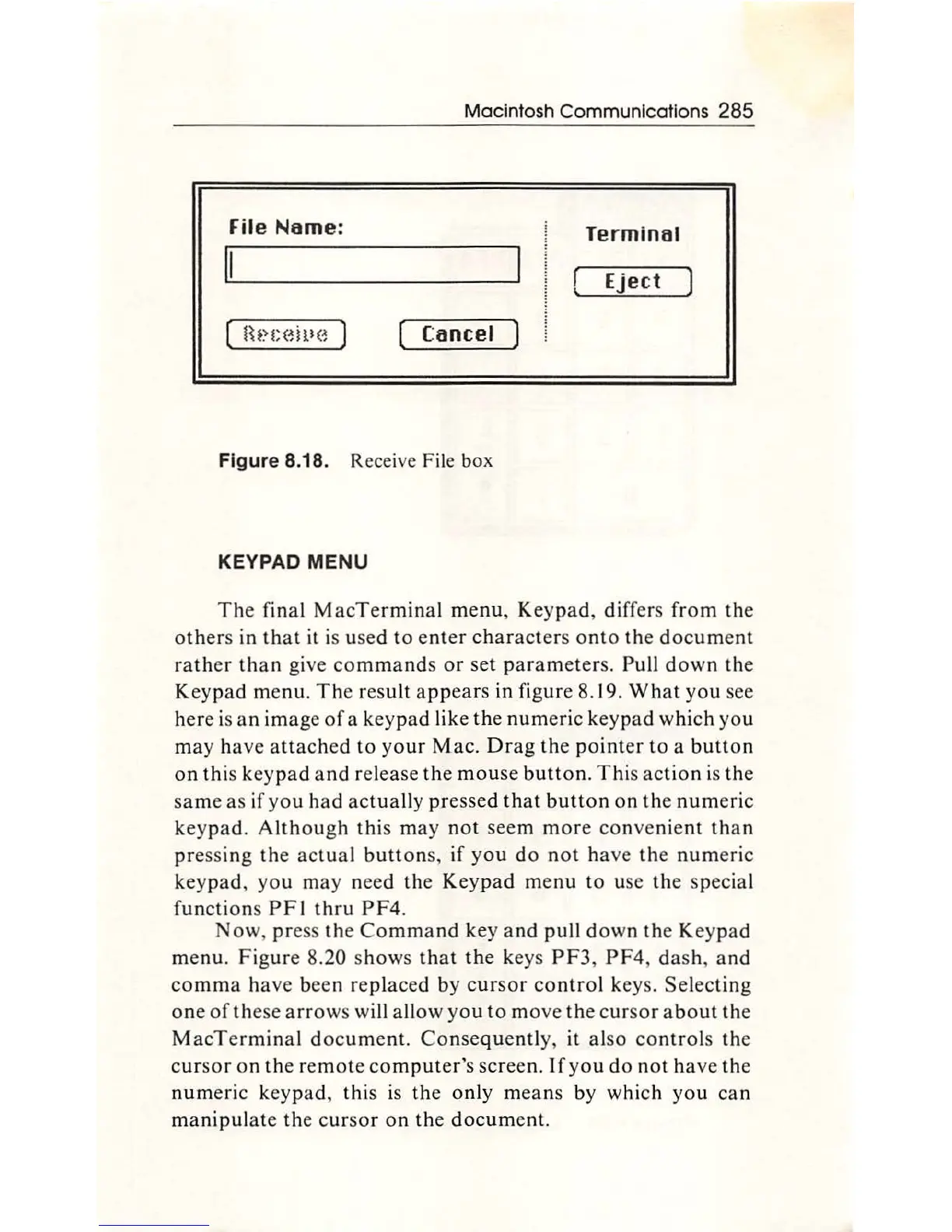
File
Nome:
Terminal
II
Eject
Cancel
Figure 8.18. Receive File b
ox
KEYPAD MENU
Th
e fin
al
M
ac
Te
rm
inal me
nu
, K
ey
pad,
diff
ers from the
others in
th
at
it is used to e
nt
er
ch
ar
ac
ters o
nt
o
th
e d
oc
um
en
t
ra
th
er
th
an
give
com
mands
or
s
et
parameters. Pull d
ow
n the
Keypad
menu
.
Th
e res
ult
a
pp
e
ars
in
fi
g
ur
e 8.
19.
Wh
at
yo
u see
here is an
ima
ge
of
a key
pad
like
th
e
num
eric keypad
which
yo
u
m
ay
h
ave
a
tt
ac
hed to y
ou
r
Mac.
Dr
ag
th
e po
int
er to a
butt
on
on
thi
s k
ey
pad a
nd
release
th
e
mou
se
butt
on. T his
ac
tion is
th
e
same
as
if
yo
u had
ac
tu
a
ll
y
pr
essed
that
butto
n on the
num
eric
k
eypa
d.
Alth
ough
thi
s m
ay
not
seem
more
convenien
t
th
an
press
in
g
th
e
ac
t
ua
l
butt
ons, if y
ou
do n
ot
h
ave
th
e
nu
meric
keyp
ad,
yo
u
may
n
ee
d
th
e Key
pad
me
nu
to use the sp
ec
ial
fu nctions
PF
I
thru
P F4.
Now
, press
th
e
Comma
nd
key and pull d
ow
n the Keypad
menu. Figure 8.20
shows
that
the
keys P
F3
, P F4,
das
h, and
co
mm
a h
ave
been replaced by c
ur
so
r
co
nt
ro
l keys.
Se
l
ec
ti
ng
one of
th
ese
arrow
s will allow
yo
u
to
move
th
e c
ur
sor
about
th
e
M
acTermi
nal
doc
u
me
nt.
Co
nse
qu
ently, it al
so
con
trols
th
e
c
ur
sor
on
th
e rem
ote
co
mput
e
r'
s screen.
If
yo
u
do
not h
ave
th
e
num
eric keypad, this is the only m
ea
ns by which
yo
u can
manipulat
e the c
ur
so
r on
th
e
docum
ent.

Other manuals for Apple Macintosh

Related product manuals