134 Chapter 7 Changing Object Properties
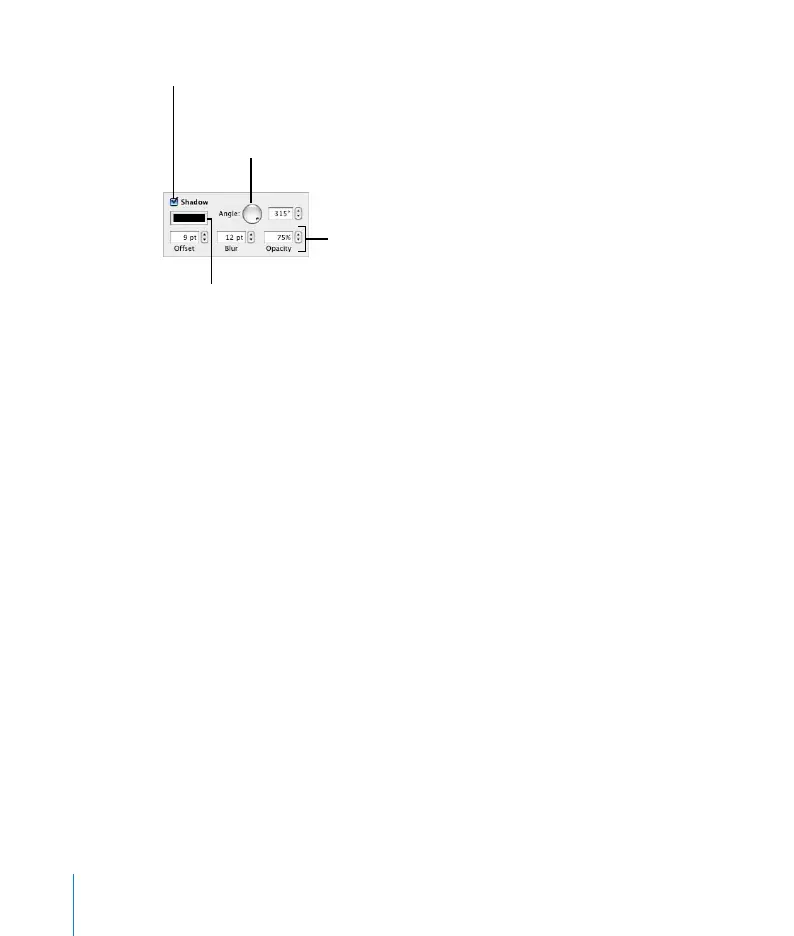
To create or remove a shadow for an object:
1 Select the object you want to modify.
2 In the Graphic Inspector, select the Shadow checkbox to add a shadow to the object.
Deselect the Shadow checkbox to make the shadow go away.
3 Set the angle for the shadow using the Angle wheel.
4 Adjust the shadow offset by typing a number in the Offset box.
A high shadow offset value makes an object’s shadow appear longer and slightly
separated from the object.
5 Set the shadow blur by typing a number in the Blur box.
A high blur value makes the object’s shadow appear more diffuse; a low value gives
the shadow more sharply defined edges.
6 Set the shadow opacity by typing a number in the Opacity box. (Shadow opacity is
separate from object opacity, which is set using the Opacity slider at the bottom of
the Graphic Inspector.)
7 To change the color for the shadow, click the color well and select a color.
Change the shadow
color in the color well.
Select the checkbox to add a
shadow to a selected object.
Change the angle of the
shadow with the Angle
wheel.
Offset, Blur, and Opacity
fields can change the look
of the shadow.



 To Next Page