Chapter 4 Working With Styles 85
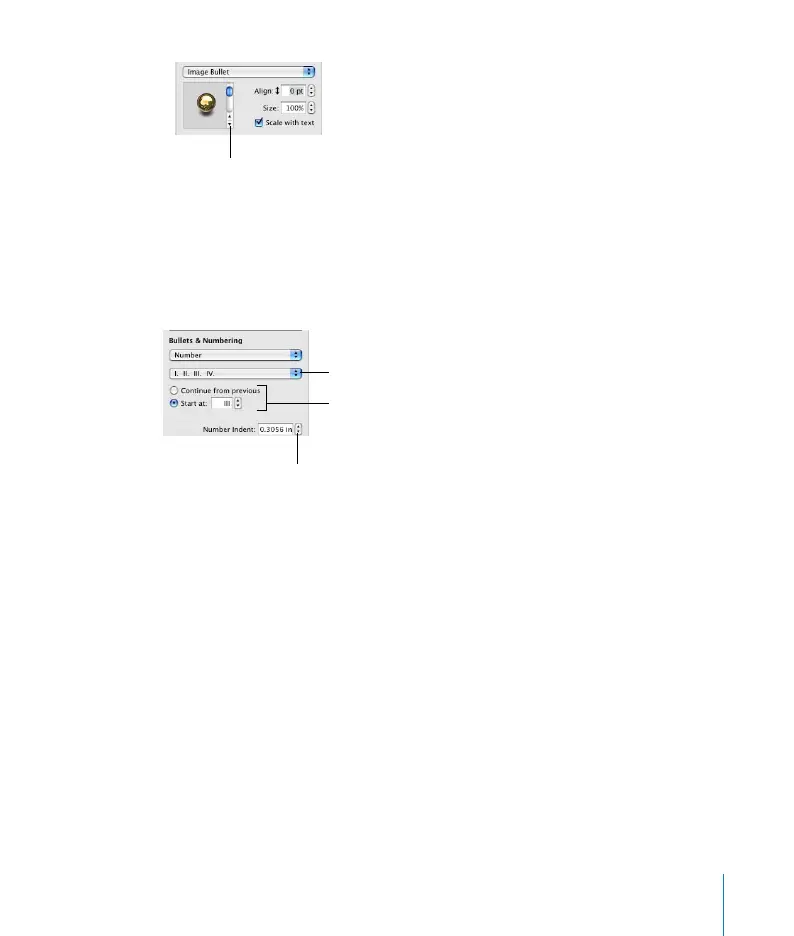
 Custom Image: Choose this to use your own image as a bullet. Use the Open dialog
to locate and select the image file you want to use. (To change the image, click
Choose or drag a new image into the well.)
 Number: Choose this to create a numbered list. You must also choose a numbering
style. You can choose Arabic or Roman numerals, or letters.
 Tiered Numbers: To read about Tiered Numbers, see “To modify a tiered list style
for ordered lists:” on page 86.
3 Format the bullets.
a To increase or reduce the size of a bullet, type a number in the Size field. Selecting
the “Scale with text” checkbox maintains the image-to-text size ratio of the bullets
even if you later change to the font size.
b To position the bullet symbol higher or lower relative to the text, type a number in
the Align box (or click the arrows).
c To set how far the bullets are indented from the margin, type a number in the Bullet
Indent field. A higher number indents the list further to the right.
d To set how far text is indented from the bullet, type a number in the Text Indent
field. A higher number indents the text further to the right.
For image bullets, select
one from the list.
For numbered lists, choose a
numbering style.
Restart numbering, or
continue with previous
numbering.
Adjust number indentation
relative to page margin.



 To Next Page