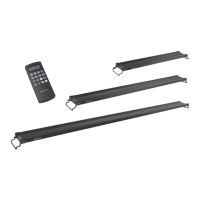
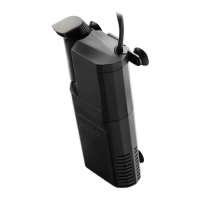
IMPORTANT CLEANING & SERVICING PRECAUTIONS
CLEANING: It is important to keep this appliance clean. Unplug and remove the unit from the aquarium.
Wipe exposed surfaces carefully with a damp cloth to remove any dust or mineral deposits which may
collect over time. Make sure all surfaces are dry before reinstalling.
SERVICING: In order to assure proper electrical connections and polarity, replacement parts and servicing
should be performed only by a qualified electrician.
3. Setting the RGB LED Color Option
a. Press one of the 8 preset color options to turn the RGBs on – ‘RGB’ will be displayed
on the screen.
b. Use the
and buttons to adjust the color intensity of the RGBs only.
c. Press to turn the RGBs off.
Note: To program different color intensities for each of the White, Blue and RGBs – each specific
color must be on by itself. If all three colors (or two) are on at the same time the intensity will be
adjusted for all 3 colors to the same intensity. Ex: If you see ‘W’ on the screen and you use the
and buttons, the color intensity will be adjusted for only the White LEDs. If you see ‘W’ and ‘B’
on the screen and you use the
and buttons, the color intensity will be adjusted for the
same amount for both the White AND Blue LEDs.
Programming the Timer
Note: Make sure your desired colors are in the ‘ON’ setting before you start programming the timer.
‘W’, ‘B’ and ‘RGB’ should be displayed on the screen.
1. Press and hold for 3 seconds until you see the hour blinking.
2. Press twice – you will see ‘W’ and ‘ON’ on the screen to set the White LEDs ON.
3. Use the
and buttons to set the hour – ‘AM/PM’ will be displayed on the screen.
4. Press . The minutes will be blinking. Use the
and buttons to set the minute.
5. Press
– you will see ‘W’ and ‘OFF’ on the screen to set the White LEDs OFF. Repeat steps 3-4.
6. Press
– you will see ‘B’ and ‘ON’ on the screen to set the Blue LEDs ON. Repeat steps 3-4.
7. Press
– you will see ‘B’ and ‘OFF’ on the screen to set the Blue LEDs OFF. Repeat steps 3-4.
8. Press
– you will see ‘RGB’ and ‘ON’ on the screen to set the RGBs ON. Repeat steps 3-4.
9. Press
– you will see ‘RGB’ and ‘OFF’ on the screen to set the RGBs OFF. Repeat steps 3-4.
10. Press
– your fixture is now programmed to your custom settings.
Note: If you don’t want to set the LEDs to turn on/off you can leave them both at 12:00AM.
RGB LED Scroll Mode
1. Press to scroll through the different color options at different speeds.
a. 25 – Color will change every 5 seconds.
b. 50 – Color will change every 4 seconds.
c. 75 – Color will change every 3 seconds.
d. 100 – Color will stop scrolling and be set to the color you selected.


 To Next Page
 Loading...