MANUAL
V1.0
PLAYING VIDEO > p. 12
VIDEO PLAYBACK MENU ITEMS
Info
displays a message box with all the available information about the current video le.
tap on to close the Info screen.
-
-
Format
allows to change the way the image is displayed.
Auto: adjusts the video size to best adapt to the built-in screen or TV.
Full Screen: enlarges the picture to ll the screen and cuts some of the image.
Maximized: enlarges the picture to ll the screen, considering the image is encoded in 2.35 format with
black bands at the top and bottom.
Original: displays the entire picture in its original format.
-
-
-
-
-
Speed
will play the current video in slow motion or high speed.
while paused in slow motion, you can advance frame by frame, using / .
-
-
Save frame as...
Thumbnail: saves the current image as a new thumbnail for this le (overwrites the previously set
thumbnail, if any).
Wallpaper: the current image will be dened as your device’s background image.
-
-
Set bookmark
sets a bookmark at the current spot in the video.
only one bookmark per le is allowed.
you can bookmark up to 32 les.
video les with a bookmark appear with the icon in the browser.
-
-
-
-
Settings
will display the Video settings screen (see next chapter).
tap on to exit this screen.
-
-
Sound
will display the Sound settings screen (see: Sound Settings).
tap on to exit this screen.
-
-
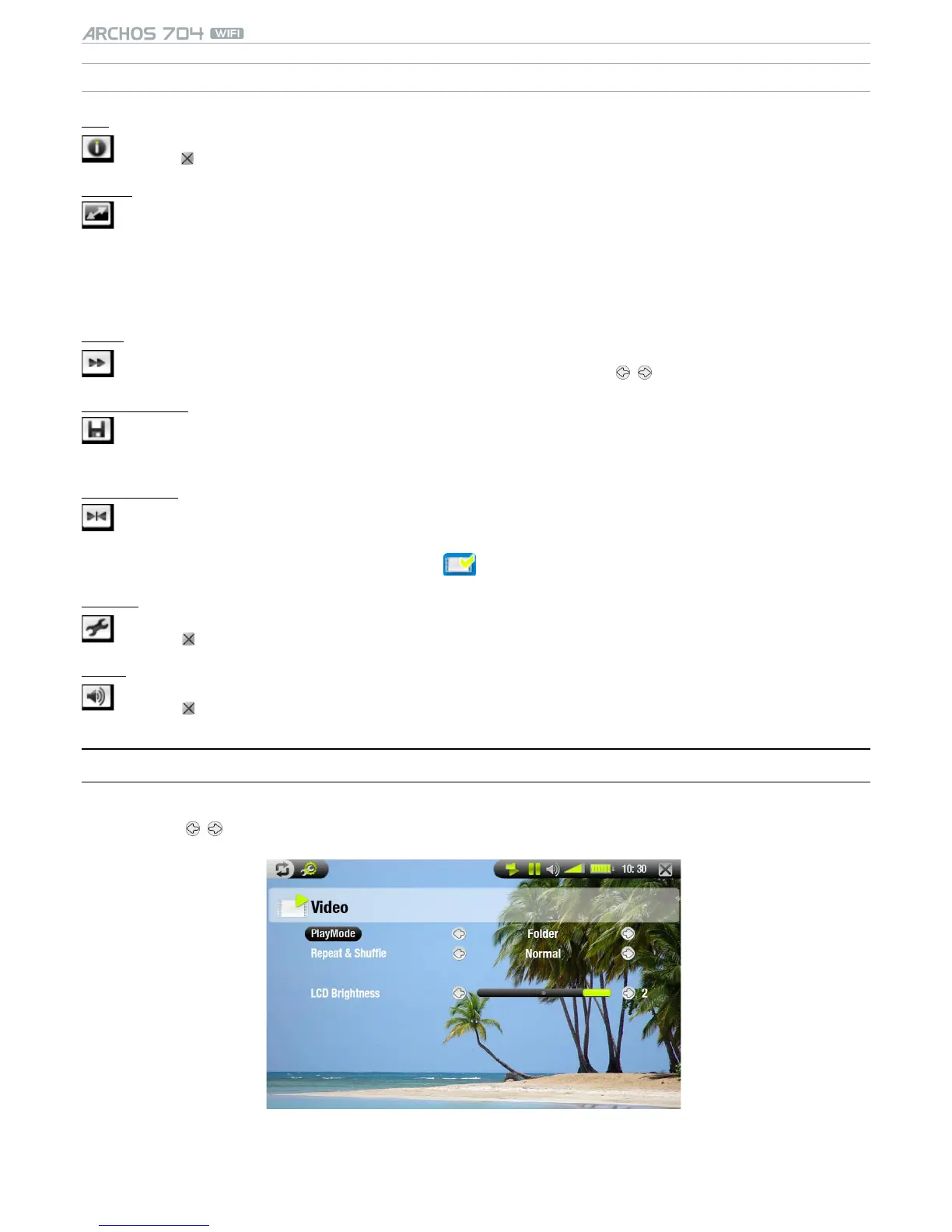
1.3 VIdeO seTTIngs
You can access the Video Settings screen via the Settings menu item while playing a video le.
Tap on the / buttons to select a different setting for a parameter.
•
•


 To Next Page