- 10 -
Installation of the MusicMatch™ Software and Pre-
Installation of the USB drivers for PC:
MusicMatch™ software is included with the Jukebox. Indeed, you will find many useful options
such as recording audio CD tracks to MP3, creating and saving a playlist that will allow you to
play specific tracks of your favorite music on the Jukebox. Furthermore, you can download
additional MP3 tracks from MusicMatch at http://www.musicmatch.com/get_music/
Installation of the MusicMatch™ Software and/or Pre-Installation of the
USB Drivers:
1. Insert the CD software included with your CDROM Player
2. Wait for the start of the setup software
3. Click on
MusicMatch French
in order to install MusicMatch or
Pre-Install the USB Drivers
,
in order to pre-install the USB Drivers then click
OK
4. Follow the instructions on the screens to complete the installations, and Restart your
computer
PC MusicMatch™ Recorder : MP3 Encoding
MusicMatch™ Recorder can be used to convert audio CD tracks into MP3 tracks for your
Jukebox.
1. Insert your audio cd into your CDROM drive.
2. Recorder will display your audio tracks on the right pane (if you don’t have
Recorder, click
Options/View
and check
Show Recorder
).
3. Check the box next to each track that you want to convert to MP3 tracks.
4. Click
Options/Settings/Recorder/
and select
MP3 128
.
5. Click
Songs Directory
and specify location where music will be saved.
6. Click
Ok’s
back, and Click on
Start
button to convert audio tracks into MP3 files.
To use the software MusicMatch™ and create your playlists, please refer to the user’s
guide integrated into the software.
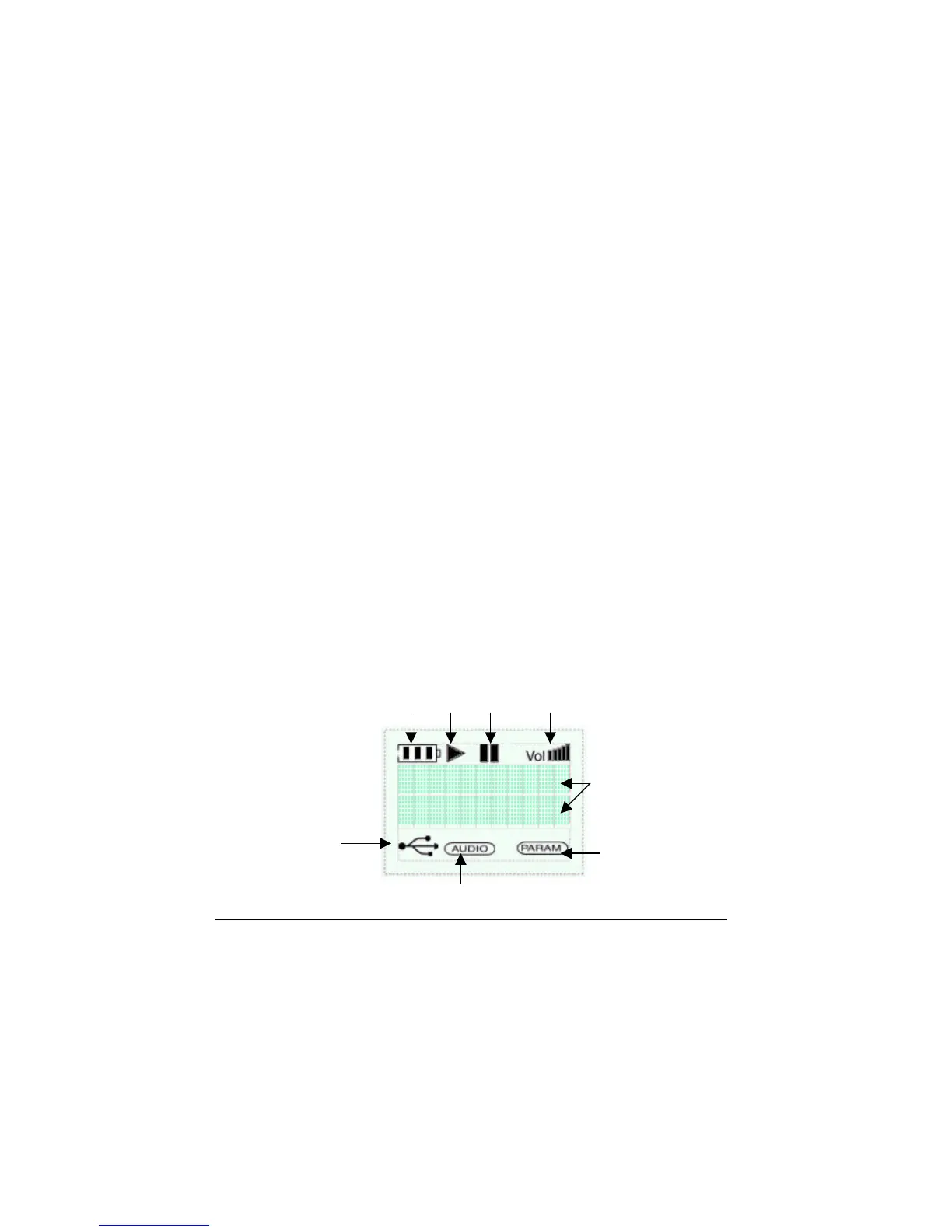
Jukebox LCD Display
2 lines of 11



 To Next Page