- 9 -
PC USB Driver and MusicMatch™ Software Installation
Connecting Jukebox to PC & Adding MP3 Tracks to Jukebox
PC USB Driver Installation :
•
Pre6Install the USB Drivers (see following section) or do as following:
•
Turn on your computer and wait until it has finished booting.
•
Gently
connect
one end of the
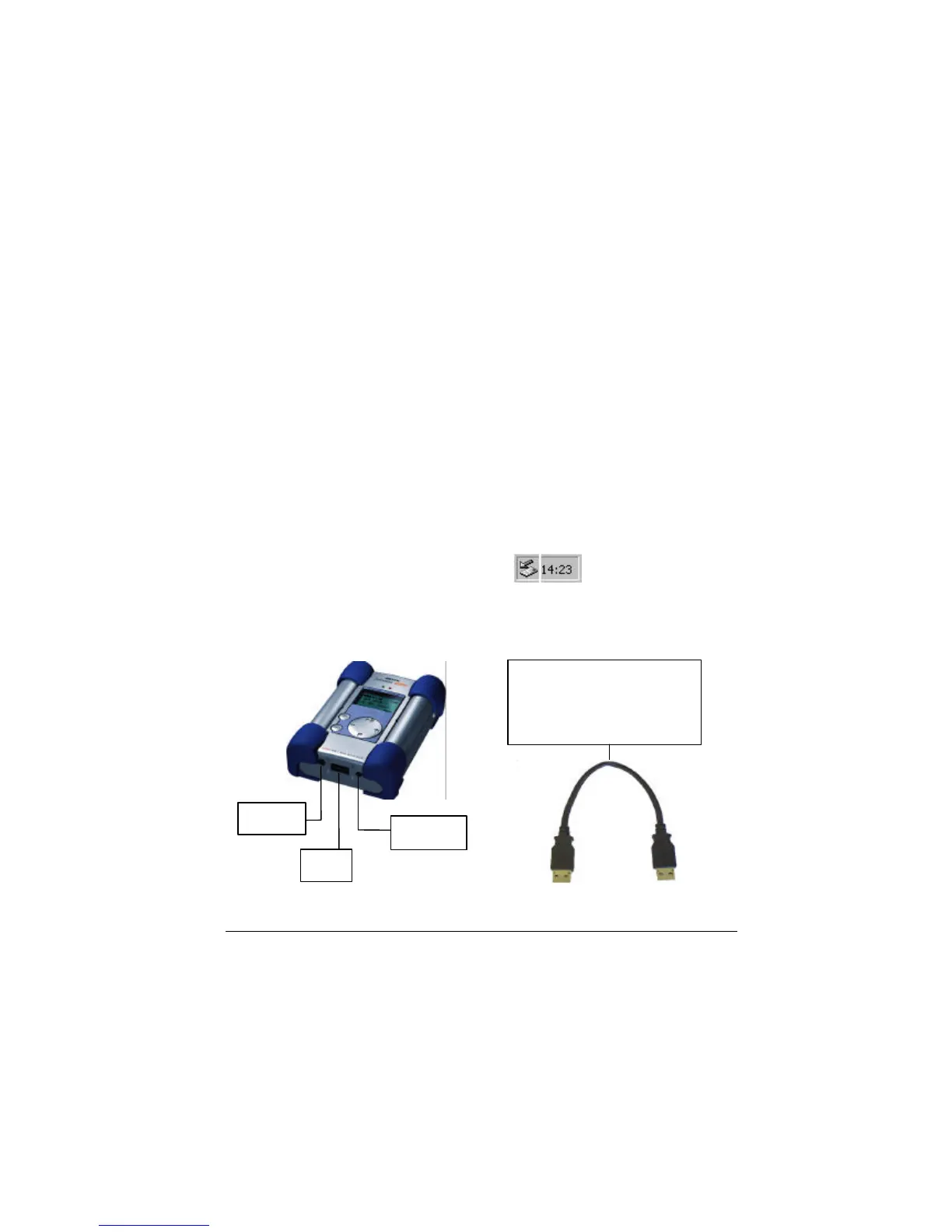
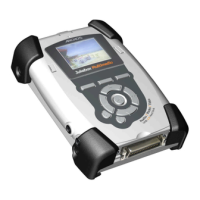
USB cable to the Jukebox
.
•
Turn on the Jukebox. ARCHOS power adaptor may be required if there isn’t enough power
from the batteries.
•
Connect
the other end of the
USB cable to a free USB port
on computer.
•
A "
Welcome to the Found New Hardware Wizard
"(Win98se/2000) appears.
•
Click on the
Next
button
•
Select the
Recommended option
to search for best driver, and click
Next
•
Insert the included Jukebox software CD into your CDROM drive.
•
Specify your CD-ROM Player and add \drivers\ for example d : \drivers\
•
Click
Next
again when new hardware is found, and follow the on-screen instructions to
complete the installation.
•
Click
Finish
when prompted.
•
You will recognize an additional drive letter is added for the Jukebox
Note
: If your Jukebox hard disk is not recognized, please refer to Trouble Shooting
•
Drag and Drop, or Copy and Paste your MP3 tracks to the Jukebox hard disk drive letter.
Click on the "peripheral" icon in the system tray
Click on the pop-up windows asking for removal
Wait until a message says removal is OK
•
Disconnect the USB cable on both ends, and
Play the MP3 Tracks
(as shown in the above
steps)
USB Cable – Both ends are
identical. Connect to the
Jukebox and Computer to
upload MP3
USB



 To Next Page