ACCESSING THE CAMERA
STEPS OF ACCESSING THE WEB INTERFACE OF THE CAMERA FROM A BROWSER:
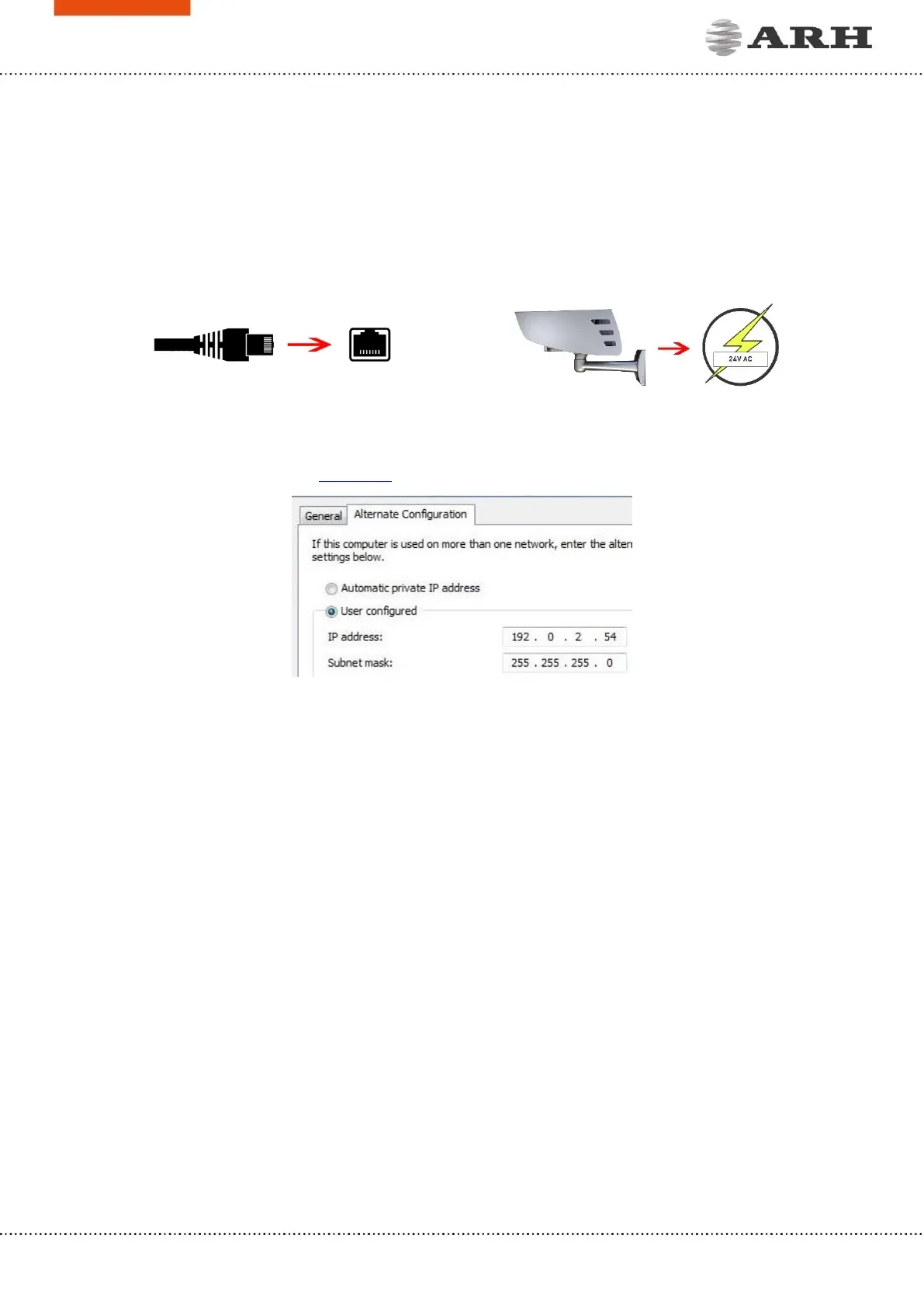
1. Connect the camera to a computer or network switch, then power on the camera. After it is
turned on, both status LEDs (red and green on the front of the camera) are turned on while
the camera is booting. After it has finished booting, the green status LED flashes two times
while the red one turns off signaling that the camera is ready for operation.
2. Enter an alternate IP address (or set your computer’s IP) in the 192.0.2.x subnet – where x is
an integer number between 1 and 254 except 3 – with the subnet mask of 255.255.255.0. For
more information, see the Appendix.
3. Use the ping command to test the communication with the camera:
Windows: Linux:
C:\>ping -t 192.0.2.3 username@mylinux:~$ ping 192.0.2.3
4. After a short while the ping package should return: Reply from 192.0.2.3. If not:
o first check the Ethernet LEDs on the PC or the switch
o check whether the IP address is set correctly; the IP address of the PC can be pinged.
o check that the proxy is set in the browser or that the browser is not set to offline.
If these obstacles are checked and there is still no reply, power the device off, turn it back
on and enter the previous ping command again.
5. Start a browser then enter the default IP address of the camera into the address bar
(http://192.0.2.3). Once this is done, the camera starts with administrator privileges, ready
for setup and configuration.


 To Next Page