APPENDIX
ADDING AN ALTERNATE IP ADDRESS
WINDOWS 7 / WINDOWS 8
1. Click Start and select Control Panel.
Select either the Small icons or Large icons
option from the View by drop-down menu
which is found on the upper right hand side
of the window.
2. Open Network and Sharing Center.
3. Click on Change adapter settings (Win 7/8)
on the left side of Network and Sharing
Center.
4. Right click on the network connection you
want to add an IP address to (the one the
camera has been connected to) and select
Properties.
5. Look for Internet Protocol Version 4 (TCP/IP v4) and press the Properties button.
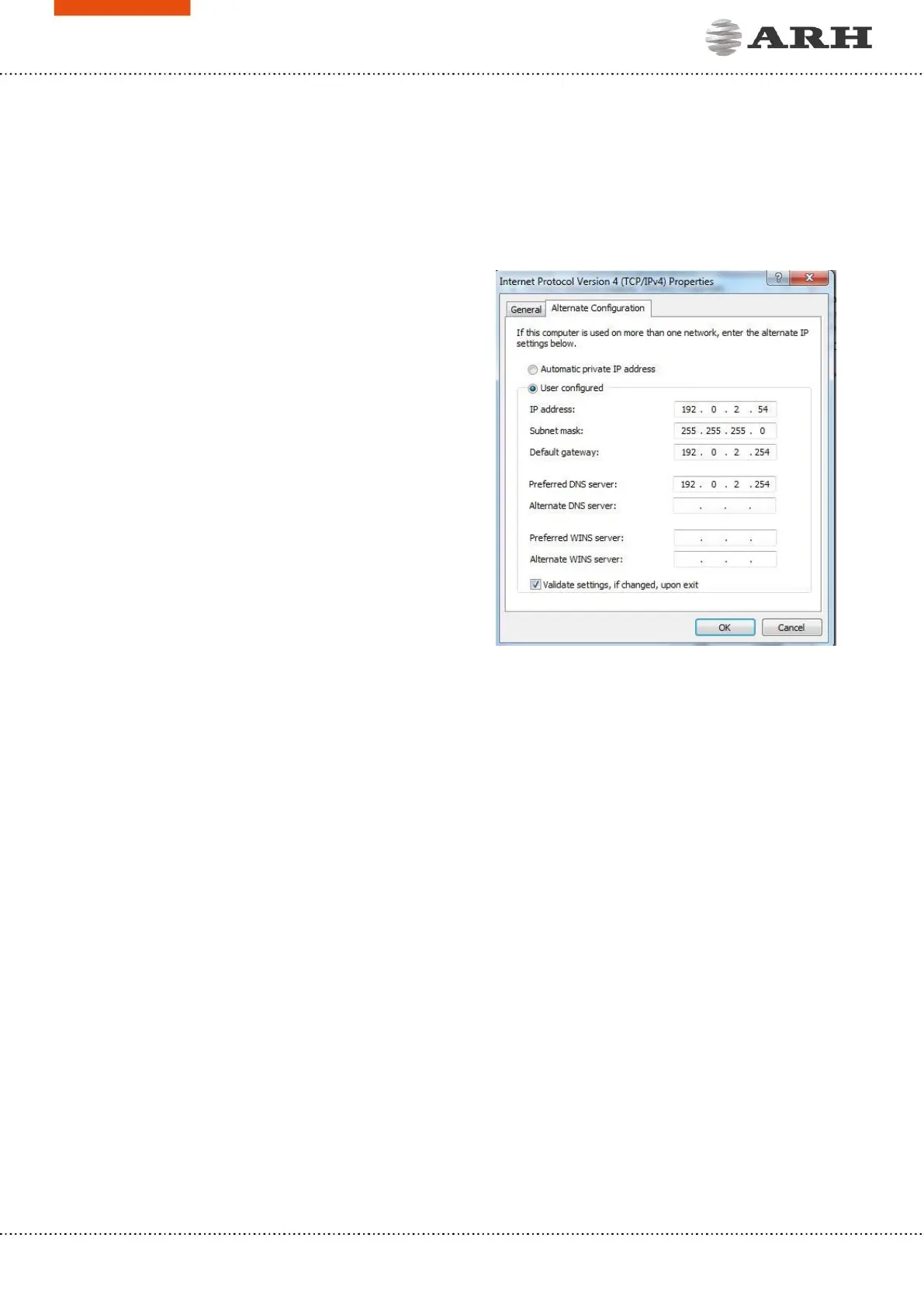
6. Select Obtain an IP address automatically and click on the Alternate Configuration tab.
1. Select User configured and enter an IP address (e.g.:192.0.2.54). The Subnet mask should
be 255.255.255.0 as shown in
Figure 1.
2. Click OK in the opened windows to close them.
LINUX
1. Open a terminal.
2. Enter the ifconfig command to see the reserved Ethernets (e.g. eth0).
3. Enter the following command: ifconfig ethY 192.0.2.25
where Y is a free eth (e.g. eth1) and 192.0.2.25 is a sample IP address.


 To Next Page