82 83
CZ CZ
will download (Fig. 5) to your watch face list – “My watch
faces” and then tap on it to upload it into your watch.
Watch face settings
Successfully setting up the watch face requires that the
watch and the mobile phone be charged sufficiently.
In the application, tap on the “Watch face settings”
(Fig. 3), then on the tab “Custom watch face” and next
on the displayed watch face (Fig. 6). Then tap on “Select
picture” (Fig. 7) and take a photo or select an image
directly from your phone that you want to save. Crop the
image and save it by tapping on “Crop”. (It may differ
depending on model.) You may change the colour as
desired and tap on “Use watch face” (Fig. 7). The image will
be uploaded to the watch. In the event of an error message
during the upload, please charge the phone and the watch
and repeat the process.
Display activation by twisting the wrist
In your phone’s Glory Fit app, tap on “Wrist activation”.
(Fig. 3) and activate the function (Fig. 8).
Language settings
In Glory Fit on your phone, tap on Universal settings –
Language in the “Device” folder and select the language
of your choice.
Watch controls
Press and hold the side button to turn the watch on/off.
Press the side button briefly to turn on the display or to
return to the menu.
Swipe from left to right to show a function menu.
Swipe from right to left to show basic stats and selected
functions.
Swipe from top to bottom to show the quick settings menu.
Swipe from bottom to top to display the messages page.
Swipe from bottom to top then from top to bottom to
switch between functions.
A short tap activates the function of your choice.
To avoid damage, always press the side button gently
and do not twist it.
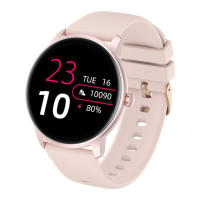
Watch face
Change the watch face
Holding your finger on the display shows an overview of
watch faces to select from by swiping from right to left.
Tap on the watch face of your choice to select it.
Other watch faces can be added directly from the app. In
the app, tap on “Watch face settings” (Fig. 3) and from the
gallery select the watch face of your choice (Fig. 4) that you
EN EN


 To Next Page