FAB
I
ntelligent
C
ontrollerr
a. Select the input/output or function block with and keys;
b. Press OK key to conrm the selection;
c. Press ESC key to return to the previous step.
4.1 FAB status display
Fig. 4.2 Status Display Frame
4.2 Password conrming
Press ESC and OK simultaneously at the appearance of the Status Display Frame
as shown in Fig. 4.2, then the FAB enter the Password Conrming Frame, as shown
in Fig. 4.3.
Now input the password value for FAB. The cursor stays at the highest digit of
the password, and you can change the digit value (0~9) with the
and
keys (when you initially press
or key, the password value is 0). Then
you can use the
and keys to change the password input position and
input the remaining digit values. After a proper password has been input, you
will enter the Editing Frame shown in Fig4.4. But if the password is incorrectly
input for three times, the Status Display Frame, as shown in Fig. 4.2, will pres-
ent.
I:
Q:
Fig. 4.3 Password Conrming Frame
verify
users
password
XXXX
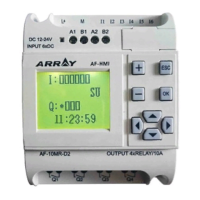
After the power supply is switched on, the LCD panel will display a frame (Fig.
4.2), which is the Status Display Frame:
The upper line I contains the status values of inputs 1 ~ 6.
The lower line Q contains the status values of outputs 1 ~ 4.
(* indicates ON, i.e. status 1, □ indicates OFF, i.e. status 0)
42
SA
12:36:58
*



 To Next Page