6
SMART STREAM
9.9 CHOICE OF SOURCE
Method 1: by pressing the desired button at the bottom of the ‘Browse’ screen.
Method 2: by briefly pressing the Reset-button on the device, the Smart Stream will switch from one source to the
other.
9.10 RESETTING THE FACTORY SETTINGS
Hold the Reset button (for 8 seconds) to restore the device to the factory settings.
9.11 UPDATING FIRMWARE
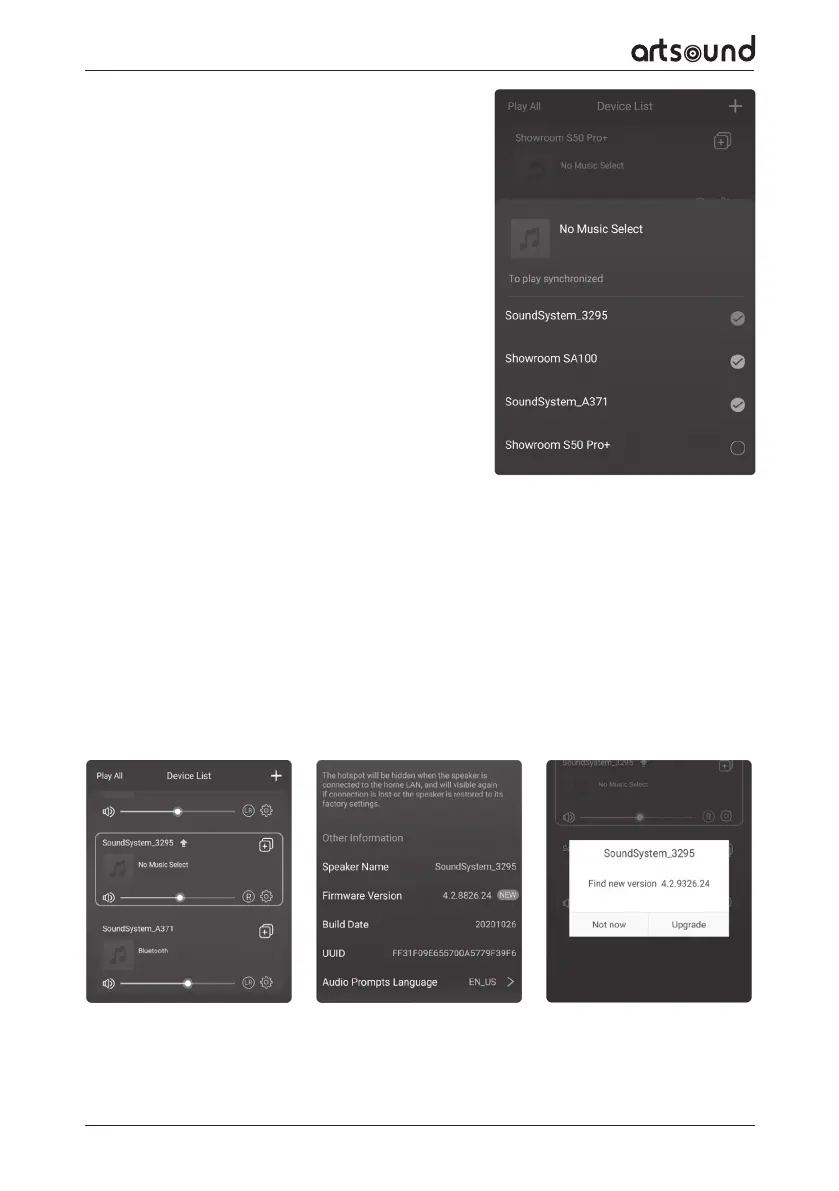
If new firmware becomes available, you will be informed by means of a notification. Click on the notification to
start the firmware update. This will take several minutes. It is recommended to update the firmware when an
update becomes available. Not only will this correct bugs in the performance, but also it is possible that new
functions or services are added.
9.8 MULTIROOM AND MULTIZONE
Users are able to group multiple rooms and zones in the
application. You can, for instance, group devices 1, 2 and 3 to
synchronously play the same music, or group devices 1 and 2 as
zone A and devices 3 and 4 as zone B, and play dierent music
in zones A and B.
Please note: this is possible only when using dierent
ArtSound Smart-devices!
In order to group a device, you click on the “+” sign of the
device that you wish to use as master device.
A list will appear containing available devices and now you can
select the device or devices that you wish to add. Click on the
Ready button once you are finished. The grey check mark rep-
resents the master-device and the green check mark represent
the slave-device.
To remove a device from the group, you click on the “+” sign
once more, to have the list of devices shown, and remove the
desired device(s). Then click on the Ready button to confirm.


 To Next Page