4 Aruba 610 Series Campus Access Points | Installation Guide
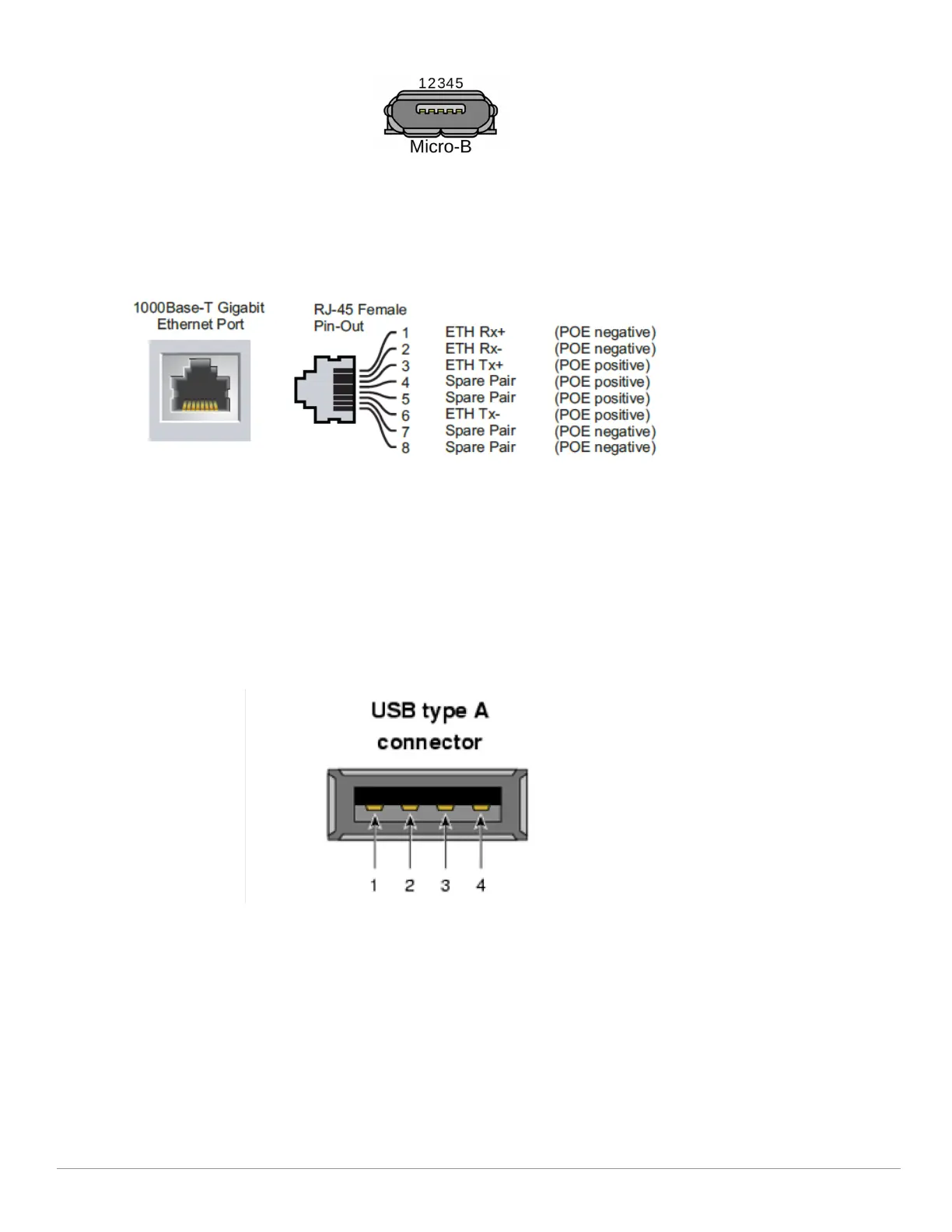
Figure 5 Micro-B Port Pin-out
Ethernet Ports
The 610 Series access points are equipped with two active Ethernet ports (E0 and E1). Both ports are 100/1000/2500/5000
Base-T, auto-sensing MDI/MDX, which supports uplink connectivity when linked by an Ethernet cable. Refer to Figure 6 for
a detailed port pin-out.
Figure 6 Ethernet Port Pin-Out)
Kensington Lock Slot
The 610 Series is equipped with a Kensington lock slot for additional physical security.
USB Interface
The USB 2.0 interface located on the top of the is 610 Series compatible with selected cellular modems and
other peripherals. When active, this port can supply up to 5W/1A to a connected device.
Figure 7 610 Series (USB port)
Reset Button
The reset button located on the bottom of the device can be used to reset the access point to factory
default settings or turn off/on the LED display.
Use one of the following methods to reset the access point to factory default settings:
To reset during normal operation:
1.Hold the reset button for more than 10 seconds while the access point is running.
2.Release the reset button.
To reset during power up, hold the reset button while the access point is powering up.
The system status LED will flash again within 15 seconds indicating that the reset is completed. The access point will
now continue to boot with the factory default settings.
1: NC
2: RXD
3: TXD
4: GND
5: GND



 To Next Page