Aruba 610 Series Campus Access Points | Installation Guide 3
LEDs
The hidden LED displays located on the front panel of the access point indicate the following functions:
System Status
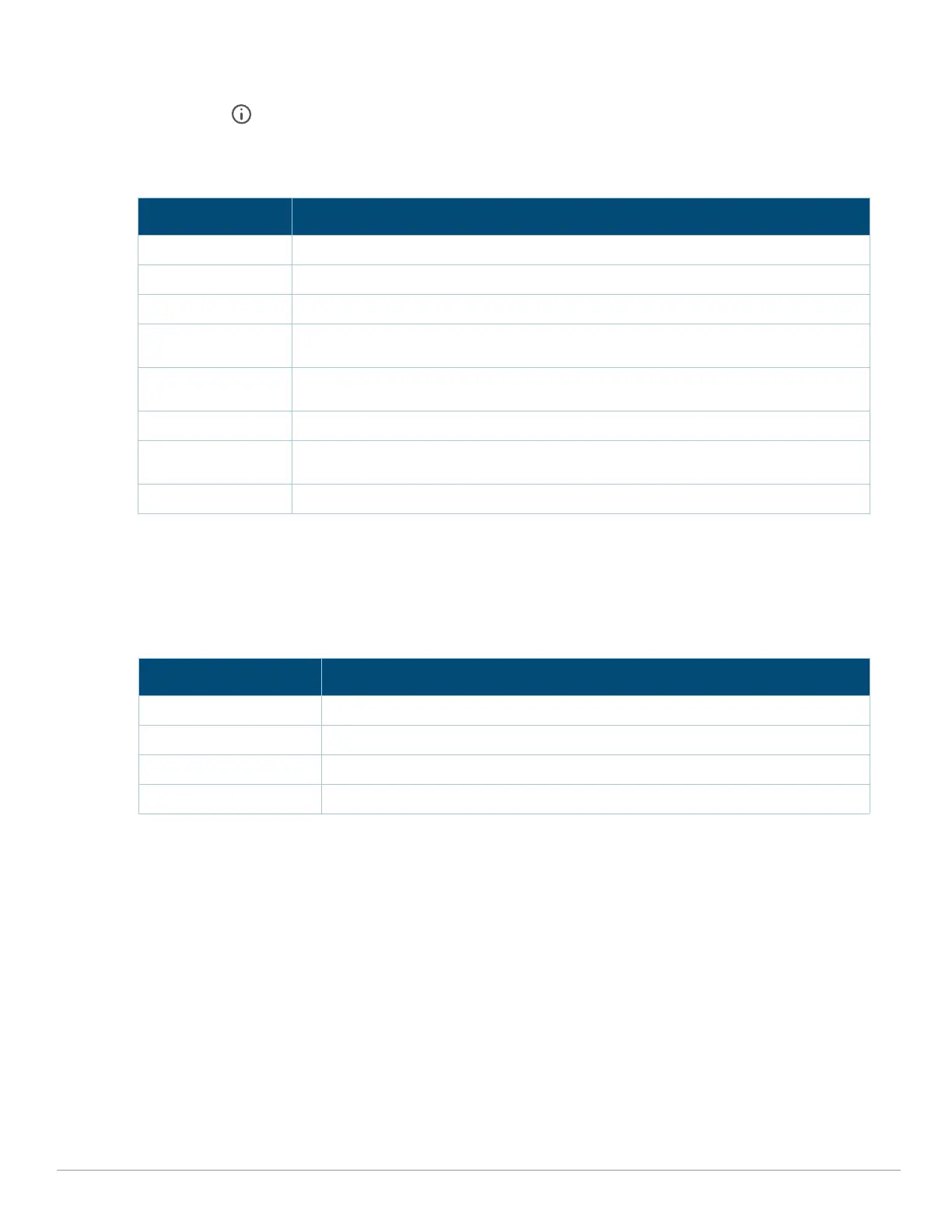
The System Status LED indicates the operating condition of the access point. See Table 1.
1 Blinking: one second on/one second off, 2 second cycle.
2 Flashing Pattern 1: mostly on, briefly off, 2 second cycle.
3 Flashing Pattern 2: mostly off, briefly on, 2 second cycle.
Radio Status LED
The Radio Status LEDtable below is applicable to 2G, 5G, and 6G labels.
LED Display Settings
The LEDs have three operating modes that can be selected in the system
management software:
Default mode: Refer to Table 1 and Table 2
Off mode: LEDs are off
Blink mode: all LEDs blink green (synchronized)
To force the LEDs into off mode or back to software defined mode, press the reset button for a short duration (less than
10 seconds).
Console Port
The console port is a Micro-B connector is located on the back of this device. Use the proprietary AP-CBL-SERU cable or
AP-MOD-SERU module (sold separately) for direct management of this device when connected to a serial terminal or
laptop.
Table 1 System Status LED
Color/State Meaning
Off Device powered off
Green- blinking
1
Device booting; not ready
Green- solid Device ready; fully functional, no network restrictions
Green- flashing
pattern 1
2
Device ready; fully functional, uplink negotiated in sub-optimal speed (<1Gbps)
Green- flashing
pattern 2
3
Deep sleep mode
Amber- solid Device ready, restricted power mode (IPM restrictions applied), no network restrictions
Amber- flashing
pattern 1
Device ready, restricted power mode (IPM restrictions applied), uplink negotiated in
sub-optimal speed (<1Gbps)
Red- solid System error condition - Immediate action required
Color/State Meaning
Off Device powered off, or radio disabled
Green- solid Radio enabled in access (AP) mode
Green- flashing off Radio enabled in uplink or mesh mod
Amber- solid
Radio enabled in monitor or spectrum analysis mode



 To Next Page