
 To Next Page
K
Kathryn RiosAug 6, 2025
Why my ASDA tech ATA22AA012A does not function?
- SShane MooreAug 6, 2025
If your ASDA tech Radio does not function, it may be due to an interrupted power supply. Check the power supply or try changing the batteries.

Why my ASDA tech ATA22AA012A does not function?
If your ASDA tech Radio does not function, it may be due to an interrupted power supply. Check the power supply or try changing the batteries.
What to do if my ASDA tech ATA22AA012A Radio has no sound?
If your ASDA tech Radio has no sound, the volume might be set to 0. Try adjusting the volume to a higher level.
What to do if my ASDA tech Radio has poor reception?
If your ASDA tech Radio has poor radio reception quality, it might be due to the radio reception itself. Try placing the device in a different location and readjust the antenna to improve the signal.
Warning about excessive sound pressure from earphones causing hearing loss. Advise setting to moderate volume.
Intended for audio entertainment only. Use in moderate climates and room temperature. Avoid extreme conditions.
Use quality shielded cables. Do not expose to rain/moisture. Handle with care to avoid damage.
Keep packaging material away from children to prevent suffocation.
Ensure sufficient ventilation space. Do not block openings. Avoid proximity to heat sources.
Do not move while connected. Avoid sharp objects. Do not expose to liquids or flames.
Refer all servicing to an authorized agent. Do not attempt self-repair.
Check voltage compatibility. Use provided adapter. Disconnect during faults, storms, or when not in use.
Caution for explosion risk with improper battery replacement. Use correct type and replace entire pack.
Ensure correct polarity. Remove batteries when not in use. Do not recharge non-rechargeable batteries.
Never expose batteries to heat or fire. Keep out of reach of children. Seek medical attention if swallowed.
Diagram showing external components labeled A through Q, including antenna, controls, jacks, and power adaptor.
List and description of all controls and components (A-Q) including antenna, buttons, knobs, sockets, and adaptor.
Lists the items included in the product package: 1 x Power adaptor, 1 x User manual.
Instructions for unpacking, inspecting contents for completeness and damages before initial use.
Setting the default language and connecting the unit via mains power or batteries.
Guide to adjusting the antenna, turning the unit on/off, and adjusting the volume.
Selecting DAB mode, automatic scanning for stations, and storing them alphabetically.
Navigating and selecting available DAB/DAB+ stations using Prev/Next buttons and confirming with Select.
Initiating a full scan for DAB/DAB+ stations to update the station list.
How to view detailed information about DAB/DAB+ stations during playback using the Menu button.
Storing up to 30 preset DAB/DAB+ stations using the Preset button and Select.
Accessing the Preset menu to recall stored DAB/DAB+ stations using Prev/Next and Select.
Switching to FM mode and selecting stations via manual or automatic frequency tuning.
Accessing menu options like Station list, Full scan, DRC, EQ Setup, System Setting, and Alarm Setting in DAB mode.
Storing up to 30 preset FM stations using the Preset button and Select.
Accessing the Preset menu to recall stored FM stations using Prev/Next and Select.
Accessing FM menu options like Scan setting, Audio setting, EQ Setup, System Setting, and Alarm Setting.
Accessing System Setting via Menu button to configure Sleep, Time/Date, Backlight, Language, etc.
Setting the sleep timer duration from 15 to 90 minutes or turning it off.
Manually setting time/date, configuring auto-update, and choosing 12/24 hour or date format.
Configuring display backlight timeout, on-level brightness, and dim-level brightness.
Selecting the unit's language and restoring factory default settings.
Viewing software version and customizing sound via My EQ Setup (Bass and Treble).
Configuring alarm 1 or 2, wake-up time, duration, tone (Buzzer, DAB, FM), and frequency (Daily, Weekdays, etc.).
Setting snooze periods for alarms and turning off the alarm tone.
Using the radio as a Bluetooth speaker for external devices, including pairing and playback.
Details on Bluetooth version 4.2 compatibility and supported profiles like A2DP and AVRCP.
Step-by-step guide to pairing playback devices with the radio, including range and connection ending.
Instructions for starting music playback, skipping tracks, and adjusting volume via Bluetooth connection.
Briefly pressing Menu/Info button to display radio text, station name, time, etc.
Guidelines for cleaning the unit, emphasizing unplugging, using a damp cloth, and avoiding harsh chemicals.
Table of common issues like product not functioning or no sound, with possible causes and solutions.
Details on external power adapter input/output, power consumption, and battery power requirements.
Frequency ranges for DAB and FM, and types of antennas used for DAB/FM and Bluetooth.
Product dimensions, weight, speaker output, Bluetooth power, earphone jack type, and operating temperature/humidity.
Statement of compliance with Directive 2014/53/EU for the RETRO RADIO equipment.
Instructions on proper disposal of electronic equipment, advising against unsorted municipal waste.
Recommendations for environmentally friendly battery disposal, using collection systems or contacting the dealer.
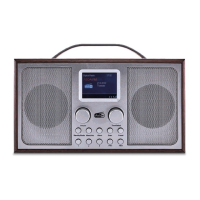
The ASDA tech AT RETRO RADIO, model ATA22AA012A, is a portable audio entertainment device designed for household use. It features both DAB/DAB+ and FM radio capabilities, along with Bluetooth connectivity for wireless music streaming. The radio is powered by an external adaptor or by batteries, offering flexibility for use in various settings.
The primary function of the AT RETRO RADIO is to provide audio entertainment through radio reception and Bluetooth streaming.
 General