3.2 INSTALLING AND USING BLUETOOTH
From MAINT press NEXT and INSTALL will be shown, press NEXT, Select INSTALL and ACCEPT the current Language.
INSTALL CHLORINATOR will be shown, press NEXT and INSTALL BLUETOOTH will be shown.
Press ACCEPT and the 4 digit BLUETOOTH ACCESS CODE will be shown. This code needs to be retained and entered into
the ChlorinatorGo App.
The “ChlorinatorGo” App can be downloaded from the Apple App store or from The Google Play store.
Once the App is installed and opened, press on the “+” symbol and enter the ACCESS CODE from above and press save.
You can then enter a name for your Chlorinator.
From the front page of your App, press on the name of your chlorinator and your phone will connect to the chlorinator and
display the HOME page.
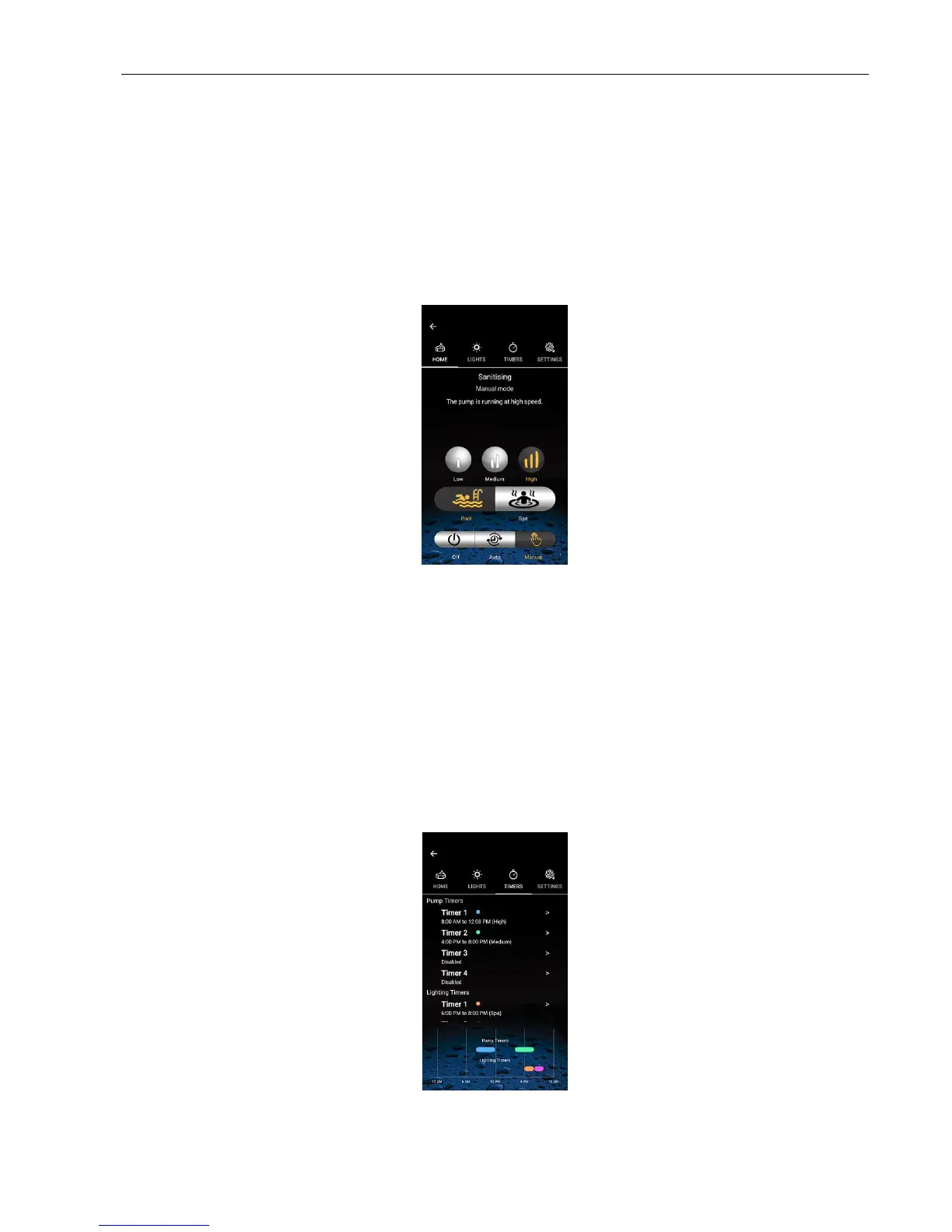
From this page you can turn the Chlorinator On, Off or to Auto, select Pool or Spa Mode and set the pump speed (if a
compatible AstralPool pump is installed)
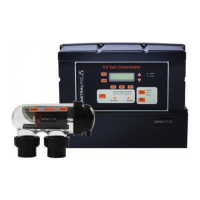
You can then select the LIGHTS page (if a compatible Connect LITE or Connect LITE+ is installed) or select the TIMERS page
(if Timers Enabled” was selected during Installation)
The Chlorine set point and other Maintenance tasks can be selected from the SETTINGS page.



 To Next Page