41
Using the Notebook PC 4
Inserting a PC Card (PCMCIA)
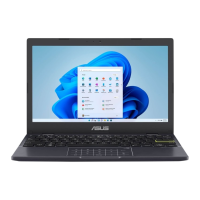
1. Press in the toggle eject button and release.
The recessed spring loaded toggle button will
extend when pushed in and released.
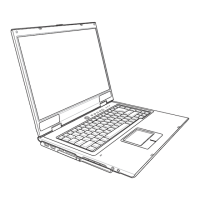
2. Press the extended button again to eject the PC
Card. Carefully pull the ejected PC card out of
the socket.
Removing a PC Card (PCMCIA)
To remove the PC card, first remove all cables or adapters attached to the PC card, then double-click the
PC card icon on the Windows taskbar and stop the PC card you want to remove.
1
2
Be sure the PC card is
level when inserting.
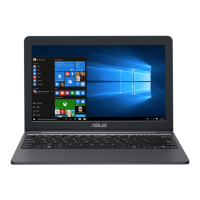
3. Carefully connect any cables or adapters
needed by the PC card. Usually connectors can
only be inserted in one orientation. Look for a
sticker, icon, or marking on one side of the con-
nector representing the top side.
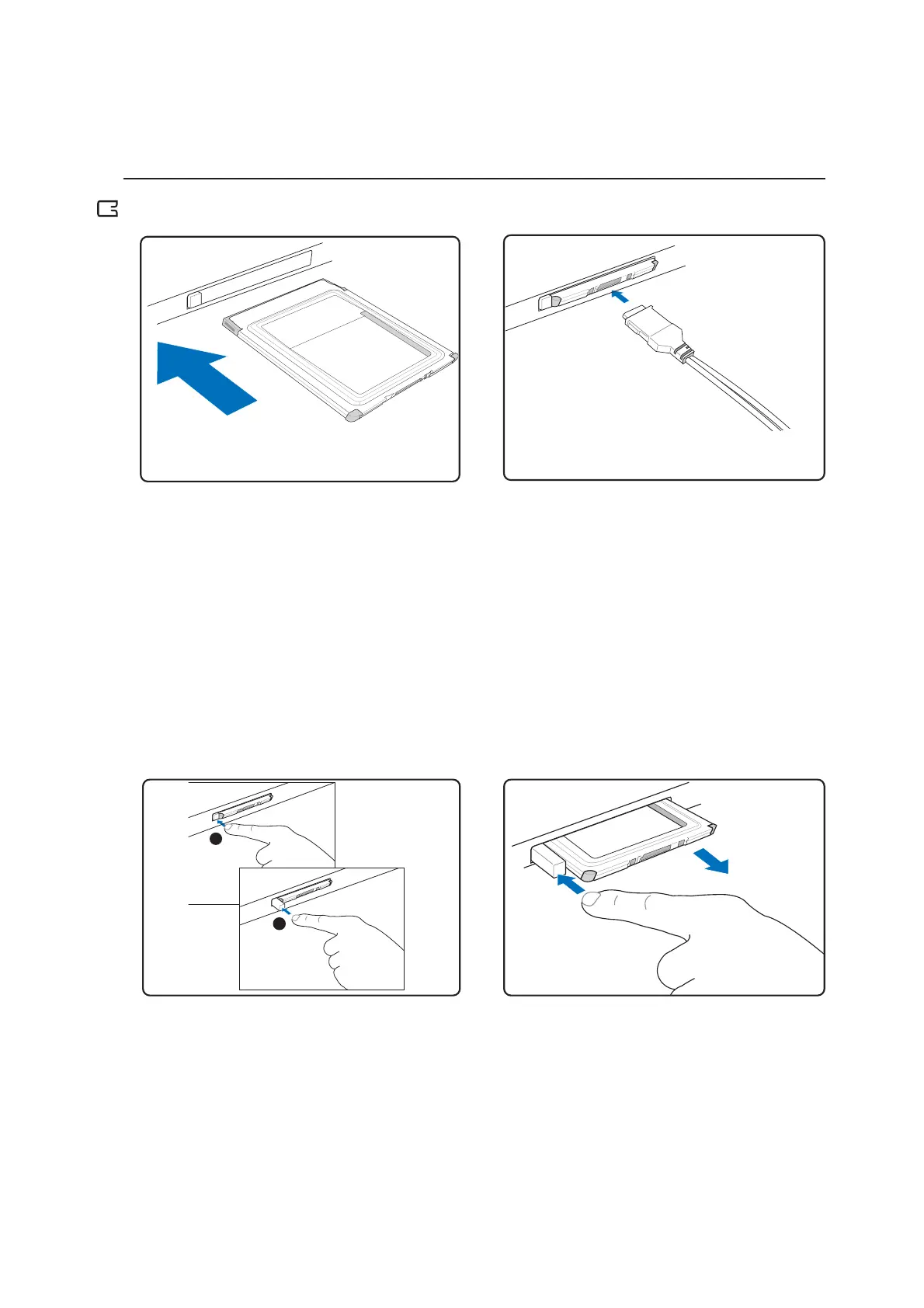
1. If there is a PC Card socket protector, remove it
using the “Removing a PC Card” instructions
below.
2. Insert the PC card with the connector side first
and label side up. Standard PC cards will be
flush with the ASUS Notebook PC when fully
inserted.



 To Next Page