53
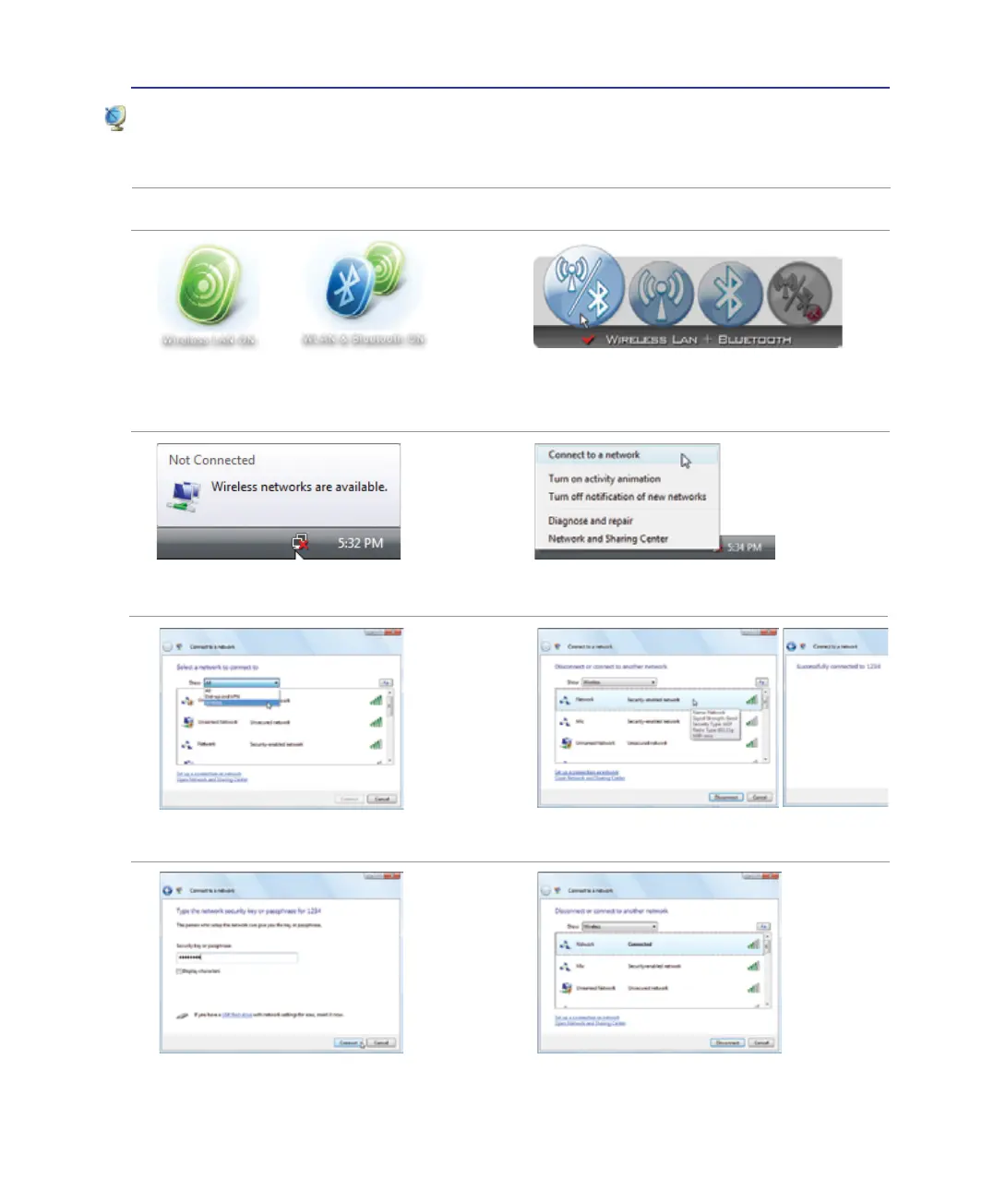
2. Press [FN F2] repeatedly until Wireless
LAN ON or WLAN & Bluetooth ON is
shown.
Windows Wireless Network Connection
Connecting to a network
4. Right click on the network icon and
select Connect to a network.
3. You should see the “Not Connected”
network icon.
5. Select “Show Wireless” if you have
many networks in your area.
6. Select the wireless network you want to
connect to.
7. When connecting, you may have to enter
a password.
8. After connection has been established,
“Connected” will be shown.
2b. Or double click the Wireless Console icon on
the taskbar and select either the Wireless LAN
+ Bluetooth or just the Bluetooth.
1. Switch ON the Wireless function if necessary for your model (see switches in Section 3).
Using the Notebook PC 4



 To Next Page